This is the full developer documentation for Membase Docs
# Membase Docs
> Create memory from your material, use it in your AI apps, or build an integration with the API. Start with the task you want to finish.
Create memory from your material, use it in your AI apps, or build an integration with the API. Start with the task you want to finish.
Membase keeps memory from your notes, files and conversations so you can use it with your assistant and the AI apps you connect. You choose what each app can read and can revoke access at any time.
## What do you want to do?
[Section titled “What do you want to do?”](#what-do-you-want-to-do)
[Use Membase](/use/getting-started/quickstart/)Create a Memory, add your material, run it, and ask a question about what it learned.
[Connect your AI](/connect/)Use your memory in Claude, ChatGPT, Cursor or another AI. Choose MCP or a skill, set it up, and verify access.
[Build with Membase](/build/getting-started/api-quickstart/)Use Python, TypeScript or REST to add a document, wait for learning, and search the result.
New to the product? Read [Concepts](/concepts/), or go straight to the [quickstart](/use/getting-started/quickstart/).
## Common tasks
[Section titled “Common tasks”](#common-tasks)
| I want to | Start here |
| --------------------------------------------- | -------------------------------------------------------------- |
| bring in files, Notion pages or conversations | [Sources](/use/bring-your-material-in/bring-material-in/) |
| keep a Memory up to date | [Schedules](/use/automate-and-troubleshoot/schedules/) |
| chat with my assistant from Telegram | [Telegram](/use/use-your-assistant/telegram/) |
| change what an app or key may use | [Connect and developer keys](/use/manage-your-memory/connect/) |
| understand a failed run | [Activity](/use/automate-and-troubleshoot/activity/) |
| put memory behind my own model | [Build with Membase](/build/) |
[Open Membase](https://www.app.membase.io) · [FAQ](/faq/) · [What’s new](/whats-new/)
Note
For AI readers, [`/llms.txt`](/llms.txt) indexes the documentation and [`/llms-full.txt`](/llms-full.txt) has all of it in one file.
# Build with Membase
> Start with one working API call sequence, then learn memory operations, integrate your model, and look up SDK and API details.
Start with one working API call sequence, then learn memory operations, integrate your model, and look up SDK and API details.
Use Membase from code to add material to a person’s memory and retrieve it for your app. Calls use that person’s developer key and the Memories they grant it. Python, TypeScript and REST all reach the same service at `https://api.app.membase.io`.
**Start with the [quickstart](/build/getting-started/api-quickstart/).** It creates one document, waits for learning to finish, and searches the result. The example includes the checks needed to distinguish an empty Memory from a failed search.
## Choose your next task
[Section titled “Choose your next task”](#choose-your-next-task)
| Task | Guide |
| ------------------------------------------------------------------ | ----------------------------------------------------------- |
| Add facts or documents, search, read the profile, forget or delete | [Memory operations](/build/guides/memory-operations/) |
| Serve multiple people | [Multi-user isolation](/build/guides/multi-user-isolation/) |
| Configure timeouts, retries or SDK methods | [SDKs](/build/reference/sdk-quickstart/) |
| Set access and reach, rotate or revoke a credential | [Authentication](/build/reference/authentication/) |
| Look up an endpoint or response shape | [API reference](/build/reference/api-reference/) |
| Fix a failed request or unread document | [API troubleshooting](/build/reference/troubleshooting/) |
## Integrations
[Section titled “Integrations”](#integrations)
| Your application | Guide |
| --------------------------------------------------- | ------------------------------------------------------------ |
| Claude API | [Claude API](/build/integrations/claude-api/) |
| OpenAI API or a function-calling model | [OpenAI API](/build/integrations/openai-api/) |
| An agent framework that speaks MCP | [MCP frameworks](/build/integrations/mcp-frameworks/) |
| A coding assistant building the integration for you | [AI coding assistants](/build/integrations/ai-coding-tools/) |
If you want to give an existing AI app your memory without building an integration, use [Connect your AI](/connect/).
## Understand the model
[Section titled “Understand the model”](#understand-the-model)
In the API, a **container** is one *Memory* in the app, a **document** is raw material it reads, and a **memory** is a learned fact or a profile fact. A container is not an end user.
[Platform overview](/build/concepts/platform-overview/) maps these objects to the app. [How Membase works](/build/concepts/how-membase-works/) explains learning, retrieval and model requirements. The [engine benchmark report](/evaluation/benchmarks/) is separate from API setup and performance guidance.
# How Membase works
> How documents become memory, how search behaves, and how models and access settings affect API calls.
How documents become memory, how search behaves, and how models and access settings affect API calls.
This page describes the behavior an integration needs to handle: learning from documents, searching memory, choosing a model and checking access.
## Accounts and Memories
[Section titled “Accounts and Memories”](#accounts-and-memories)
Each account owns its Memories, sources and access settings. In the API, a `container` is one Memory within that account. Use the account owner’s credentials and select the appropriate container; do not use containers as isolation boundaries between different users. [Multi-user isolation](/build/guides/multi-user-isolation/).
## Material becomes memory in a learning turn
[Section titled “Material becomes memory in a learning turn”](#material-becomes-memory-in-a-learning-turn)
A **Memory** has an instruction describing what to retain and sources containing material to process. Adding or syncing a source does not mean the Memory has learned its contents.
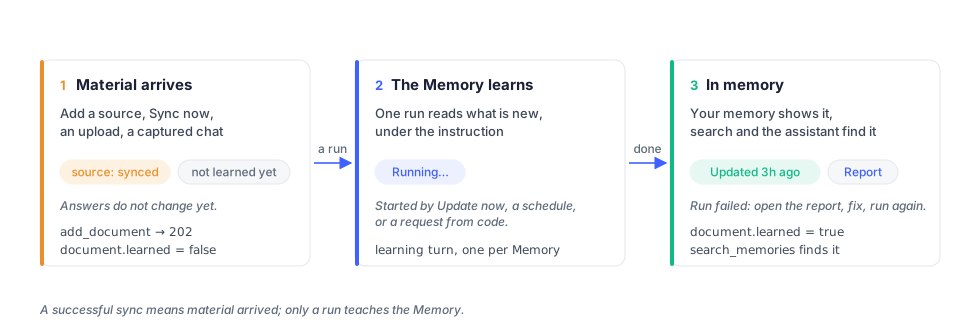
Select **Update now** in the app or configure a schedule to process sources. The API’s `add_document` also requests learning and returns `202`; this acknowledges acceptance, not completed learning. Check the document’s `learned` flag before searching for the new content. If processing fails, resolve the reported issue and update the Memory again. [Memory operations](/build/guides/memory-operations/).
## A search is a turn
[Section titled “A search is a turn”](#a-search-is-a-turn)
`search_memories` retrieves relevant passages from the selected Memories. Each result names its container. `ask_agent` returns an agent’s answer and is available only to credentials that expose an agent.
* **Allow time for startup and retrieval.** A request after inactivity can take longer. The SDKs default to a 90-second timeout; some requests may need longer.
* **Check partial failures.** An HTTP `200` can still contain `containers[].error`. Do not report an empty search as “nothing found” until you have checked those errors.
* **Check what the limit left out.** A Memory marked `containers[].truncated` had passages that did not fit `limit`; its silence is about the budget, not about what it knows. Raise `limit` or name that Memory with `container` to hear it.
* **Use the supported search fields.** Search accepts `q`, an optional `container` and a `limit`. Metadata filters are not supported; include relevant constraints in the query.
See [API troubleshooting](/build/reference/troubleshooting/) for timeouts and unavailable Memories.
## The profile
[Section titled “The profile”](#the-profile)
The profile holds information about the user separately from topic-specific Memories. `static` contains lasting information and preferences; `dynamic` contains recent context. Read it with `get_profile` when the credential grants profile access. Use `add_memory` with `static=true` to add profile information.
## Models
[Section titled “Models”](#models)
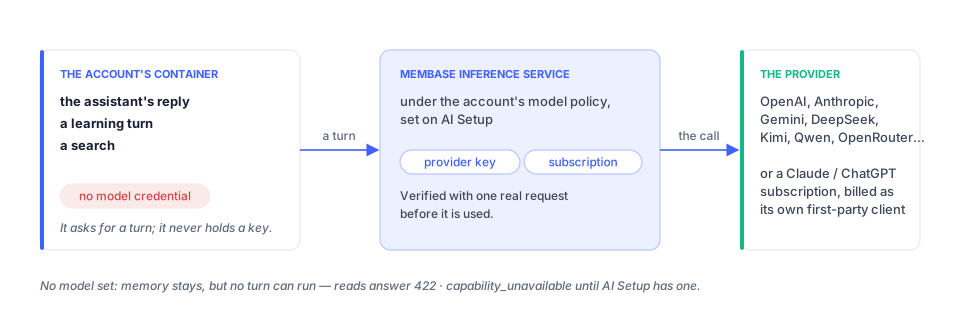
Learning, hosted search and assistant replies require an available model. The account owner configures supported providers or subscriptions in **AI Setup** and selects the assistant’s model source in its settings.
When a model is unavailable, stored memory remains, but learning or search may fail. A turn can return `422` with `code: capability_unavailable`; search may instead report an error for each affected Memory in `containers[].error`. A document can remain unread until the issue is resolved and learning completes. A free-plan account may report `reason: dormant` after its free allowance is used. Follow the returned recovery guidance.
## Access and confirmation
[Section titled “Access and confirmation”](#access-and-confirmation)
Developer keys have an access level, selected Memories and an expiry. MCP consent grants read access to the Memories the owner approves. Profile access is a separate setting. Changes to permissions apply to subsequent requests using the credential.
`delete_document` and `forget_memory` require Full access and `confirm=true`. Obtain the owner’s confirmation before submitting either operation. Revoking a credential prevents future access through it; it does not erase results already received by an external client. [Authentication](/build/reference/authentication/) describes the permission rules.
## Where to go next
[Section titled “Where to go next”](#where-to-go-next)
| Task | Guide |
| -------------------------------- | ------------------------------------------------------- |
| Make a first call | [Quickstart](/build/getting-started/api-quickstart/) |
| Add, retrieve or remove content | [Memory operations](/build/guides/memory-operations/) |
| Look up an operation | [API reference](/build/reference/api-reference/) |
| Map the app to API concepts | [Platform overview](/build/concepts/platform-overview/) |
| Connect an AI app | [Connect your AI](/connect/) |
| Review engine evaluation results | [Benchmarks](/evaluation/benchmarks/) |
# Platform overview
> The hosted Membase at app.membase.io as your code meets it: the three nouns, what each screen of the app is to the API, credentials, one account per person, limits, the Marketplace, and what can be undone.
The hosted Membase at app.membase.io as your code meets it: the three nouns, what each screen of the app is to the API, credentials, one account per person, limits, the Marketplace, and what can be undone.
The Memory Platform is the hosted Membase at `https://www.app.membase.io`. A person hands it material once; it keeps a living memory of that material; every AI they connect, and every key they mint, reads the same memory. The mechanism is on [How Membase works](/build/concepts/how-membase-works/); this page is the product around it, written for someone whose code will meet what the person sees. The screens themselves, one page each, are in the **Use Membase** tab.
## The three nouns
[Section titled “The three nouns”](#the-three-nouns)
| API | In the app | What it is |
| ------------- | ------------------------------ | --------------------------------------------------------------------------------- |
| **container** | a *Memory* | one named space of memory, with the agent that keeps it and the material it reads |
| **memory** | an item on a Memory’s page | one fact the container holds, or one fact of the user’s profile |
| **document** | a row under a Memory’s sources | one piece of raw material a container read: a file, a note, a page |
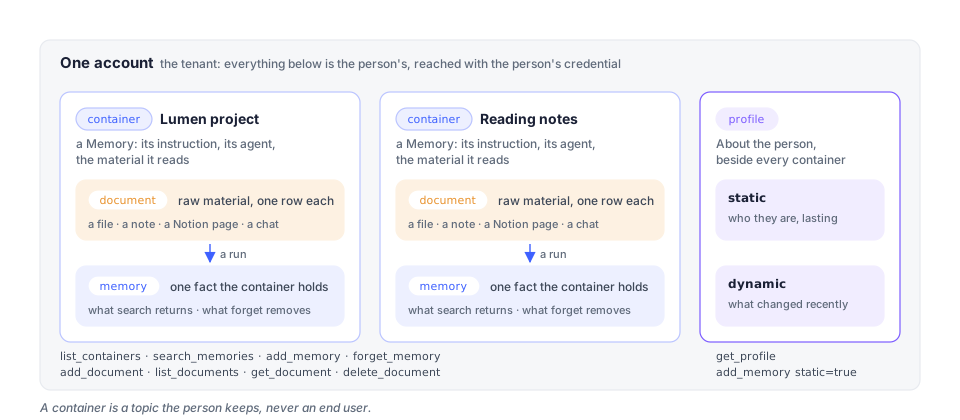
Plain verbs: `list`, `search`, `get`, `add`, `delete`, `forget`, `ask`. [Memory operations](/build/guides/memory-operations/) walks them; the [API reference](/build/reference/api-reference/) has every operation.
A **profile** sits beside the containers: the standing facts the assistant keeps about the user (`static`) and the most recently changed ones (`dynamic`). `get_profile` reads it; `add_memory` with `static=true` writes to it.
## The screens
[Section titled “The screens”](#the-screens)
| Screen | The person uses it to | Your code meets it as |
| ------------------------------------------------------ | ------------------------------------------------------------------------------------------ | ----------------------------------------------------------------------------------------------------------- |
| [Home](/use/use-your-assistant/home/) | talk to the assistant, the one agent that is theirs by default; reach it on Telegram | the profile it keeps; the assistant’s own memory is not a container |
| [Memory](/use/manage-your-memory/memory/) | make, run and inspect Memories | `list_containers`, `search_memories`, the items `forget_memory` removes; `learned` turning true after a run |
| [Files](/use/bring-your-material-in/files/) | keep files, and hand folders, uploads, Notion pages and captured conversations to a Memory | `add_document`, `list_documents`, `get_document`, `delete_document` |
| [Studio](/use/advanced/studio/) | edit a Memory’s pipeline canvas | nothing; a canvas run as an endpoint is `workflow_invoke` over MCP |
| [Agents](/use/advanced/agents/) | build agents beyond the assistant | `ask_agent` on an agent-endpoint credential |
| [Schedules](/use/automate-and-troubleshoot/schedules/) | run Memories on a cadence | `learned` turning true without a call of yours |
| [Activity](/use/automate-and-troubleshoot/activity/) | see what ran | the run a `202` from `add_document` started; a key’s own calls are on the key’s page |
| [AI Setup](/use/account-and-models/ai-setup/) | choose the account’s model | `422 · capability_unavailable` when there is none |
| [Connect](/use/manage-your-memory/connect/) | let an AI app read Memories, mint keys | consent tokens and developer keys: [Authentication & Scopes](/build/reference/authentication/) |
| [Marketplace](/use/share-and-trade/marketplace/) | sell and buy access to a Memory | subscriptions, `ask_agent` |
| [Settings](/use/account-and-models/settings/) | plan, export, delete | `422 · reason: dormant` on a free plan whose turns are spent |
## Credentials
[Section titled “Credentials”](#credentials)
Every call carries a bearer: a **developer key** the owner minted, or a **consent token** an app received on the OAuth consent screen. A key has a level (Read, Read & write, Full access), a reach (the Memories it may use) and an expiry; a consent token is read-only and reaches what the user ticked. Both are managed by the account owner in **Connect**. [Authentication & Scopes](/build/reference/authentication/) has the whole model; the keys screen is under [Connect](/use/manage-your-memory/connect/#developer-keys) in the user guide.
A key’s calls are on the key’s page, not on Activity: **Usage** (calls in the last 30 or 7 days, how many were *refused*, the tool it calls most) and **Recent activity** (each call: tool, Memory, what came back, when; a refused call in red with the reason). The same numbers are on `GET /v1/api-keys/{id}/usage` with the owner’s session.
## One account per person
[Section titled “One account per person”](#one-account-per-person)
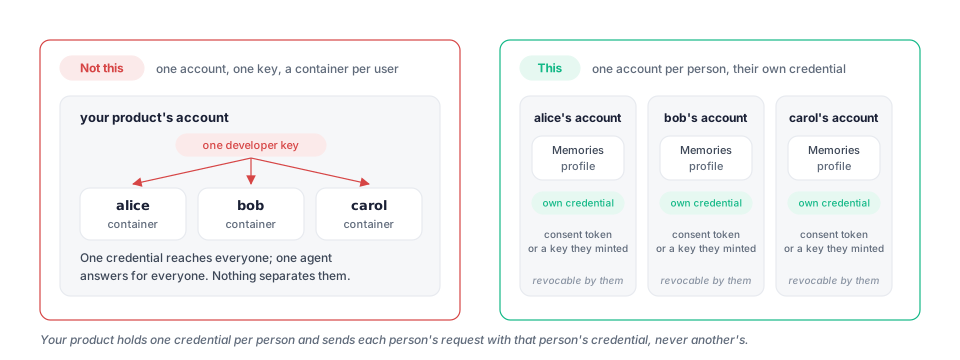
The account is the tenant. A container is a topic, not an end user. A product that serves many people gives each of them their own Membase account, and reads their memory with their own key or their own consent; there are no application-wide keys and no sub-tenant tags. [Multi-user isolation](/build/guides/multi-user-isolation/) has the patterns.
## Models
[Section titled “Models”](#models)
Every learning turn, every search and every assistant answer needs a model. The account chooses it under AI Setup: a key of its own for a provider, or a Claude or ChatGPT subscription. Follow the connection and verification steps shown in **AI Setup**. An account with no working model keeps its stored memory, but learning and hosted search need working agent turns. A search may return per-Memory failures in `containers[].error`; documents can remain unread. [How Membase works](/build/concepts/how-membase-works/#models).
## Limits and errors
[Section titled “Limits and errors”](#limits-and-errors)
Search can report per-Memory failures in `containers[].error` on an HTTP `200`. Check that field before treating an empty result as “nothing found.” [API troubleshooting](/build/reference/troubleshooting/) covers partial failures, deferred learning and timeouts.
| Status | Code | When |
| ------ | ------------------------ | -------------------------------------------------------------------------------------------------------- |
| 400 | `validation` | an empty `q`, both or neither of `content` and `url`, `container` omitted when more than one is in reach |
| 403 | `unauthorized` | outside the credential’s reach, or a verb above its level |
| 404 | `not_found` | an unknown document or memory id |
| 422 | `validation` | a missing or mistyped body field; read `code` to tell it from the row below |
| 422 | `capability_unavailable` | the account’s memory cannot run a turn here (no agent container, no model) |
| 422 | `reason: dormant` | a free-plan account whose free turns are spent |
| 429 | `rate_limited` | the account’s concurrent-turn budget; retry later |
Uploads through `add_document` are capped at 32 MiB per file, on every plan. An account on the free plan whose free turns are spent keeps its memory but cannot run turns until it brings a model of its own under AI Setup or moves to a paid plan.
## Marketplace
[Section titled “Marketplace”](#marketplace)
A listing is an agent endpoint (or a workflow endpoint): the buyer’s credential calls `ask_agent` (or `workflow_invoke`) and gets answers, never files. The earlier snapshot and live-memory listing kinds were retired and can no longer be created; a few pre-existing ones may still render for their buyers. Check the listing’s **Included access** section. [Marketplace](/use/share-and-trade/marketplace/).
## Stopping and undoing
[Section titled “Stopping and undoing”](#stopping-and-undoing)
Revoking a key or disconnecting an app changes subsequent access. It does not erase content already received by the client. Pausing a schedule stops future scheduled runs; subscription changes follow the terms and dates shown for that purchase or plan.
Deleting a Memory removes its stored content. Deleting a conversation removes the transcript but retains information already saved to memory. Deleting account data retains the sign-in identity. Review the confirmation and export data you want to keep before deleting. [Concepts](/concepts/#stopping-and-undoing).
# API quickstart
> Use Python, TypeScript or curl to add a document, wait until the Memory has learned it, and search the result.
Use Python, TypeScript or curl to add a document, wait until the Memory has learned it, and search the result.
This walkthrough adds one note to a Memory, waits for learning to finish, and searches for what it said. Choose Python, TypeScript or curl; each follows the same sequence.
You need a Membase account, a Memory you can write to, and a working model with available turns. Create a Memory in the [app quickstart](/use/getting-started/quickstart/) and check [AI Setup](/use/account-and-models/ai-setup/) if a run cannot use a model.
## 1. Create a key
[Section titled “1. Create a key”](#1-create-a-key)
In the app, open **Connect › Skills › Manage keys › Create key**. Name the key, choose **Read & write**, and select exactly one Memory under **Memory access** for this walkthrough. Choose an expiry and create the key. Copy the token while it is shown; it is shown only once. The profile permission is optional and is not needed for this example.
```bash
export MEMBASE_API_KEY="mbk_…"
```
The [key guide](/use/manage-your-memory/connect/#developer-keys) explains rotation and revocation. The examples call `https://api.app.membase.io`.
## 2. Add, wait, then search
[Section titled “2. Add, wait, then search”](#2-add-wait-then-search)
`add` returns `202` when material is accepted; it does not promise that learning has finished. Check `documents.get(id).learned` before searching for the new content. The examples stop on a failed learning run and have a polling limit, so they cannot wait indefinitely.
* Python
Install with `pip install membase-sdk`, save this as `quickstart.py`, and run `python quickstart.py` in the shell where you exported the key.
```python
import time
from membase import Membase
client = Membase()
containers = client.containers.list()["containers"]
if len(containers) != 1:
raise RuntimeError("For this example, select exactly one Memory on the key's Reach page.")
container = containers[0]["id"]
custom_id = "quickstart-ledger-v1"
added = client.add(
"We chose Postgres for the Lumen ledger.",
container=container,
title="Lumen decision",
custom_id=custom_id,
)
document_id = added.get("document_id")
if not document_id:
raise RuntimeError(f"Accepted at {added.get('path')}, but the document id is pending. See API troubleshooting.")
for _ in range(60):
document = client.documents.get(document_id)
if document.get("learned"):
break
status = (document.get("learning_run") or {}).get("status")
if status in {"failed", "canceled"}:
raise RuntimeError("Learning stopped. Open the Memory's Report in the app.")
time.sleep(5)
else:
raise TimeoutError("Still unread. Check the Memory's Report and model settings before retrying.")
found = client.search("Which database did we choose for the Lumen ledger?", container=container)
errors = [c for c in found["containers"] if c.get("error")]
if errors:
raise RuntimeError(f"Some Memories could not answer: {errors}")
for hit in found["results"]:
print(hit["container_name"], "·", hit["content"])
if not found["results"]:
print("No matching passages. Inspect the Memory and its latest Report in the app.")
```
* TypeScript
Install with `npm install membase-sdk` and run this in a server-side TypeScript project (Node 18 or newer). Keep the key on the server, outside browser bundles.
```ts
import { Membase } from "membase-sdk";
const client = new Membase();
const { containers } = await client.containers.list();
if (containers.length !== 1) {
throw new Error("For this example, select exactly one Memory on the key's Reach page.");
}
const container = containers[0].id;
const customId = "quickstart-ledger-v1";
const added = await client.add({
content: "We chose Postgres for the Lumen ledger.",
container, title: "Lumen decision", customId,
});
const documentId = added.document_id;
if (!documentId) throw new Error(`Accepted at ${added.path}; document id pending. See API troubleshooting.`);
let learned = false;
for (let attempt = 0; attempt < 60; attempt++) {
const document = await client.documents.get(documentId);
if (document.learned) { learned = true; break; }
const run = document.learning_run as { status?: string } | undefined;
if (run?.status === "failed" || run?.status === "canceled") {
throw new Error("Learning stopped. Open the Memory's Report in the app.");
}
await new Promise(resolve => setTimeout(resolve, 5000));
}
if (!learned) throw new Error("Still unread. Check the Memory's Report and model settings.");
const found = await client.search({ q: "Which database did we choose for the Lumen ledger?", container });
const errors = found.containers.filter(c => c.error);
if (errors.length) throw new Error(JSON.stringify(errors));
for (const hit of found.results) console.log(hit.container_name, "·", hit.content);
if (!found.results.length) console.log("No matching passages. Inspect the Memory and its Report.");
```
* curl
Requires Bash, curl and `jq`. Save this as `quickstart.sh` and run `bash quickstart.sh` in the shell where you exported the key. A failed HTTP request stops the script.
```bash
set -euo pipefail
BASE=https://api.app.membase.io
AUTH="Authorization: Bearer $MEMBASE_API_KEY"
containers=$(curl --fail-with-body -sS "$BASE/v1/containers" -H "$AUTH")
container=$(jq -er '.containers | if length == 1 then .[0].id else error("Select exactly one Memory on the key") end' <<< "$containers")
custom_id=quickstart-ledger-v1
payload=$(jq -n --arg container "$container" --arg id "$custom_id" \
'{container: $container, content: "We chose Postgres for the Lumen ledger.", title: "Lumen decision", custom_id: $id}')
added=$(curl --fail-with-body -sS "$BASE/v1/documents" -H "$AUTH" \
-H 'Content-Type: application/json' -d "$payload")
document_id=$(jq -r '.document_id // empty' <<< "$added")
if [ -z "$document_id" ]; then
echo "Accepted, but document id pending. See API troubleshooting." >&2
exit 1
fi
learned=false
for ((attempt=0; attempt<60; attempt++)); do
if [ -n "$document_id" ]; then
document=$(curl --fail-with-body -sS "$BASE/v1/documents/$document_id" -H "$AUTH")
if jq -e '.learned == true' <<< "$document" >/dev/null; then
learned=true
break
fi
if jq -e '.learning_run.status == "failed" or .learning_run.status == "canceled"' <<< "$document" >/dev/null; then
echo "Learning stopped. Open the Memory's Report in the app." >&2
exit 1
fi
fi
sleep 5
done
if [ "$learned" != true ]; then
echo "Still unread. Check the Memory's Report and model settings." >&2
exit 1
fi
payload=$(jq -n --arg container "$container" \
'{container: $container, q: "Which database did we choose for the Lumen ledger?"}')
found=$(curl --fail-with-body -sS "$BASE/v1/search" -H "$AUTH" \
-H 'Content-Type: application/json' -d "$payload")
jq -e 'if any(.containers[]; .error) then error("A Memory could not answer; inspect containers[].error") else . end' <<< "$found"
```
## 3. Check the result
[Section titled “3. Check the result”](#3-check-the-result)
Expect a passage naming Postgres and the Memory it came from. The exact wording can vary. An empty `results` list is not enough to diagnose a problem: inspect `containers[].error` first, then the Memory’s learned content and latest **Report**.
Re-running this example with the same `custom_id` does not add a second copy. If learning was deferred or failed, fix the cause and run **Update now** in the app; resending the same document is not a way to force another learning run. See [API troubleshooting](/build/reference/troubleshooting/).
## Next steps
[Section titled “Next steps”](#next-steps)
* [Memory operations](/build/guides/memory-operations/): facts, profile, documents, search and deletion.
* [SDKs](/build/reference/sdk-quickstart/): configuration, errors and method signatures.
* [Authentication](/build/reference/authentication/): permissions, reach and expiry.
* [Integrations](/build/#integrations): put these calls behind your model or framework.
# Memory operations
> Every verb of the agent protocol end to end: containers, search, the profile, notes, documents, ask, forget and delete, what a run does to them, and what code sees when the app does something.
Every verb of the agent protocol end to end: containers, search, the profile, notes, documents, ask, forget and delete, what a run does to them, and what code sees when the app does something.
The API has three nouns and a handful of verbs. This page walks them in the order a program meets them, says what each does inside the user’s account, and what code sees when the person, a schedule or the app does something on its side. Every snippet is the Python SDK; the TypeScript and REST shapes are on the [SDKs](/build/reference/sdk-quickstart/) and the [API reference](/build/reference/api-reference/).
| Noun | In the app | What it is |
| ------------- | ------------------------------ | --------------------------------------------------------------------------------- |
| **container** | a *Memory* | one named space of memory, with the agent that keeps it and the material it reads |
| **memory** | an item on a Memory’s page | one fact the container holds, or one fact of the user’s profile |
| **document** | a row under a Memory’s sources | one piece of raw material a container read: a file, a note, a page |

## Containers
[Section titled “Containers”](#containers)
```python
containers = client.containers.list()["containers"] # what the key reaches
decisions = next(c for c in containers if c["name"] == "Project decisions")
```
`list_containers` returns each Memory in the credential’s reach as `{id, name, description, …}`; the `id` is the `container` every other call takes. A Memory outside the reach is not listed and cannot be told apart from one that does not exist. For a developer key the list follows the order the Memories were granted in. The assistant’s own memory is not a container: code meets it as the profile.
What a Memory’s tile says in the app, and what it means to code:
| Tile word | Meaning | In the API |
| -------------- | ------------------------- | -------------------------------------------- |
| *Empty* | no instruction yet | listed, searches answer nothing |
| *Add a source* | reads nothing yet | listed, `list_documents` is empty |
| *On sale* | listed on the Marketplace | buyers hold agent-endpoint credentials to it |
| *Subscribed* | bought from someone else | `ask_agent` only; no documents, no writes |
Renaming a Memory changes `name` and `container_name`; the id never changes. Deleting a Memory is the owner’s, in the app, and has no agent-protocol verb.
## Search
[Section titled “Search”](#search)
```python
hits = client.search("what did we decide about the ledger", container=decisions["id"], limit=5)
for h in hits["results"]:
print(h["container_name"], "·", h["content"])
```
Omit `container` to search every Memory in reach at once; each hit still names its container. The answer lists passages most relevant first, and `containers[]` marks any Memory that could not answer yet.
A search is a **turn** inside the account’s container, not a query on an index. The first one after a quiet spell includes runtime startup; the SDKs default to 90 seconds per request, which is configurable and is not a latency guarantee. There are no metadata filters, because there is no server-side index to apply them to: put what matters in the content. Search is retrieval; `ask` is an answer.
A Memory with no learned content may return no results. An explicitly requested container outside the key’s reach is refused with `403`; an untargeted search omits it. Check `containers[].error` before interpreting an empty result: an unavailable model is a failed search, not evidence that no matching memory exists. That field holds only a Memory that could not run a turn (no model, dormant, no agent container); any other failure inside one Memory fails the whole request. Search never answers `429`.
## The profile
[Section titled “The profile”](#the-profile)
```python
p = client.profile(q="working hours")
p["static"], p["dynamic"], p["results"]
```
The profile sits beside the containers: the standing facts the assistant keeps about the person (`static`: who they are, lasting preferences) and the most recently changed ones (`dynamic`). `get_profile` reads it, and only on a credential whose owner ticked the profile; without the tick the operation is not offered at all. Read it once, near the start of a conversation. Code writes to it with `add_memory` and `static=True`.
## Add a memory
[Section titled “Add a memory”](#add-a-memory)
```python
client.memories.add("We settled on Postgres for the ledger.", container=decisions["id"]) # a note it reads
client.memories.add("The user prefers dark mode.", static=True) # a standing fact → the profile
```
A note is raw material, and this call attempts to start its learning run asynchronously: it answers with `memory_id`, `document_id`, `status: "queued"` and `learning_run`. Use the `document_id` and the same polling as a document write; acceptance is not completion. A standing fact about the person (`static=True`) goes to the profile instead of any Memory, and is recorded synchronously: the answer is `{"static": true, "status": "recorded", "run_id", "content"}`, with no document and nothing to poll. Over REST `POST /v1/memories` answers `202` either way. With exactly one Memory in reach `container` may be omitted; with several it is required. Needs a Read & write key.
## Add a document
[Section titled “Add a document”](#add-a-document)
```python
doc = client.add("…the text…", container="mv-…", title="Call with Acme",
custom_id="call-2026-09-24", metadata={"source": "crm"})
doc["status"] # "queued"
doc["document_id"] # poll documents.get(id)["learned"]
```
The text (or a public `url` to fetch, one or the other) lands in the Memory’s upload folder in the account’s Files, is connected as a source on the spot, and a learning turn starts on its own; the call answers `202`. The same `custom_id` again answers `status: "exists"` with the document’s id, container and path and starts nothing, so retries are safe. `metadata` is kept for your bookkeeping; search does not filter on it. `document_id` can be `null` on the `202` when the folder sync had not written the row yet; list the container’s documents a moment later. Uploads are capped at 32 MiB per file, on every plan.
### What the `202` becomes
[Section titled “What the 202 becomes”](#what-the-202-becomes)
When a learning run starts, it appears on the account’s Activity page. After a successful run over that material, the document’s `learned` is true and search can retrieve what it learned. A `202` alone does not guarantee that a run started: it can be deferred while the agent is paused or capacity is unavailable. Inspect `learning_run` and the Memory’s Report. If it ends in *Run failed*, the document is still listed and still unread, and the run’s report says why; usually the account has no working model under AI Setup, or a source needs reauthorization.
### Documents
[Section titled “Documents”](#documents)
```python
docs = client.documents.list(container="mv-…")["documents"] # newest first
for d in docs:
detail = client.documents.get(d["id"])
print(d["id"], d.get("title"), "learned" if detail.get("learned") else "unread")
client.documents.get("srcitem_…")
client.documents.delete("srcitem_…", confirm=True) # Full access
```
A document is one piece of raw material a Memory has read or will read: a file in a folder source, an uploaded file, a Notion page, a conversation the browser extension captured, or what `add_document` handed in. `learned` is false until a run has committed it; it is the flag to poll after `add_document`. It is computed per source, not per document: true when the Memory’s last successful run is at or after the source’s current version. So when a new file lands in the same upload folder, every document in that folder reads `learned: false` again until the next run.
### Sync and run are two different things
[Section titled “Sync and run are two different things”](#sync-and-run-are-two-different-things)

A **sync** fetches raw material and stops. It runs no model, reads nothing into memory and never changes what a search answers. A **run** (the learning turn) is what reads the unread material. In the app the Memory’s button says **Update now** while a source holds material it has not read; a schedule does the same on a cadence; `add_document` starts a run itself. “Unread” is decided by versions, not clocks: a sync that changed nothing, or a run on another Memory, cannot make this one look up to date.
`add_document` normally starts learning without a schedule; if it is deferred, use the Memory’s next run after fixing the cause. A schedule matters for material that arrives without a call: a folder the person keeps adding to, a Notion selection that changes. When a schedule fires, nothing changes in the API except the memory itself: `learned` turns true and the next search answers from what the run learned. There is no agent-protocol verb to create or pause a schedule; it is the owner’s, in the app.
## Ask
[Section titled “Ask”](#ask)
```python
answer = client.ask("Summarise what the seller learned about Postgres RLS.")
```
`ask_agent` is the other kind of read next to search: an agent’s answer from what its Memory learned. It answers only on a credential that **exposes** an agent, a marketplace subscription or a share the owner made; an ordinary developer key holds no agent, and the call is refused with `403 · unauthorized · tool 'agent_invoke' is not in this agent's capability profile`. The buyer gets answers, never files. A product that wants to put a model over the person’s memory uses search and its own model ([Claude API](/build/integrations/claude-api/), [OpenAI API](/build/integrations/openai-api/)); a product that wants a Memory’s own agent to answer subscribes to it.
`workflow_invoke` belongs to workflow exposures, a canvas run as an endpoint, and is offered only over MCP on a credential that exposes one.
## Forget and delete
[Section titled “Forget and delete”](#forget-and-delete)
```python
client.memories.forget("12", container=decisions["id"], confirm=True)
client.documents.delete("srcitem_…", confirm=True)
```
Both need a Full access key, and even then they do not run on a bare call: without `confirm=true` the answer is `200` with `status: confirmation_required` and a `how` sentence to relay to the person. Pass `confirm=true` only after they agreed; from a developer key that counts as the owner’s confirmation. A consent-minted client is never offered these verbs at all: from an AI app the call is refused with `403 · unauthorized · tool 'delete_document' is not in this agent's capability profile`, not answered with the sentence. What is forgotten or deleted is gone from the next search; nothing on the platform caches it.
Deleting a Memory, a source’s imported material or the account has no agent-protocol verb; those are the owner’s, in the app.
## Rules
[Section titled “Rules”](#rules)
```python
client.rules()
```
`memory_rules` returns the user’s standing rules for this credential: what the skill tells an AI about behaving beneath the ceiling the server enforces.
## What code sees when the app does something
[Section titled “What code sees when the app does something”](#what-code-sees-when-the-app-does-something)
| The person | Code sees |
| ------------------------------------------------------------------------------------ | --------------------------------------------------------------------------------------------------------------------------------------------------------------------------------------------------------------------------------------------------------- |
| selects **Update now**, or a schedule fires | documents’ `learned` turns true; the next search answers from the run |
| switches a Memory off for the key under **Use in** | `403 · may not use that container` on the very next call, same token |
| lowers the key’s access | `403 · not in this agent's capability profile` on the verbs above it |
| revokes the key, or it expires | `403 · unauthorized` on every call; mint another |
| removes a source | its documents stop being listed; what was learned stays until the Memory is deleted |
| deletes the Memory | it is no longer listed; searches no longer answer from it |
| has no working model for its agent | a failed turn, surfaced as `422 · capability_unavailable` or a search entry in `containers[].error`; stored memory remains, documents may wait unread. Read `code` on a `422`: `validation` there is a malformed body, not a model problem |
| is on the free plan with its free turns spent | `422 · reason: dormant` until they bring a model or move to a paid plan |
| already has two agent turns running, or a token exceeds its per-minute request limit | `429 · rate_limited` on `add_memory` with `static`, `forget_memory` and `ask_agent` (search never raises it; `add_document` never does, its learning is deferred with `learning_run` null); no `Retry-After` is sent; the SDK backs off and retries twice |
## Rules of the road
[Section titled “Rules of the road”](#rules-of-the-road)
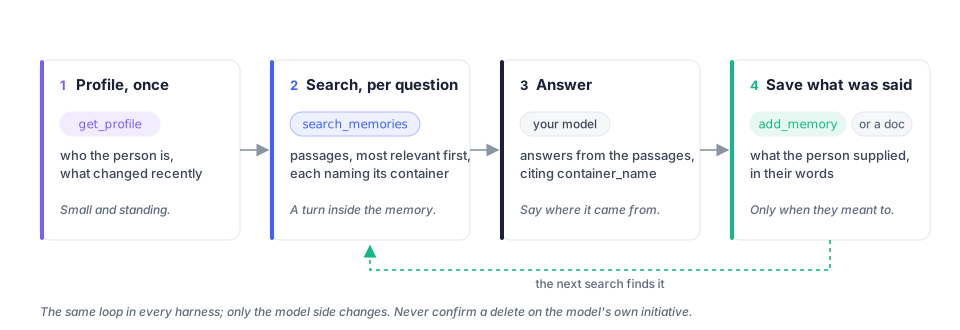
* **Profile once, search per question.** The profile is small and standing; search is a turn inside the user’s container.
* **Cite the container.** Every hit names `container_name`; say where an answer came from.
* **Save what the user supplied,** in their words, and only when they asked or plainly meant to.
* **Never confirm on your own.** A delete or forget without `confirm=true` answers with a `how` sentence; relay it and stop.
* **Treat `403` as withdrawn access.** The owner narrowed or revoked the key; do not retry with it.
* **Allow for cold starts.** Configure a suitable timeout and inspect per-Memory errors; see [API troubleshooting](/build/reference/troubleshooting/).
* **Do not store to filter later.** There are no server-side metadata filters; use `custom_id` and `metadata` for your own bookkeeping.
* **The token stays out of logs.** Log the key’s hint (`mbk_7f3a92d1…`), never the token.
# Multi-user isolation
> The account is the tenant. What that means for a product that serves many people, and the three ways to reach each person's memory with their own credential.
The account is the tenant. What that means for a product that serves many people, and the three ways to reach each person’s memory with their own credential.
In Membase **the person owns the memory**, not the application. There is no application-wide key, no master credential and no per-user tag inside a shared store. Every credential belongs to one account, reaches only that account’s Memories, and was minted by that account’s owner.
If you have used a memory API where you tag content with a *user id* or *container tag* and one key reaches them all: that is not this. Here a container is one of the person’s own Memories (a topic such as *Project decisions*), not a tenant.
## The boundary
[Section titled “The boundary”](#the-boundary)
| Layer | How it is separated |
| ----------------- | ---------------------------------------------------------------------------------------------------------------------------------------------------------------------------------------------------------------------------- |
| **Memory** | every account has its own agent container, a small VM with its own volume. Its files, documents and learned memory live there and nowhere else. A search is a turn inside that container. |
| **Control plane** | accounts, credentials, bindings, billing and raw source bytes are rows keyed by the account, under forced row-level security in Postgres. A query cannot see another account’s rows even with the platform’s own connection. |
| **Credentials** | a developer key or a consent token carries its account. It cannot be widened from the calling side, only on the Connect page by the owner. |
| **Model calls** | a turn goes through the platform’s inference service under the account’s own model policy; a model credential never enters an agent container. |
| **Deletion** | revoking, narrowing or deleting takes effect on the next call, ahead of any cache, projection or issued credential. |
A container outside a credential’s reach is refused the same way as one that does not exist, so a caller cannot even enumerate what it may not read.
## A product that serves many people
[Section titled “A product that serves many people”](#a-product-that-serves-many-people)
Give each person their own Membase account, and reach their memory with a credential that person minted or approved. Three shapes fit most products.
### Your product is an MCP client
[Section titled “Your product is an MCP client”](#your-product-is-an-mcp-client)
If your product can act as an MCP client (an agent framework, a desktop app, anything that speaks Streamable HTTP and OAuth), point it at `https://api.app.membase.io/mcp-http`. Each user completes the consent screen once; your product holds one consent token per user and gets `list_containers`, `search_memories` and, when the user ticked it, `get_profile`. It cannot write and cannot see a Memory the user did not tick. The flow is in [Authentication & Scopes](/build/reference/authentication/#oauth-for-an-app-that-connects-over-mcp) and the client side in [Any MCP client](/connect/clients/membase-mcp/).
This is the shape to prefer: the user never handles a token, and can turn your product off on the Connect page.
### Your product holds a key per user
[Section titled “Your product holds a key per user”](#your-product-holds-a-key-per-user)
If your product needs to write (save what a conversation produced) or is not an MCP client, each user mints a developer key under **Connect › Developer keys**, chooses its level and reach, and pastes it into your product. Store it per user, encrypted at rest, and send it as that user’s bearer and nobody else’s.
```python
from membase import Membase
def memory_for(user) -> Membase:
return Membase(api_key=secrets.get(user.id)) # that user's key, never another's
memory_for(alice).search("what did we decide about the ledger")
```
Two rules follow. A key is refused with `403` the moment its owner narrows or revokes it, so treat `PermissionDeniedError` as *this user withdrew access*, not as a bug. And never route one user’s request through another user’s key: the platform cannot tell, but the memory it answers from is the wrong person’s.
### Your agent answers from a memory you own
[Section titled “Your agent answers from a memory you own”](#your-agent-answers-from-a-memory-you-own)
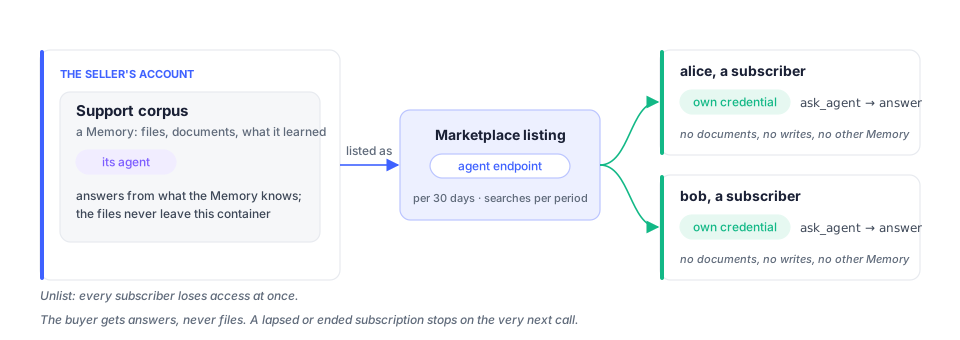
The reverse case: you hold the memory (a support corpus, a product’s knowledge) and many people ask it. List that Memory on the Marketplace as an **agent endpoint**. Each subscriber receives a credential of their own and calls `ask_agent`; your agent answers from what it learned, and the files never leave your container. Lapsing a subscription stops access at once. See [Platform overview](/build/concepts/platform-overview/#marketplace).
## What is not isolation
[Section titled “What is not isolation”](#what-is-not-isolation)
* **Containers are not users.** Making one container per end user inside one account puts every user’s material behind one owner’s credentials and one agent. Nothing stops it, and nothing protects it either.
* **Metadata is not a filter.** `add_document` accepts `metadata` for your own bookkeeping; search does not filter on it, so it cannot separate people.
* **Reach is not a secret.** A key with *All memories* reaches Memories the user makes later. Say so when you ask for one.
## Checking it
[Section titled “Checking it”](#checking-it)
The negative cases are the ones to test:
| Try | Expect |
| -------------------------------------------------------- | ------------------------------------------------------------- |
| a container id from another account, with your key | `403 · unauthorized · may not use that container` |
| a container the owner switched off for the key | the same `403`, on the very next call |
| a revoked key | `403 · unauthorized` on every call, at once |
| `delete_document` on a Read & write key | `403 · unauthorized · not in this agent's capability profile` |
| `delete_document` on a Full access key without `confirm` | `200 · status: confirmation_required` |
# AI coding assistants
> Ask a coding assistant to build a Membase integration, with checks for learning completion, permissions and search failures.
Ask a coding assistant to build a Membase integration, with checks for learning completion, permissions and search failures.
Use this recipe when a coding assistant is implementing Membase in your application. To give the coding assistant your memory for its own work, follow its client guide under [Connect your AI](/connect/) instead.
Install the Membase skill using your client’s setup guide ([Claude Code](/connect/clients/claude-code/), [Codex](/connect/clients/codex/), [Cursor](/connect/clients/cursor/), [Kimi Code](/connect/clients/kimi-code/)). Then give it the integration task below.
## Let the agent build the integration
[Section titled “Let the agent build the integration”](#let-the-agent-build-the-integration)
The same skill carries the API reference, the SDK guide, the MCP setup and the use cases, so an agent that has it can write the integration for you. Install it once, then prompt:
> Add Membase memory to this app. Read the membase skill first. Use the SDK; read the profile once per session when granted, search before answering about past work, and save only what the user supplied. Wait for learning before searching newly added documents and check `containers[].error`. Never pass `confirm` on your own. Keep the key in the environment.
What the skill teaches, so you can check the result:
| The agent should | Because |
| --------------------------------------------------------------------------------- | ------------------------------------------------------------------------------------------------ |
| read `get_profile` once, near the start, when granted | it is small and standing; the memory of who the user is |
| call `search_memories` before answering about past work, decisions or preferences | search is retrieval inside the user’s own container |
| cite `container_name` | every hit says which Memory it came from |
| use `add_memory` for a fact, `add_document` for text or a URL, with `custom_id` | documents are raw material until the Memory’s run; the same `custom_id` twice is a no-op |
| pass `confirm=true` only after the person agreed | on a Full access key, a delete or forget without it answers with a `how` sentence, not an action |
| treat `403` as withdrawn access and stop | the owner narrowed or revoked the key on Connect |
| use a suitable timeout and inspect `containers[].error` | a cold runtime or failed search must not be reported as an empty Memory |
The skill is served at `https://www.app.membase.io/skill` (its `SKILL.md` with the install preamble) and as a zip at `https://www.app.membase.io/plugin/membase-skill.zip`. Its files are under `https://www.app.membase.io/plugin/skills/membase/`: `SKILL.md`, `README.md` and `references/api-reference.md`, `references/sdk-guide.md`, `references/mcp-setup.md`, `references/quickstart.md`, `references/use-cases.md`. That directory address itself is not a listing; fetch the files by name, or take the zip.
## Without the skill
[Section titled “Without the skill”](#without-the-skill)
Any agent can be handed the OpenAPI document instead and asked to generate a client:
```bash
curl -s https://www.app.membase.io/plugin/openapi/agent-protocol.json -o agent-protocol.json
npx openapi-typescript agent-protocol.json -o membase.d.ts
```
Three requests cover most integrations: `GET /v1/profile`, `POST /v1/search` with `{"q": …}` and `POST /v1/memories` with `{"content": …}`, each with the bearer header. [API reference](/build/reference/api-reference/) has every operation.
# Claude API
> The user's memory behind Claude: point the request at Membase's MCP server with the key as its token, or wrap the SDK in your own tools and let the tool runner loop.
The user’s memory behind Claude: point the request at Membase’s MCP server with the key as its token, or wrap the SDK in your own tools and let the tool runner loop.
Two shapes. The first needs no tool code: the Claude API calls Membase’s MCP server for you. The second wraps the SDK in tools of your own, when you want to shape what the model sees.
Everything below assumes `MEMBASE_API_KEY` in the environment, minted at **Read & write** with **Your profile** ticked ([Authentication & Scopes](/build/reference/authentication/)), and your model provider’s key beside it. The loop is the same in every harness:
## Membase as a remote MCP server
[Section titled “Membase as a remote MCP server”](#membase-as-a-remote-mcp-server)
The Claude API can call a remote MCP server on your behalf. Name Membase’s server, hand it the developer key as the authorization token, and Claude gets the key’s tools without a line of tool code:
* Python
```python
import os
import anthropic
client = anthropic.Anthropic()
response = client.beta.messages.create(
model="claude-opus-5",
max_tokens=16000,
betas=["mcp-client-2025-11-20"],
mcp_servers=[{
"type": "url",
"url": "https://api.app.membase.io/mcp-http",
"name": "membase",
"authorization_token": os.environ["MEMBASE_API_KEY"],
}],
tools=[{"type": "mcp_toolset", "mcp_server_name": "membase"}],
system="Read get_profile first. Use search_memories before answering about the user's "
"past work or decisions, and cite the container_name of anything you use.",
messages=[{"role": "user", "content": "What did we decide about the ledger, and why?"}],
)
for block in response.content:
if block.type == "text":
print(block.text)
```
* TypeScript
```ts
import Anthropic from "@anthropic-ai/sdk";
const client = new Anthropic();
const response = await client.beta.messages.create({
model: "claude-opus-5",
max_tokens: 16000,
betas: ["mcp-client-2025-11-20"],
mcp_servers: [{
type: "url",
url: "https://api.app.membase.io/mcp-http",
name: "membase",
authorization_token: process.env.MEMBASE_API_KEY!,
}],
tools: [{ type: "mcp_toolset", mcp_server_name: "membase" }],
system: "Read get_profile first. Use search_memories before answering about the user's " +
"past work or decisions, and cite the container_name of anything you use.",
messages: [{ role: "user", content: "What did we decide about the ledger, and why?" }],
});
for (const block of response.content) if (block.type === "text") console.log(block.text);
```
The tool list Claude sees is the key’s: a Read key offers `list_containers`, `search_memories`, `list_documents`, `memory_rules` and, with **Your profile** ticked, `get_profile` (`get_document` is REST-only and not offered over MCP); a Read & write key adds `add_memory` and `add_document`. To keep a conversation read-only, mint a Read key for it.
## Your own tools over the SDK
[Section titled “Your own tools over the SDK”](#your-own-tools-over-the-sdk)
When you want to shape what the model sees (a smaller tool surface, your own descriptions, a result format of your choosing), wrap the SDK and let the tool runner drive the loop:
* Python
```python
import anthropic
from anthropic import beta_tool
from membase import Membase
memory = Membase() # MEMBASE_API_KEY
claude = anthropic.Anthropic()
@beta_tool
def search_memories(q: str) -> str:
"""Search the user's memory. Use it before answering anything about their past work,
decisions or preferences.
Args:
q: the question, in natural language.
"""
hits = memory.search(q, limit=5)["results"]
return "\n".join(f"[{h['container_name']}] {h['content']}" for h in hits) or "nothing found"
@beta_tool
def remember(content: str) -> str:
"""Save one fact the user asked to remember, in their own words.
Args:
content: the fact.
"""
memory.memories.add(content)
return "saved"
profile = memory.profile()
runner = claude.beta.messages.tool_runner(
model="claude-opus-5",
max_tokens=16000,
system="Standing facts about the user: " + "; ".join(profile["static"]),
tools=[search_memories, remember],
messages=[{"role": "user", "content": "Remind me why we picked Postgres, then note that we'll revisit it in Q1."}],
)
final = runner.until_done()
print(next(b.text for b in final.content if b.type == "text"))
```
* TypeScript
```ts
import Anthropic from "@anthropic-ai/sdk";
import { betaZodTool } from "@anthropic-ai/sdk/helpers/beta/zod";
import { z } from "zod";
import { Membase } from "membase-sdk";
const memory = new Membase(); // MEMBASE_API_KEY
const claude = new Anthropic();
const searchMemories = betaZodTool({
name: "search_memories",
description: "Search the user's memory. Use it before answering anything about their past work, decisions or preferences.",
inputSchema: z.object({ q: z.string().describe("the question, in natural language") }),
run: async ({ q }) => {
const { results } = await memory.search({ q, limit: 5 });
return results.map((h) => `[${h.container_name}] ${h.content}`).join("\n") || "nothing found";
},
});
const remember = betaZodTool({
name: "remember",
description: "Save one fact the user asked to remember, in their own words.",
inputSchema: z.object({ content: z.string() }),
run: async ({ content }) => { await memory.memories.add({ content }); return "saved"; },
});
const profile = await memory.profile();
const final = await claude.beta.messages.toolRunner({
model: "claude-opus-5",
max_tokens: 16000,
system: "Standing facts about the user: " + profile.static.join("; "),
tools: [searchMemories, remember],
messages: [{ role: "user", content: "Remind me why we picked Postgres, then note that we'll revisit it in Q1." }],
});
for (const block of final.content) if (block.type === "text") console.log(block.text);
```
`remember` calls `memories.add` without a container, which works while exactly one Memory is in the key’s reach; pass `container=` once there are several.
## Rules that hold in every shape
[Section titled “Rules that hold in every shape”](#rules-that-hold-in-every-shape)
The same rules, with the reasons, are on [Memory operations](/build/guides/memory-operations/#rules-of-the-road).
* **Profile once, search per question.** The profile is small and standing; search is a turn inside the user’s container.
* **Cite the container.** Every hit names `container_name`; say where an answer came from.
* **Save what the user supplied,** in their words, and only when they asked or plainly meant to.
* **Never confirm on your own.** A delete or forget without `confirm=true` answers with a `how` sentence; relay it and stop.
* **Treat `403` as withdrawn access.** The owner narrowed or revoked the key; do not retry with it.
* **Expect the first search to be slow.** Up to a minute after a quiet spell; keep the SDK’s timeout.
# MCP frameworks
> An agent framework with an MCP client needs no Membase-specific code: the server URL and the key as a header, and it discovers the tools. Without a framework, the OpenAPI document generates a typed client.
An agent framework with an MCP client needs no Membase-specific code: the server URL and the key as a header, and it discovers the tools. Without a framework, the OpenAPI document generates a typed client.
## Give the framework the server
[Section titled “Give the framework the server”](#give-the-framework-the-server)
A framework with an MCP client (LangChain’s MCP adapters, the OpenAI Agents SDK, Pydantic AI, Mastra, and most others) needs no Membase-specific code. Give it the server as a Streamable HTTP endpoint with the key in the header:
```json
{ "url": "https://api.app.membase.io/mcp-http",
"headers": { "Authorization": "Bearer mbk_…" } }
```
It discovers the key’s tools with `tools/list` and calls them by the names in the [API Reference](/build/reference/api-reference/). Where the framework’s own MCP client speaks OAuth, leave the header out and the user consents in the browser instead; the connection is then read-only, which is what a user-facing agent usually wants.
A user-facing agent whose end users each hold their own Membase account connects by consent instead, one account at a time; [Multi-user isolation](/build/guides/multi-user-isolation/) has the patterns.
## Without an SDK
[Section titled “Without an SDK”](#without-an-sdk)
Any HTTP client works, and the OpenAPI document generates a typed client for any language:
```bash
curl -s https://www.app.membase.io/plugin/openapi/agent-protocol.json -o agent-protocol.json
npx openapi-typescript agent-protocol.json -o membase.d.ts
```
Three requests cover most integrations: `GET /v1/profile`, `POST /v1/search` with `{"q": …}` and `POST /v1/memories` with `{"content": …}`, each with the bearer header.
## Rules that hold in every shape
[Section titled “Rules that hold in every shape”](#rules-that-hold-in-every-shape)
* **Profile once, search per question.** The profile is small and standing; search is a turn inside the user’s container.
* **Cite the container.** Every hit names `container_name`; say where an answer came from.
* **Save what the user supplied,** in their words, and only when they asked or plainly meant to.
* **Never confirm on your own.** On a Full access key, a delete or forget without `confirm=true` answers with a `how` sentence; relay it and stop.
* **Treat `403` as withdrawn access.** The owner narrowed or revoked the key; do not retry with it.
* **Expect the first search to be slow.** Up to a minute after a quiet spell; keep the SDK’s timeout.
The same rules, with the reasons, are on [Memory operations](/build/guides/memory-operations/#rules-of-the-road).
# OpenAI API
> The user's memory behind the OpenAI API or any function-calling model: declare search_memories and add_memory as functions and call the SDK when the model asks.
The user’s memory behind the OpenAI API or any function-calling model: declare search_memories and add_memory as functions and call the SDK when the model asks.
Everything below assumes `MEMBASE_API_KEY` in the environment, minted at **Read & write** with **Your profile** ticked ([Authentication & Scopes](/build/reference/authentication/)), and your model provider’s key beside it. The loop is the same in every harness:

## The tool-calling loop
[Section titled “The tool-calling loop”](#the-tool-calling-loop)
Declare the two verbs as functions and call the SDK when the model asks. The shape is the Chat Completions tool-calling loop; any provider with the same loop takes the same two definitions.
```ts
import OpenAI from "openai";
import { Membase } from "membase-sdk";
const memory = new Membase();
const openai = new OpenAI();
const tools: OpenAI.Chat.Completions.ChatCompletionTool[] = [
{ type: "function", function: {
name: "search_memories",
description: "Search the user's memory. Use it before answering anything about their past work, decisions or preferences.",
parameters: { type: "object", properties: { q: { type: "string" } }, required: ["q"] } } },
{ type: "function", function: {
name: "add_memory",
description: "Save one fact the user asked to remember, in their own words.",
parameters: { type: "object", properties: { content: { type: "string" } }, required: ["content"] } } },
];
async function runTool(name: string, args: Record): Promise {
if (name === "search_memories") {
const { results } = await memory.search({ q: args.q, limit: 5 });
return JSON.stringify(results.map((h) => ({ memory: h.container_name, content: h.content })));
}
await memory.memories.add({ content: args.content });
return "saved";
}
const profile = await memory.profile();
const messages: OpenAI.Chat.Completions.ChatCompletionMessageParam[] = [
{ role: "system", content: "Standing facts about the user: " + profile.static.join("; ") },
{ role: "user", content: "What did we decide about the ledger?" },
];
for (;;) {
const turn = await openai.chat.completions.create({ model: process.env.OPENAI_MODEL!, messages, tools });
const reply = turn.choices[0].message;
messages.push(reply);
if (!reply.tool_calls?.length) { console.log(reply.content); break; }
for (const call of reply.tool_calls) {
if (call.type !== "function") continue; // tool_calls is a union; custom tool calls carry no `function`
const content = await runTool(call.function.name, JSON.parse(call.function.arguments));
messages.push({ role: "tool", tool_call_id: call.id, content });
}
}
```
The same loop in Python is the SDK’s `client.search(...)` and `client.memories.add(...)` behind two function definitions; nothing else changes.
## Rules that hold in every shape
[Section titled “Rules that hold in every shape”](#rules-that-hold-in-every-shape)
* **Profile once, search per question.** The profile is small and standing; search is a turn inside the user’s container.
* **Cite the container.** Every hit names `container_name`; say where an answer came from.
* **Save what the user supplied,** in their words, and only when they asked or plainly meant to.
* **Never confirm on your own.** A delete or forget without `confirm=true` answers with a `how` sentence; relay it and stop.
* **Treat `403` as withdrawn access.** The owner narrowed or revoked the key; do not retry with it.
* **Expect the first search to be slow.** Up to a minute after a quiet spell; keep the SDK’s timeout.
The same rules, with the reasons, are on [Memory operations](/build/guides/memory-operations/#rules-of-the-road).
# Agent protocol — API reference
> Every operation of the agent protocol with its access level, parameters and response shape, rendered from the tool table and the OpenAPI document.
Every operation of the agent protocol with its access level, parameters and response shape, rendered from the tool table and the OpenAPI document.
*Generated by `scripts/gen_skill_reference.py` from `docs/openapi/agent-protocol.json` and the tool table. Do not edit by hand.*
Base URL `https://api.app.membase.io`. Every request: `Authorization: Bearer `. MCP endpoint `https://api.app.membase.io/mcp-http` (Streamable HTTP; the same tools by the same names).
## Access levels
[Section titled “Access levels”](#access-levels)
| Level | Tools |
| ------------------------ | ------------------------------------------------------------------------------------------------------------------------------------------------------------------------------------ |
| Read (`read`) | `list_containers`, `search_memories`, `get_profile`, `list_documents`, `get_document`, `memory_rules`, `ask_agent` |
| Read & write (`suggest`) | `list_containers`, `search_memories`, `get_profile`, `list_documents`, `get_document`, `memory_rules`, `ask_agent`, `add_memory`, `add_document` |
| Full access (`manage`) | `list_containers`, `search_memories`, `get_profile`, `list_documents`, `get_document`, `memory_rules`, `ask_agent`, `add_memory`, `add_document`, `delete_document`, `forget_memory` |
| Invoke (`invoke`) | `workflow_invoke` |
A level is the ceiling of what a credential of that kind may hold. A developer key holds every Read tool except `ask_agent`, which only an agent exposure (a marketplace subscription, a share) grants; `get_profile` is granted only when the owner ticked the profile on the key or on consent. A consent-minted client holds `list_containers`, `search_memories` and, when ticked, `get_profile` — nothing else: a verb outside a credential’s tools is not offered in `tools/list` and is refused with `403` when called.
## Tools and endpoints
[Section titled “Tools and endpoints”](#tools-and-endpoints)
### `list_containers` — List containers
[Section titled “list_containers — List containers”](#list_containers--list-containers)
level **Read**; read-only.
`GET /v1/containers`
The containers this credential may use — every one, for the account’s owner.
*No parameters.*
### `search_memories` — Search memories
[Section titled “search_memories — Search memories”](#search_memories--search-memories)
level **Read**; read-only.
`POST /v1/search`
Passages the containers hold on a question, most relevant first, each naming its container. Retrieval, not an answer — `POST /v1/ask` is the agent’s answer.
| Field | Type | Required | Description |
| ----------- | ------- | -------- | ---------------------------------- |
| `container` | string | null | no |
| `limit` | integer | null | no |
| `q` | string | yes | The question, in natural language. |
### `get_profile` — Get the user’s profile
[Section titled “get_profile — Get the user’s profile”](#get_profile--get-the-users-profile)
level **Read**; read-only.
`GET /v1/profile`
Who the user is: standing facts (`static`), the most recently changed facts (`dynamic`), and — with `q` — the passages relevant to the topic (`results`).
| Field | Type | Required | Description |
| ----------- | ------ | -------- | ----------- |
| `q (query)` | string | null | no |
### `list_documents` — List documents
[Section titled “list_documents — List documents”](#list_documents--list-documents)
level **Read**; read-only.
`GET /v1/documents`
The documents the containers in reach have read, newest first.
| Field | Type | Required | Description |
| ------------------- | ------ | -------- | ----------- |
| `container (query)` | string | null | no |
### `get_document` — Get one document
[Section titled “get_document — Get one document”](#get_document--get-one-document)
level **Read**; read-only; REST only.
`GET /v1/documents/{document_id}`
One document, with whether its container has learned it yet.
| Field | Type | Required | Description |
| -------------------- | ------ | -------- | ----------- |
| `document_id (path)` | string | yes | |
### `memory_rules` — Memory rules
[Section titled “memory_rules — Memory rules”](#memory_rules--memory-rules)
level **Read**; read-only.
`GET /v1/rules`
The user’s standing rules for how their memory is used by this credential.
*No parameters.*
### `ask_agent` — Ask the agent
[Section titled “ask_agent — Ask the agent”](#ask_agent--ask-the-agent)
level **Read**.
`POST /v1/ask`
Send a message to the agent this credential exposes and get its reply.
| Field | Type | Required | Description |
| --------- | ------ | -------- | ----------- |
| `message` | string | no | |
| `model` | string | null | no |
### `add_memory` — Add a memory
[Section titled “add_memory — Add a memory”](#add_memory--add-a-memory)
level **Read & write**.
`POST /v1/memories`
Save one fact. Static facts go to the user’s profile; the rest to a container.
| Field | Type | Required | Description |
| ----------- | ------- | -------- | ------------------------------------------ |
| `container` | string | null | no |
| `content` | string | yes | The fact, as the user said it. |
| `static` | boolean | no | A standing fact about the user themselves. |
| `title` | string | no | |
### `add_document` — Add a document
[Section titled “add_document — Add a document”](#add_document--add-a-document)
level **Read & write**.
`POST /v1/documents`
Hand a document (text or url) to a container. Lands at once; learned in the background — poll `GET /v1/documents/{id}` for `learned`.
| Field | Type | Required | Description |
| ----------- | ------ | -------- | -------------------------------------------------------- |
| `container` | string | yes | Which container reads it. |
| `content` | string | null | no |
| `custom_id` | string | no | Your own id; adding the same custom_id again is a no-op. |
| `metadata` | object | null | no |
| `title` | string | no | |
| `url` | string | null | no |
### `delete_document` — Delete a document
[Section titled “delete_document — Delete a document”](#delete_document--delete-a-document)
level **Full access**; **destructive** — `confirm=true` from a developer key, or a request.
`DELETE /v1/documents/{document_id}`
Remove one document everywhere. Full access only: without `confirm=true` the answer is a request (`status: confirmation_required`); with it, a developer key deletes.
| Field | Type | Required | Description |
| -------------------- | ------- | -------- | ------------------------------- |
| `document_id (path)` | string | yes | |
| `confirm (query)` | boolean | no | Developer keys: true to delete. |
### `forget_memory` — Forget a memory
[Section titled “forget_memory — Forget a memory”](#forget_memory--forget-a-memory)
level **Full access**; **destructive** — `confirm=true` from a developer key, or a request.
`DELETE /v1/memories/{memory_id}`
Forget one learned fact. Same confirmation rule as deleting a document.
| Field | Type | Required | Description |
| ------------------- | ------- | -------- | ------------------------------- |
| `memory_id (path)` | string | yes | |
| `container (query)` | string | null | no |
| `confirm (query)` | boolean | no | Developer keys: true to forget. |
### `workflow_invoke` — Run the workflow
[Section titled “workflow_invoke — Run the workflow”](#workflow_invoke--run-the-workflow)
level **Invoke**.
MCP only: the workflow this credential exposes, with `input` as an object.
## Retired names
[Section titled “Retired names”](#retired-names)
Still answered for the credentials and clients that carry them; hidden from `tools/list` once the replacement is offered.
| Retired | Current |
| --------------------- | ------------------------------------ |
| `memory_view_query` | `list_containers`, `search_memories` |
| `memory_list` | `list_containers` |
| `memory_recall` | `search_memories` |
| `memory_remember` | `add_memory` |
| `memory_ingest` | `add_document` |
| `memory_list_sources` | `list_documents` |
| `memory_forget` | `delete_document` |
| `agent_invoke` | `ask_agent` |
## Errors
[Section titled “Errors”](#errors)
| Status | Code | When |
| ------ | ------------------------ | -------------------------------------------------------------------------------------------------------- |
| 400 | `validation` | an empty `q`; both or neither of `content` and `url`; `container` omitted when more than one is in reach |
| 403 | `unauthorized` | the container is outside the credential’s reach, or the verb above its access level |
| 404 | `not_found` | unknown document or memory |
| 422 | `validation` | a malformed body: a required field missing or of the wrong type |
| 422 | `capability_unavailable` | the account’s memory cannot run a turn here (no agent container, no model) |
| 429 | `rate_limited` | the account’s concurrent-turn budget, or too many requests on one credential |
Read `code`, not only the status: `422` is either. A Full-access developer key calling a destructive verb without `confirm=true` answers `200` with `{"status": "confirmation_required", "how": …}` rather than an error.
# Authentication & Scopes
> Every call carries a bearer. What the two credentials are, what an access level grants, what reach and the profile tick add, and how a key ends.
Every call carries a bearer. What the two credentials are, what an access level grants, what reach and the profile tick add, and how a key ends.
Every request to `https://api.app.membase.io` carries one header:
```plaintext
Authorization: Bearer
```
There is no API-wide key, no client secret and no signature. The credential itself says who the caller is, which Memories it may touch, and what it may do to them. Both kinds of credential are minted by the account’s owner and can be narrowed or revoked by them at any time; the change applies on the credential’s next call.
## The two credentials
[Section titled “The two credentials”](#the-two-credentials)
| | Developer key | Consent token |
| --------------------- | ------------------------------------------------------------------------------------------- | ----------------------------------------------------------------------------------------------------------- |
| Minted by | the owner, under **Connect › Developer keys** | the owner, approving an app on the OAuth consent screen |
| Held by | code the owner runs: a script, a server, an SDK, an AI running the skill | an AI app: Claude, ChatGPT, Cursor, Codex, Grok, Kimi… |
| Shape | `mbk__`, shown once; the key’s page keeps a hint such as `mbk_7f3a92d1…c91e` | opaque; the app stores it |
| Access | **Read**, **Read & write** or **Full access**, chosen at creation and changeable in place | read-only, always |
| Reach | the Memories ticked on the key, or *all, including later ones* | the Memories ticked on consent |
| Profile | when **Your profile** is ticked | when **Profile access** is ticked at consent; to change it, disconnect and authorize again |
| Can confirm a removal | yes, with `confirm=true` | never |
| Expires | never, 30 days, 90 days or a year | at the end of the token’s lifetime; there is no refresh, the app authorizes again and the owner re-approves |
Which one you need: if your code holds the credential, a developer key. If the user’s AI app holds it, consent through MCP, and your code never sees a token at all. The [Connect your AI](/connect/) tab is the consent path; the rest of this page is mostly about keys.
## Access levels
[Section titled “Access levels”](#access-levels)
A level is a set of operations. Each level adds to the one before it.
| Level | Grant | Operations |
| ---------------- | --------- | ----------------------------------------------------------------------------------------------------------------------------------------- |
| **Read** | `read` | `list_containers`, `search_memories`, `get_profile` (with the profile tick), `list_documents`, `get_document` (REST only), `memory_rules` |
| **Read & write** | `suggest` | Read, plus `add_memory`, `add_document` |
| **Full access** | `manage` | Read & write, plus `delete_document`, `forget_memory`, each only with `confirm=true` |
`ask_agent` is on no developer key, at any level: only a credential that exposes an agent (a marketplace subscription, a share) holds it; from a key the call is refused with `403` like any verb outside its grant. `workflow_invoke` belongs to workflow exposures and is not on any key either. The [API reference](/build/reference/api-reference/) lists each level’s ceiling from the tool table itself, which is why `ask_agent` appears under Read there; a key never reaches it.
A call above the key’s level is refused with `403` and `code: unauthorized`, and the key’s page counts it as a *refused* call (`ask_agent` excepted: that refusal is not recorded). The level can be raised or lowered on the key’s page without re-minting; the token stays the same and the next call reads the new grant.
## Reach
[Section titled “Reach”](#reach)
Reach is the list of Memories (containers, in the API) a credential may use. It is switched on the Connect page, on the key’s page under **Memory access**, or on a Memory’s own page under **Use in**; all three are the same switch. A key created with *All memories, including ones you make later* reaches every container the account has now or later.
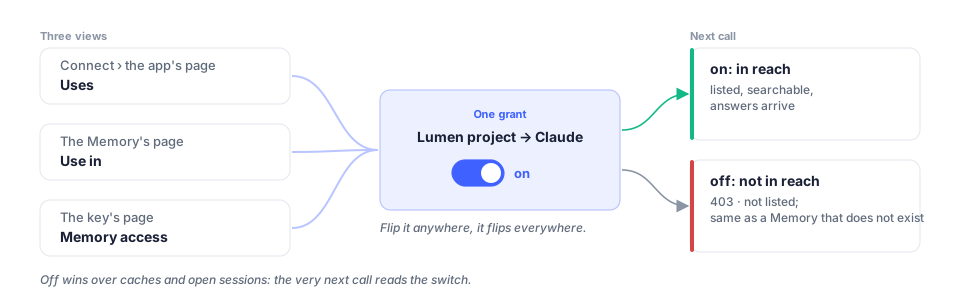
A container outside the reach is refused exactly like one that does not exist: `403`, `code: unauthorized`, *may not use that container*. `list_containers` never lists it, so a client cannot tell withheld from absent. With exactly one container in reach the `container` field may be omitted on `add_memory`; with more than one it is required.
## The profile tick
[Section titled “The profile tick”](#the-profile-tick)
The profile is the standing facts the assistant keeps about the person: `static` (who they are, lasting preferences) and `dynamic` (what changed recently). It is not part of any container, so reach does not cover it. A credential reads it with `get_profile` only when the owner ticked **Your profile** on the key or **Profile access** on consent. Without the tick the operation is not offered at all. On a consent connection the tick is set only at consent; to change it, the owner disconnects the app and authorizes it again.
## Destructive operations
[Section titled “Destructive operations”](#destructive-operations)
`delete_document` and `forget_memory` need Full access, and even then they do not run on their own: a call without `confirm=true` answers `200` with
```json
{ "status": "confirmation_required", "verb": "delete_document", "how": "…" }
```
and the `how` sentence is what to relay to the person. Pass `confirm=true` only after they agreed; from a developer key that counts as the owner’s confirmation. A consent token is never offered these verbs at all, so from an AI app the call is refused with `403 · unauthorized · tool 'delete_document' is not in this agent's capability profile`, not answered with the sentence.
## Expiry, rotation, revocation
[Section titled “Expiry, rotation, revocation”](#expiry-rotation-revocation)
* **Expiry** is chosen at creation (never, 30 days, 90 days or a year in the app; any 1–3650 days through the API) and cannot be extended on an existing key; rotate instead. An expired key answers `403` with `code: unauthorized`, and its row moves to **Expired**.
* **Rotate…** pre-fills a new key with the old key’s level, reach, profile tick and the same expiry duration counted from now, and asks what to do with the old one. By default the old one keeps working until you revoke it, so you can swap the value in your environment first. From the API you pass those fields yourself; `replaces: ` only records the lineage.
* **Revoke…** ends a key at once. Every holder of the token fails on its next call. The key stays listed under **Revoked** for thirty days so you can see what it was.
* **Disconnect…** on an app’s page revokes every consent token that app holds. Removing the connector inside the app does not tell Membase; revoke on Connect to be sure.
Revocation and permission changes apply to subsequent requests. They do not remove content already received or stored by an external client.
## What a wrong credential looks like
[Section titled “What a wrong credential looks like”](#what-a-wrong-credential-looks-like)
| Answer | Meaning |
| ------------------------------------------------------------- | -------------------------------------------------------------------------------------------------------------------- |
| `401` | no bearer at all (REST; the MCP endpoint differs, below) |
| `403 · unauthorized` | an unknown, expired or revoked token; a container outside the reach; a verb above the level. The message says which. |
| `403 · unauthorized · not in this agent's capability profile` | the verb is above the key’s level |
| `403 · unauthorized · may not use that container` | the container is outside the reach, or does not exist |
On the REST endpoints the status is `403` and not `401` for a bad token on purpose: the request was authenticated as *some* caller (the key id is in the token) and that caller is not allowed. Only a request with no bearer is `401`.
The MCP endpoint (`/mcp-http`) follows the OAuth convention instead: a missing bearer and an invalid, expired or revoked one both answer `401` with `WWW-Authenticate: Bearer error="invalid_token", resource_metadata="https://api.app.membase.io/.well-known/oauth-protected-resource/mcp-http"` and an RFC 6750 body, `{"error": "invalid_token", "error_description": "…"}`, not the `{"error": {"code", …}}` envelope.
## Managing keys from code
[Section titled “Managing keys from code”](#managing-keys-from-code)
Keys are managed with the owner’s own session, the credential the Membase app holds after sign-in, and never with a developer key: a key cannot mint, widen or revoke another key. The screen for the same operations is [Connect › Developer keys](/use/manage-your-memory/connect/#developer-keys).
| Call | Does |
| -------------------------------- | ---------------------------------------------------------------------------------------------------------------- |
| `POST /v1/api-keys` | mint a key: name, level, container list or `all_views`, profile tick, `expires_in_days` (1–3650; omit for never) |
| `PATCH /v1/api-keys/{id}` | change its name, level, profile tick or all-containers reach; the next call reads the new grant |
| `PATCH /v1/exposures/{id}/views` | change its container list |
| `GET /v1/api-keys/{id}/usage` | calls per day, refusals, per tool, the last twenty |
| `DELETE /v1/exposures/{id}` | revoke it, at once |
## OAuth, for an app that connects over MCP
[Section titled “OAuth, for an app that connects over MCP”](#oauth-for-an-app-that-connects-over-mcp)
The MCP server at `https://api.app.membase.io/mcp-http` advertises its authorization the standard way, so any MCP client that speaks OAuth connects without a Membase-specific step:
1. An unauthenticated request answers `401` with a `WWW-Authenticate` pointing at the protected-resource metadata (`/.well-known/oauth-protected-resource/mcp-http`, RFC 9728).
2. The protected-resource metadata names the authorization server; the authorization-server metadata (`/.well-known/oauth-authorization-server`, RFC 8414) names the registration endpoint (`/oauth/register`). The client registers itself dynamically (RFC 7591) and starts the authorization code flow with PKCE (S256).
3. The browser opens Membase’s consent screen. The owner ticks the Memories the app may use and **Profile access** if it may read their profile, and approves.
4. The client receives a token good for exactly that. `tools/list` on that token offers `list_containers`, `search_memories` and, when ticked, `get_profile`, nothing that writes. The token is not refreshed (`grant_types_supported` is `authorization_code` only): when its lifetime ends the app authorizes again and the owner re-approves.
A client that cannot do OAuth sends a developer key in the same `Authorization` header instead, and gets the key’s level.
## Keep the token out of the open
[Section titled “Keep the token out of the open”](#keep-the-token-out-of-the-open)
* Read the key from the environment (`MEMBASE_API_KEY`), never from source.
* Log the hint from the key’s page, never the token.
* Do not put a key in a config file you commit or publish; the ready-made client configs Membase serves carry no header for that reason.
* One key per thing that holds it, named after it, so a revocation stops one thing.
# SDKs
> The Python and TypeScript clients. One client, one key, your memory.
The Python and TypeScript clients. One client, one key, your memory.
For your first working example, follow the [quickstart](/build/getting-started/api-quickstart/). This page is client reference: installation, configuration, methods and errors.
The SDK is a thin client over the Membase API. Every method is one operation of the [API reference](/build/reference/api-reference/), and the access level, reach and confirmation rules are enforced server-side, so the SDK cannot do anything the key cannot.
## Install
[Section titled “Install”](#install)
* Python
```bash
pip install membase-sdk
```
Python 3.10 or newer. One dependency, `httpx`.
* TypeScript
```bash
npm install membase-sdk
```
Node 18 or newer (global `fetch`), Deno or Bun. Zero dependencies; responses are typed.
## Who owns the memory
[Section titled “Who owns the memory”](#who-owns-the-memory)
In Membase **the person owns the memory**, not the app. A developer key is minted by the account’s owner under **Connect › Developer keys**, and it carries what they chose: an access level, the Memories it may reach, whether it may read their profile, and when it expires. The SDK takes that key and nothing else.
If you have used a memory API where you tag content with a *container tag* per end user and one master key reaches them all: that is not this. A Membase **container** is one of the person’s own Memories (a topic), not a tenant. A product that serves many people gives each of them their own Membase account, and reaches their memory with their own key or their own consent. See [Multi-user Isolation](/build/guides/multi-user-isolation/).
## Create a client
[Section titled “Create a client”](#create-a-client)
* Python
```python
from membase import Membase
client = Membase() # MEMBASE_API_KEY from the environment
client = Membase(api_key="mbk_…") # or explicit
client = Membase(base_url="http://localhost:8080") # a self-hosted Membase
```
* TypeScript
```ts
import { Membase } from "membase-sdk";
const client = new Membase(); // MEMBASE_API_KEY from the environment
const explicit = new Membase({ apiKey: "mbk_…" }); // or explicit
const local = new Membase({ baseUrl: "http://localhost:8080" }); // a self-hosted Membase
```
| Setting | Python | TypeScript | Default |
| --------------- | ------------------- | -------------------------- | ---------------------------- |
| Request timeout | `timeout` (seconds) | `timeoutMs` (milliseconds) | 90 seconds |
| Retry limit | `max_retries` | `maxRetries` | 2 |
| API origin | `base_url` | `baseUrl` | `https://api.app.membase.io` |
Retries cover connection errors, timeouts, 408, 409, 429 and 5xx, with exponential backoff; a numeric `Retry-After` is honoured when present (the server sends none today). A cold runtime can take longer than the default timeout. See [API troubleshooting](/build/reference/troubleshooting/). The method snippets below are independent examples; follow the quickstart to wait for an accepted document to become searchable.
## The four verbs
[Section titled “The four verbs”](#the-four-verbs)
* Python
```python
# add: a document (its text, or a public url) into a Memory. Returns at once, learned in the background.
doc = client.add("Call notes with Acme: they want SSO before the pilot.",
container="mv-…", title="Call with Acme", custom_id="call-2026-09-24")
doc["status"] # "queued"; the same custom_id again answers "exists" and starts nothing
# search: passages across every Memory in reach, most relevant first, each naming its container
hits = client.search("what does Acme need before the pilot", limit=5)
for h in hits["results"]:
print(h["container_name"], "·", h["content"])
# profile: who the user is (needs the profile tick on the key)
p = client.profile(q="working hours")
p["static"], p["dynamic"], p["results"]
# ask: the exposed agent's answer (an agent-endpoint credential, e.g. a marketplace subscription)
client.ask("Summarise what the seller learned about Postgres RLS.")
```
* TypeScript
```ts
const doc = await client.add({ container: "mv-…", content: "Call notes with Acme: they want SSO before the pilot.",
title: "Call with Acme", customId: "call-2026-09-24" });
doc.status; // "queued"; "exists" when the customId was seen before
const hits = await client.search({ q: "what does Acme need before the pilot", limit: 5 });
for (const h of hits.results) console.log(h.container_name, "·", h.content);
const p = await client.profile({ q: "working hours" });
p.static; p.dynamic; p.results;
await client.ask({ message: "Summarise what the seller learned about Postgres RLS." });
```
`add` hands raw material to the Memory’s folder and starts its learning turn; poll `documents.get(id)` until `learned` is true if you need to know. `search` is retrieval, not an answer; `ask` is the answer. What each verb does inside the account, and what code sees when the person does something in the app, is on [Memory operations](/build/guides/memory-operations/).
## The resources
[Section titled “The resources”](#the-resources)
* Python
```python
client.containers.list() # {"containers": [{id, name, description, …}]}
client.documents.list(container="mv-…") # newest first; get(id) supplies "learned"
client.documents.get("srcitem_…")
client.documents.delete("srcitem_…", confirm=True)
client.memories.add("We settled on Postgres.", container="mv-…") # a note the Memory reads
client.memories.add("The user prefers dark mode.", static=True) # a standing fact → the profile
client.memories.forget("12", container="mv-…", confirm=True)
client.rules() # the user's standing rules for this credential
```
* TypeScript
```ts
await client.containers.list();
await client.documents.list({ container: "mv-…" });
await client.documents.get("srcitem_…");
await client.documents.delete("srcitem_…", { confirm: true });
await client.memories.add({ content: "We settled on Postgres.", container: "mv-…" });
await client.memories.add({ content: "The user prefers dark mode.", static: true });
await client.memories.forget("12", { container: "mv-…", confirm: true });
await client.rules();
```
`delete` and `forget` need a key at **Full access**. Without `confirm` they do not fail: the answer is `status: confirmation_required` with a `how` sentence to relay to the person. Pass `confirm` only after they agreed; from a developer key that counts as the owner’s confirmation.
## Errors
[Section titled “Errors”](#errors)
One class per HTTP status, all carrying the API’s error envelope: `code` (which rule refused), `message`, `details`, `retryable` and `trace_id` (quote it when reporting a problem).
| Status | Class | When |
| ------ | --------------------------------------- | -------------------------------------------------------------------------------------------------------------------------------------------------------------------------------------------------------------------------------------------------------------------------------------------------------------- |
| 400 | `BadRequestError` | `code: validation`, from the service’s own checks: an empty `q`, both or neither of `content` and `url`, `container` omitted when more than one is in reach |
| 401 | `AuthenticationError` | no bearer at all |
| 403 | `PermissionDeniedError` | `code: unauthorized`: an unknown, expired or revoked key; a container outside the key’s reach; a verb above its level |
| 404 | `NotFoundError` | an unknown document or memory id |
| 409 | `ConflictError` | a conflicting write; retried automatically, then raised |
| 422 | `UnprocessableEntityError` | `code: capability_unavailable`: the account’s memory cannot run a turn here (no agent container, no model). Also `code: validation` for a malformed body (a missing or mistyped required field), so read `code`, not only the status |
| 429 | `RateLimitError` | the account’s concurrent-turn cap (two agent turns at once, reached by `memories.add(static=True)`, `forget` and `ask`) or the per-token request limiter (`details.limit_per_min`); no `Retry-After` is sent; retried automatically with backoff, then raised. `search` does not raise it and `add` never does |
| 5xx | `InternalServerError` | retried automatically, then raised |
| — | `APIConnectionError`, `APITimeoutError` | the request never got an answer |
* Python
```python
from membase import PermissionDeniedError, RateLimitError
try:
client.search("x", container="mv-other")
except PermissionDeniedError as e:
print(e.code, e.message, e.trace_id) # unauthorized may not use that container …
```
* TypeScript
```ts
import { PermissionDeniedError } from "membase-sdk";
try {
await client.search({ q: "x", container: "mv-other" });
} catch (e) {
if (e instanceof PermissionDeniedError) console.log(e.code, e.message, e.traceId);
}
```
## Rules of the road
[Section titled “Rules of the road”](#rules-of-the-road)
* **Reach is account state.** The Memories a key may use are switched on the Connect page. A key narrowed there answers `403` on its very next call, with the same token.
* **Confirm means the person agreed.** Never pass `confirm` on your own initiative.
* **Writes are raw material.** `add` hands bytes to the Memory’s folder; its agent reads them in the next learning turn.
* **Do not store to filter later.** There are no server-side metadata filters on search; put what matters in the content, and use `custom_id` and `metadata` for your own bookkeeping.
* **The token stays out of logs.** Log the key’s hint (`mbk_7f3a92d1…`) from the key’s page, never the token.
## Method map
[Section titled “Method map”](#method-map)
| SDK | REST | Protocol tool | Level |
| ------------------------------------------------ | --------------------------- | ------------------------------------------- | ------------------- |
| `add(...)` | `POST /v1/documents` | `add_document` | Read & write |
| `search(q, ...)` | `POST /v1/search` | `search_memories` | Read |
| `profile(q=…)` | `GET /v1/profile` | `get_profile` | Read + profile tick |
| `ask(message)` | `POST /v1/ask` | `ask_agent` | agent exposure |
| `rules()` | `GET /v1/rules` | `memory_rules` | Read |
| `containers.list()` | `GET /v1/containers` | `list_containers` | Read |
| `documents.list(container=…)` | `GET /v1/documents` | `list_documents` | Read |
| `documents.get(id)` | `GET /v1/documents/{id}` | `get_document` (REST only, not an MCP tool) | Read |
| `documents.delete(id, confirm=True)` | `DELETE /v1/documents/{id}` | `delete_document` | Full access |
| `memories.add(content, container=…, static=…)` | `POST /v1/memories` | `add_memory` | Read & write |
| `memories.forget(id, container=…, confirm=True)` | `DELETE /v1/memories/{id}` | `forget_memory` | Full access |
The MCP server offers the same operations under the protocol tool names, so a model that learned `search_memories` in Claude is calling what your code calls `search`.
## Without the SDK
[Section titled “Without the SDK”](#without-the-sdk)
Any HTTP client works, and the OpenAPI document generates a typed client in any language:
```bash
npx openapi-typescript https://www.app.membase.io/plugin/openapi/agent-protocol.json -o membase.d.ts
```
# API troubleshooting
> Diagnose API authentication errors, unread documents, partial search failures, model availability and timeouts.
Diagnose API authentication errors, unread documents, partial search failures, model availability and timeouts.
Start with the HTTP status and response body. For searches, also inspect `containers[]`: a `200` response can contain errors for individual Memories alongside successful results.
## A document was accepted but search cannot find it
[Section titled “A document was accepted but search cannot find it”](#a-document-was-accepted-but-search-cannot-find-it)
`202` means accepted, not learned. Poll `GET /v1/documents/{id}` until `learned` is true. If the initial `document_id` is null, the source sync may still be creating its row. Wait and list documents in that container; identify the uploaded file using the returned `path` and the source listing in the app. Do not pick an arbitrary first row. A delayed row may not yet carry your `custom_id` or custom title. The list gives you the id; the detail endpoint gives you `learned`.
Inspect `learning_run.status` and the Memory’s **Report** in the app. A failed or canceled run requires attention; a deferred run may need **Update now** after capacity becomes available. Adding the same `custom_id` again is a no-op and does not force a new learning run. The [quickstart](/build/getting-started/api-quickstart/) includes bounded polling and failure handling.
## Search returns no results
[Section titled “Search returns no results”](#search-returns-no-results)
1. Inspect `containers[].error`. If present, that Memory could not run a turn (no model, dormant, no agent container); do not treat it as proof that no relevant memory exists. Fix the model or run error before retrying. Any other failure inside one Memory fails the whole request instead of landing here.
2. Use `list_containers` to check reach. Without a `container`, search considers only Memories the key reaches. An explicitly requested container outside that reach is refused with `403`.
3. Check that the document is learned, then inspect the Memory in the app and try a question that names something specific from the source.
Search runs an agent turn in the hosted service and needs a working model. Stored content is retained when a model is unavailable, but that does not make hosted search model-free.
## Authentication and access errors
[Section titled “Authentication and access errors”](#authentication-and-access-errors)
| Response | Meaning | Next step |
| ---------------------------------------------- | ------------------------------------------------------------------------------------------------------------------------------------------------------------------------------------------------------------------------------------ | -------------------------------------------------------------------------------------------------- |
| `401` | On REST: no bearer credential was supplied. On `/mcp-http` a missing and an invalid or revoked bearer both answer `401`, with `WWW-Authenticate: Bearer error="invalid_token"` and an RFC 6750 `{"error": "invalid_token", …}` body. | Check the Authorization header or `MEMBASE_API_KEY`; over MCP, also that the token is still valid. |
| `403 · unauthorized` | The token is invalid, expired or revoked, or the requested access is outside its grant. | Read the error and inspect the key in Connect. |
| `403 · may not use that container` | The container is absent or outside the key’s reach. | List containers and check Reach on the key. |
| `403 · not in this agent's capability profile` | The operation is not granted to this credential. | Have the owner adjust the access level if appropriate. |
| `status: confirmation_required` | A destructive call has not been confirmed. | Ask the owner before calling with `confirm=true`; the key still needs Full access. |
A `403` is the API’s refusal convention; it does not prove that the supplied secret was valid. Do not retry refused requests unchanged. [Authentication](/build/reference/authentication/) explains the credential model.
## Model, capacity and timeout errors
[Section titled “Model, capacity and timeout errors”](#model-capacity-and-timeout-errors)
| Symptom | Next step |
| ---------------------------------------------------------------------- | ----------------------------------------------------------------------------------------------------------------------------------------------------------------------------------------------------------------------------------------------------------------------------------------------------------------------------------------------- |
| `400 · validation` or `422 · validation` | `400` is the service’s own check: an empty `q`, both or neither of `content` and `url`, `container` omitted when more than one is in reach. `422 · validation` is a missing or mistyped body field. Read `code`, not only the status. |
| `422 · capability_unavailable` or a model-related `containers[].error` | Check AI Setup and the Memory agent’s model setting; inspect its Report. |
| An error with `reason: dormant` | The free account needs available turns, its own model, or a paid plan. Follow the account’s recovery choices. |
| `429 · rate_limited` | The account already has two agent turns running (`add_memory` with `static`, `forget_memory`, `ask_agent`) or the token exceeded its per-minute limit (`details.limit_per_min`). No `Retry-After` is sent; back off exponentially, as the SDK does. Search does not raise it and `add_document` never does. Do not start a parallel retry loop. |
| Request timeout | The account may be waking or an agent turn may still be running. Inspect the run before resubmitting writes. |
The SDK defaults to 90 seconds per request and retries some transient failures. That is a client setting, not a promise that every cold request finishes in 90 seconds. Configure `timeout` in Python or `timeoutMs` in TypeScript for your workload. Use `custom_id` for retryable document writes; an unkeyed write should not be replayed blindly.
## Can search filter on metadata?
[Section titled “Can search filter on metadata?”](#can-search-filter-on-metadata)
Search accepts a question, an optional container and a limit. `metadata` and `custom_id` are document bookkeeping fields, not search filters. Put information needed for recall in the content. See [Memory operations](/build/guides/memory-operations/).
## Can one application key serve all my users?
[Section titled “Can one application key serve all my users?”](#can-one-application-key-serve-all-my-users)
There is no application-wide credential or sub-tenant tag. Each person’s account owns its memory and grants access through that person’s credential. A container is a topic inside an account, not an end user. See [Multi-user isolation](/build/guides/multi-user-isolation/).
# Concepts
> Understand Memories, sources, files, connected apps and agents, and manage access or deletion.
Understand Memories, sources, files, connected apps and agents, and manage access or deletion.
Membase turns your material into memory that your assistant and connected AI apps can use.
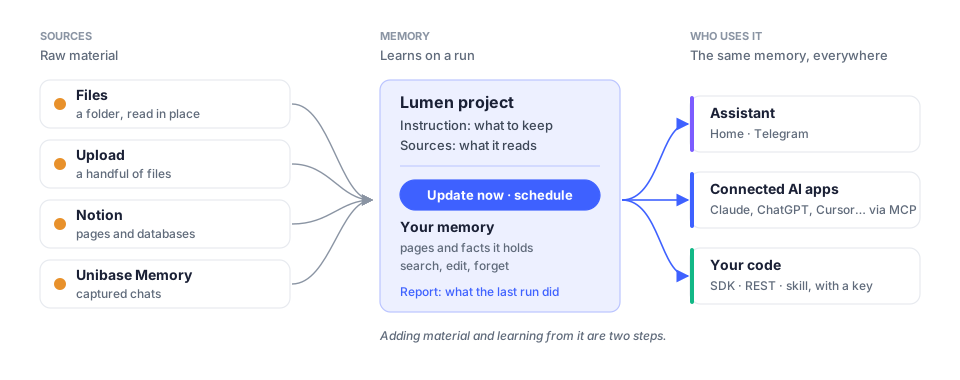
**Assistant.** Your built-in assistant, available on Home and through a connected Telegram chat. It can use the memories and skills selected in its settings.
**Memory.** A named collection of information about a topic, such as project decisions or reading notes. Set what it should retain, add sources, and choose a schedule if needed.
**Source.** Material a Memory learns from: a folder in Files, uploaded documents, selected Notion pages, or conversations imported through the Unibase Memory browser extension.
**Files.** Your file manager. Organize documents into folders and connect a folder to a Memory. System folders such as Generated, Assets and Trash have separate purposes and controls.
**Connect.** Manage access for external AI apps and developer keys. Choose the Memories each connection can use and revoke access when it is no longer needed.
**Agents.** Additional agents you configure for specific tasks. Use Studio to build their workflows and Agents to manage their settings and runs.
**Marketplace.** Browse skills and memory listings. A memory listing provides access to an agent that answers from the seller’s Memory; check its **Included access** before purchasing.
## What runs when
[Section titled “What runs when”](#what-runs-when)
Adding or syncing a source makes material available to a Memory. Select **Update now** to process it, or configure a schedule. Check the run’s **Report** to see whether it completed. An integration using `add_document` can also request learning through the API.
## Stopping and undoing
[Section titled “Stopping and undoing”](#stopping-and-undoing)
Access controls, deletion and billing have different effects. Read the confirmation for the selected action; subscription timing is shown in the relevant plan or purchase details.
| Action | Effect | Recovery |
| ------------------------------------ | ------------------------------------------------------------------------------- | ------------------------------ |
| Switch off a Memory under **Use in** | removes that connection’s access to the Memory | switch it on again |
| **Disconnect…** an app | revokes its Membase approvals | authorize the app again |
| **Revoke…** a developer key | stops subsequent requests using that key | create a new key |
| **Remove** a source from a Memory | stops that Memory reading the source | add the source again |
| **Pause** a schedule | stops future scheduled runs | resume the schedule |
| **End** a conversation | keeps its transcript readable and stops new turns | start or branch a conversation |
| **Delete…** a Memory | permanently removes its stored content and affects dependent agents or listings | cannot restore from Trash |
| **Delete conversation** | removes the transcript; previously saved memory is retained | cannot undo |
| **Delete everything** in Settings | removes account data; retains the sign-in identity | cannot undo |
Changing access does not remove content an external app has already received. Removing a source from a Memory does not by itself erase information previously learned from it. Review and edit learned content on the Memory page when needed.
### Before deleting
[Section titled “Before deleting”](#before-deleting)
Read the affected items in the confirmation, including dependent agents, workflows and subscriber access. Download data you want to keep and check for export warnings before continuing. The account-data deletion flow requires typing `delete everything`. [Export and account-data deletion](/use/account-and-models/settings/).
# Connect your AI
> Choose MCP for read-only access through consent, or a skill with a developer key for an AI that needs to write. Then follow your client’s setup guide.
Choose MCP for read-only access through consent, or a skill with a developer key for an AI that needs to write. Then follow your client’s setup guide.
Connect an AI you already use to your Membase memory. You need a Memory with material it has learned; start with the [app quickstart](/use/getting-started/quickstart/) if you have not made one yet.
Choose a connection method, follow your client’s guide, then ask a question about a known fact in your Memory to verify the result.
## Two ways in
[Section titled “Two ways in”](#two-ways-in)
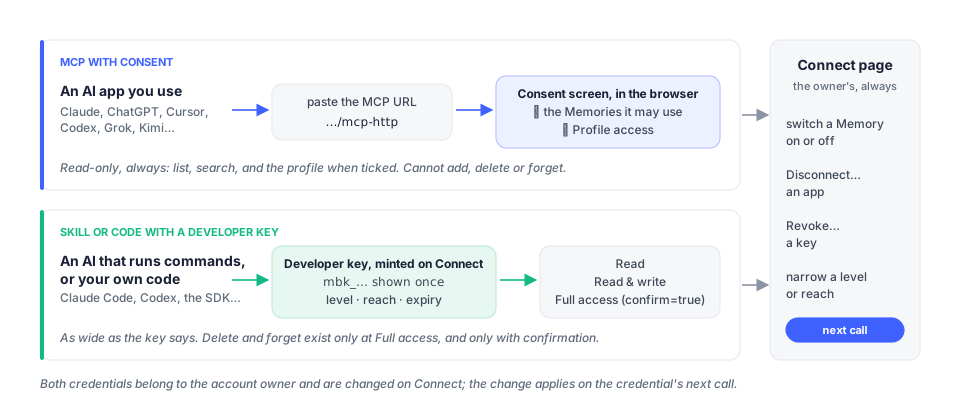
| | For | How it authenticates | What it gets |
| ------------------------------ | ----------------------------------------------------------------------------------------- | -------------------------------------------------------------------------------------------------------------------------------------------------------- | ------------------------------------------------------------------------------------------ |
| **MCP with consent** | an AI app the person uses: Claude, ChatGPT, Cursor, Codex, Grok, Kimi, VS Code, Windsurf… | the app discovers OAuth, the browser opens Membase’s consent screen, the person ticks the Memories the app may use and whether it may read their profile | `list_containers`, `search_memories` and, when ticked, `get_profile`. Read-only by design. |
| **Skill with a developer key** | an AI that reads pages and runs commands: Claude Code, Codex, Cursor’s agent, Kimi Code | a developer key the person minted | the key’s access level, up to Full access |
The account owner can change or revoke either connection from the **Connect** page, and the change applies on the credential’s next call. [Access control](/connect/manage-access/access-control/) has the rules.
### MCP server address
[Section titled “MCP server address”](#mcp-server-address)
Paste this into your client’s remote MCP setup:
```text
https://api.app.membase.io/mcp-http
```
The transport is Streamable HTTP. Supported clients open a browser for consent; the [client guides](#the-pages) show their setup steps. Some clients also accept a developer key in an Authorization header, with the permissions of that key.
### The skill, in one sentence
[Section titled “The skill, in one sentence”](#the-skill-in-one-sentence)
Tell the AI:
> Install Membase from using key mbk\_…
That address is the skill’s `SKILL.md` with an install preamble. The AI fetches the folder, keeps the key as `MEMBASE_API_KEY` and calls the REST API with it. Connect’s **Skills** tab writes the sentence for you, key included. An AI that already has Membase MCP tools uses those and keeps the skill for its rules.
## The pages
[Section titled “The pages”](#the-pages)
Every client page has the same shape: before you start, set up, with a developer key, what it can do, which Memories it uses, remove it, and what to do when something looks wrong.
| Page | For |
| ---------------------------------------------------------- | -------------------------------------------------------------------------------------------------------------------------------------------------------------------- |
| [ChatGPT](/connect/clients/chatgpt/) | the Plugins dialog, Developer mode if ChatGPT asks for it, per-chat enabling |
| [Claude](/connect/clients/claude/) | the custom connector on claude.ai and the desktop app |
| [Claude Code](/connect/clients/claude-code/) | `claude mcp add`, a key in the header, the skill |
| [Cursor](/connect/clients/cursor/) | `mcp.json`, project or global |
| [Codex](/connect/clients/codex/) | `codex mcp add`, `config.toml`, the IDE extension |
| [Grok](/connect/clients/grok/) | a custom connector on grok.com; no tile of its own, listed under **Other apps** after consent |
| [Kimi Code](/connect/clients/kimi-code/) | `kimi mcp add`; no tile of its own, listed under **Other apps** after consent |
| [Any MCP client](/connect/clients/membase-mcp/) | the server itself: discovery, the header alternative, what `tools/list` shows, the ready-made config files, VS Code, Windsurf, Devin and every client without a page |
| [Access control](/connect/manage-access/access-control/) | consent vs key, reach, the profile tick, confirmation, revocation |
| [Troubleshooting](/connect/manage-access/troubleshooting/) | every word and status a client can show, and what to do |
## What connecting looks like
[Section titled “What connecting looks like”](#what-connecting-looks-like)
1. The person pastes the URL into the app, or runs the app’s `mcp add` command.
2. The app answers with a browser window: Membase’s consent card, listing the Memories with a tick each and **Profile access** for the profile.
3. The person presses **Approve access**. The app’s tile on Connect says *Authorized · awaiting first use*; its page lists what it **Uses**. An app without a tile in the catalog (Grok, Kimi Code, any other MCP client) appears under **Other apps** once the consent completed, and only then has a page.
4. In a chat, the person asks *“List my Membase containers.”* Check that it names the Memory you granted. Then ask about a specific fact from its material and check the answer. An empty list means no Memory is switched on for this connection yet.
Connecting is the account’s, once. Which Memories an app uses is the Memory’s, and the switch on the app’s page and the switch on the Memory’s **Use in** card are the same switch. The Connect page itself, tab by tab, is on [Connect](/use/manage-your-memory/connect/) in the user guide.
## Related tasks
[Section titled “Related tasks”](#related-tasks)
* To import conversations into memory, use the [browser extension](/use/bring-your-material-in/browser-extension/).
* To talk to Membase’s own assistant from your phone, use [Telegram](/use/use-your-assistant/telegram/).
* To build your own integration, use the [API quickstart](/build/getting-started/api-quickstart/).
# ChatGPT
> Membase as a ChatGPT plugin, through the Plugins dialog, with OAuth consent in the browser.
Membase as a ChatGPT plugin, through the Plugins dialog, with OAuth consent in the browser.
ChatGPT connects to Membase as a custom MCP server and reads the Memories you switch on for it.
## Before you start
[Section titled “Before you start”](#before-you-start)
* **Developer mode** may be required. ChatGPT asks for it on the web app (Pro, Plus, Business, Enterprise and Education plans; a workspace admin can turn it off); follow its on-screen instructions.
* A Membase account with at least one Memory that has run once.
## Set up
[Section titled “Set up”](#set-up)
1. Open **ChatGPT Plugins** (`https://chatgpt.com/plugins`) and press **+**. Fill the dialog:
* a name (*Membase*) and a description;
* **Connection**: choose the public MCP server connection;
* the complete URL, path included: `https://api.app.membase.io/mcp-http`;
* **Authentication**: *OAuth*. Leave Client ID and Secret empty: ChatGPT registers itself with the server. If ChatGPT asks you to enable **Developer mode**, follow the on-screen instructions.
2. Accept the trust prompt and press **Create**.
3. The browser opens Membase’s consent screen. Tick the Memories ChatGPT may use, and **Profile access** if it may read the profile. Press **Approve access**. The last page you should see is ChatGPT’s own; if you end up on Membase instead, ChatGPT did not receive the code: retry the connection from ChatGPT.
4. Back in ChatGPT, the plugin’s details page lists the discovered tools; use **Refresh** there if the list looks stale.
5. Start a new conversation and add Membase from the tools menu.
Then ask *“List my Membase containers.”*
## What it can do
[Section titled “What it can do”](#what-it-can-do)
Read. `list_containers`, `search_memories` and, when ticked, `get_profile`. It cannot add, delete or forget anything, and cannot see a Memory that is not switched on for it. The writing and destructive tools are not in its tool list at all: `tools/list` does not offer them, and a call to one is refused with `403 unauthorized`. ChatGPT has no way to send a developer key, so the consent path is the only one.
## Which Memories it uses
[Section titled “Which Memories it uses”](#which-memories-it-uses)
An empty container list means no Memory is switched on for this connection yet. Switch one on under **Uses** on ChatGPT’s page in Connect, or under **Use in** on the Memory; the two are the same switch, and off takes effect on the next question.
Two things worth knowing:
* ChatGPT registers itself under the same client name as the Codex CLI. Membase tells them apart and shows them as two tiles on Connect; do not be surprised to see both after setting up both.
* Profile access is decided on the consent screen only; ChatGPT’s page in Connect has no profile switch. To change it, **Disconnect…** and set the plugin up again.
## Remove it
[Section titled “Remove it”](#remove-it)
Delete the plugin under **Settings → Plugins**, and **Disconnect…** on ChatGPT’s page in Membase’s Connect. ChatGPT does not tell the server when a plugin is removed.
## If something looks wrong
[Section titled “If something looks wrong”](#if-something-looks-wrong)
| It says | What it means | Do |
| ------------------------------------------------- | --------------------------------------------------------------------------- | --------------------------------------------------------------------------------- |
| ChatGPT asks for **Developer mode** | the plugin dialog needs it on this plan, or a workspace admin turned it off | follow ChatGPT’s on-screen instructions |
| the plugin is created but never appears in a chat | it is not added to this conversation | start a new conversation and add Membase from the tools menu |
| *No memory access* on ChatGPT’s page in Connect | authorized, no Memory switched on | switch one on under **Uses** |
| the consent screen never opens | the URL has a typo, or misses the path (a bare domain, `/mcp`) | paste `https://api.app.membase.io/mcp-http` exactly |
| the model answers from nothing about you | **Profile access** was not ticked at consent | **Disconnect…** on ChatGPT’s page in Connect, set the plugin up again and tick it |
# Claude
> Membase in Claude on the web and the desktop app, as a custom connector with OAuth consent in the browser.
Membase in Claude on the web and the desktop app, as a custom connector with OAuth consent in the browser.
Claude (claude.ai and the desktop app) takes Membase as a **custom connector** and reads the Memories you switch on for it. For Claude Code, the command-line agent, see [Claude Code](/connect/clients/claude-code/).
## Before you start
[Section titled “Before you start”](#before-you-start)
* A Claude plan that allows custom connectors (organisation admins can restrict them).
* A Membase account with at least one Memory that has run once.
## Set up
[Section titled “Set up”](#set-up)
1. **Customize → Connectors → + → Add custom connector**.
2. Paste `https://api.app.membase.io/mcp-http` and confirm.
3. Finish the authorization in the browser. On Membase’s consent screen tick the Memories Claude may use and, if it may read the profile, **Profile access**; press **Approve access**. The last page you should see is Claude’s own; if you end up on Membase instead, Claude did not receive the code: retry the connection from Claude.
4. In a chat, open **+ → Connectors** and switch Membase on, then ask *“List my Membase containers.”*
## What it can do
[Section titled “What it can do”](#what-it-can-do)
`list_containers`, `search_memories` and, when ticked, `get_profile`. Nothing that writes: the saving, deleting and forgetting tools are not in its tool list, and a call to one is refused with `403 unauthorized`. Claude’s connector settings have no field for a header, so the consent path is the only one here; a developer key belongs to [Claude Code](/connect/clients/claude-code/). Profile access is decided on the consent screen only; to change it, **Disconnect…** on Claude’s page in Connect and add the connector again.
## Which Memories it uses
[Section titled “Which Memories it uses”](#which-memories-it-uses)
An empty container list means no Memory is switched on for this connection. Switch one on under **Uses** on Claude’s page in Connect, or under **Use in** on the Memory. Off takes effect on Claude’s next question.
## Remove it
[Section titled “Remove it”](#remove-it)
Remove the connector on the same Connectors page, and **Disconnect…** on Claude’s page in Membase’s Connect too: the client does not tell the server.
## If something looks wrong
[Section titled “If something looks wrong”](#if-something-looks-wrong)
| It says | What it means | Do |
| ---------------------------------------------- | -------------------------------------------------------------------- | -------------------------------------------------------------------------------- |
| the connector never finishes authorizing | the URL has a typo or misses the path, or the consent tab was closed | paste the URL exactly; add the connector again |
| *List my containers* answers an empty list | connected, no Memory switched on | **Uses** on Claude’s page in Connect |
| the last step lands on the Membase app | Claude did not receive the authorization code | retry the connection from Claude |
| the model says a Memory “could not answer yet” | the memory was asleep; the first search wakes it | ask again in a moment |
| the model answers from nothing about you | **Profile access** was not ticked at consent | **Disconnect…** on Claude’s page in Connect, add the connector again and tick it |
# Claude Code
> Membase in Claude Code: over MCP with consent, over MCP with a developer key, or as the skill alone.
Membase in Claude Code: over MCP with consent, over MCP with a developer key, or as the skill alone.
Claude Code reads pages and runs commands, so it can take Membase three ways: over MCP with consent, over MCP with a developer key, or as the skill alone. Pick by what you want it to be able to do.
## Before you start
[Section titled “Before you start”](#before-you-start)
* Claude Code 2.1.186 or later for `claude mcp login`; older versions authorize with `/mcp` inside a session.
* For anything that writes, a developer key from **Connect › Developer keys › Create key** at Read & write or Full access.
## Set up
[Section titled “Set up”](#set-up)
### Over MCP, with consent
[Section titled “Over MCP, with consent”](#over-mcp-with-consent)
```bash
claude mcp add --transport http --scope user membase https://api.app.membase.io/mcp-http
claude mcp login membase
```
`--scope user` makes the server available in every project. The browser opens Membase’s consent screen; tick the Memories Claude Code may use and, if it may read the profile, **Profile access**. Then ask *“List my Membase containers.”* This connection is read-only.
## With a developer key
[Section titled “With a developer key”](#with-a-developer-key)
No OAuth round-trip, and the key’s level applies, up to Full access:
```bash
claude mcp add --transport http --scope user membase https://api.app.membase.io/mcp-http \
--header "Authorization: Bearer ${MEMBASE_API_KEY}"
```
The token screen right after **Connect › Developer keys › Create key** writes this command with the key filled in, on its **Claude Code** tab. The key’s page later shows no snippets, and a key created from the **Skills** tab shows only the sentence below.
Or the skill alone, with no MCP server at all. Paste the sentence from Connect’s **Skills** tab:
> Install Membase from using key mbk\_…
Claude Code fetches the skill folder into `~/.claude/skills/membase/`, stores the key as `MEMBASE_API_KEY` in the `env` block of `~/.claude/settings.json`, checks it with one call and reports which Memories it can use. If it already has the MCP tools it uses those and keeps the skill for its rules.
## What it can do
[Section titled “What it can do”](#what-it-can-do)
| Way in | Tools |
| ------------------ | --------------------------------------------------------------------------------------- |
| consent | `list_containers`, `search_memories`, `get_profile` when ticked; read-only |
| a Read key | those, plus `list_documents`, `memory_rules` |
| a Read & write key | plus `add_memory`, `add_document` |
| a Full access key | plus `delete_document`, `forget_memory`, each only with `confirm=true` after you agreed |
## Which Memories it uses
[Section titled “Which Memories it uses”](#which-memories-it-uses)
With consent: the Memories ticked on the consent screen, switchable later under **Uses** on Claude Code’s page in Connect. With a key: the key’s reach, switchable on the key’s page or under **Use in** on the Memory. An empty container list means nothing is switched on yet.
## Remove it
[Section titled “Remove it”](#remove-it)
`claude mcp remove membase`. Then **Disconnect…** on Claude Code’s page in Connect, or **Revoke…** the key: the client does not tell the server.
## If something looks wrong
[Section titled “If something looks wrong”](#if-something-looks-wrong)
| It says | What it means | Do |
| --------------------------------------------------------- | ------------------------------------------------------------------------------------------- | ---------------------------------------------------------------------- |
| `claude mcp list` shows membase as *needs authentication* | consent not completed | `claude mcp login membase`, or `/mcp` in a session |
| *List my containers* answers an empty list | connected, no Memory switched on | **Uses** on Claude Code’s page in Connect, or **Use in** on the Memory |
| the skill says it has no access | no key, or the key reaches nothing | Skills tab › **Create key**; or switch a Memory on for the key |
| a write is refused with `403` | the connection is consent-minted (read-only), or the key is Read | use a Read & write key |
| the first search takes a minute | the memory was asleep | nothing; the next one is quick |
| the model asks me to confirm a delete | a Full access key called delete or forget without `confirm=true` and got its `how` sentence | decide; only a Full access key can pass `confirm=true` |
# Codex
> Membase in the Codex CLI and IDE extension over MCP, with consent or a developer key, and the skill beside AGENTS.md.
Membase in the Codex CLI and IDE extension over MCP, with consent or a developer key, and the skill beside AGENTS.md.
Codex, the CLI and the IDE extension, reads Membase over MCP, and can take the skill as well.
## Before you start
[Section titled “Before you start”](#before-you-start)
* Codex CLI with `codex mcp`, or the IDE extension; they share one configuration.
* For a write-capable connection, a developer key from **Connect › Developer keys › Create key**.
## Set up
[Section titled “Set up”](#set-up)
```bash
codex mcp add membase --url https://api.app.membase.io/mcp-http
codex mcp login membase
codex mcp list
```
`codex mcp login` opens the browser on Membase’s consent screen; tick the Memories Codex may use and, if it may read the profile, **Profile access**. `codex mcp list` shows the server and whether it is authorized.
In the IDE extension: the gear menu → *MCP servers* → add the same server, then *Restart extension* and *Authenticate*. A server added on one side appears on the other.
## With a developer key
[Section titled “With a developer key”](#with-a-developer-key)
The snippet Membase serves at `https://www.app.membase.io/plugin/clients/codex.toml` is the server alone, for `~/.codex/config.toml`:
```toml
[mcp_servers.membase]
url = "https://api.app.membase.io/mcp-http"
```
Membase writes no Codex snippet with a key in it. If your Codex build takes a static header on a Streamable HTTP server, add one under `[mcp_servers.membase]` with the key as `Authorization: Bearer mbk_…`; the setting’s name is Codex’s own and is not checked here, so the plain way to give Codex a key is the skill:
> Install Membase from using key mbk\_…
Codex installs the folder beside `AGENTS.md`, points to it from there, and keeps the key as `MEMBASE_API_KEY` under `env` in its `config.toml`. With the MCP tools already present it uses those and keeps the skill for its rules.
## What it can do
[Section titled “What it can do”](#what-it-can-do)
With consent: `list_containers`, `search_memories` and, when ticked, `get_profile`; nothing that writes. With a key: the key’s level, up to Full access.
## Which Memories it uses
[Section titled “Which Memories it uses”](#which-memories-it-uses)
An empty container list means no Memory is switched on for this connection. Switch one on under **Uses** on Codex’s page in Connect, or under **Use in** on the Memory.
Codex and the ChatGPT connector register with Membase under the same client name. Membase tells them apart and shows two tiles on Connect; each has its own **Uses** switches and its own **Disconnect…**.
## Remove it
[Section titled “Remove it”](#remove-it)
`codex mcp remove membase`, then **Disconnect…** on Codex’s page in Connect or **Revoke…** the key.
## If something looks wrong
[Section titled “If something looks wrong”](#if-something-looks-wrong)
| It says | What it means | Do |
| ------------------------------------------------------- | -------------------------------------------- | ----------------------------------------------- |
| `codex mcp list` shows the server without authorization | consent not completed | `codex mcp login membase` |
| an empty container list | connected, no Memory switched on | **Uses** on Codex’s page in Connect |
| a write is refused | the connection is consent-minted (read-only) | give Codex a Read & write key through the skill |
| the extension does not see the server | it was added before the extension restarted | *Restart extension*, then *Authenticate* |
# Cursor
> Membase in Cursor through mcp.json, in one project or globally, with consent or a developer key.
Membase in Cursor through mcp.json, in one project or globally, with consent or a developer key.
Cursor reads Membase over MCP from a JSON file, in one project or for every project, and its agent can take the skill as well.
## Before you start
[Section titled “Before you start”](#before-you-start)
* Cursor with MCP enabled under **Customize** in the sidebar.
* For a write-capable connection, a developer key from **Connect › Developer keys › Create key**.
## Set up
[Section titled “Set up”](#set-up)
`.cursor/mcp.json` in the project, or `~/.cursor/mcp.json` for every project:
```json
{ "mcpServers": { "membase": { "url": "https://api.app.membase.io/mcp-http" } } }
```
Open **Customize** in the sidebar, enable Membase and complete the OAuth prompt: the browser opens Membase’s consent screen, where you tick the Memories Cursor may use and, if it may read the profile, **Profile access**. Check that its tools appear under **Available Tools** in chat, then ask *“List my Membase containers”*.
## With a developer key
[Section titled “With a developer key”](#with-a-developer-key)
Add the header; the key’s level applies, up to Full access:
```json
{ "mcpServers": { "membase": {
"url": "https://api.app.membase.io/mcp-http",
"headers": { "Authorization": "Bearer mbk_…" } } } }
```
The token screen right after **Connect › Developer keys › Create key** writes this block with the key filled in, on its **Cursor / VS Code** tab; the key’s page later shows no snippets. Keep a file that holds a key out of version control; the consent form of the file is safe to commit.
Or the skill: paste the sentence from Connect’s **Skills** tab and Cursor’s agent installs the skill folder in the project, points to it from the rules file and keeps the key. With the MCP tools already present it uses those and keeps the skill for its rules.
## What it can do
[Section titled “What it can do”](#what-it-can-do)
With consent: `list_containers`, `search_memories` and, when ticked, `get_profile`, and nothing that writes. With a key: the key’s level.
## Which Memories it uses
[Section titled “Which Memories it uses”](#which-memories-it-uses)
An empty container list means no Memory is switched on for this connection. Switch one on under **Uses** on Cursor’s page in Connect, or on the key’s page, or under **Use in** on the Memory.
## Remove it
[Section titled “Remove it”](#remove-it)
Delete the entry from `mcp.json`, then **Disconnect…** on Cursor’s page in Connect or **Revoke…** the key.
## If something looks wrong
[Section titled “If something looks wrong”](#if-something-looks-wrong)
| It says | What it means | Do |
| ------------------------------------------ | ---------------------------------------------- | -------------------------------------------------------------------------------------------------------------- |
| the server shows red under MCP | the URL is wrong, or consent was not completed | check the URL is the exact address, path included; retry the prompt; the Output panel’s MCP Logs has the error |
| the tools appear but every call is refused | the key in `headers` is expired or revoked | rotate it on the key’s page and update the file |
| an empty container list | connected, no Memory switched on | **Uses** on Cursor’s page in Connect |
| a project file with a key was committed | the token is public | **Revoke…** it now and mint another |
# Grok
> Membase in Grok on the web, iOS and Android, as a custom connector with OAuth consent in the browser.
Membase in Grok on the web, iOS and Android, as a custom connector with OAuth consent in the browser.
Grok (web, iOS and Android) takes custom MCP servers as **connectors**. The menus are the vendor’s own and move with its releases; the Membase side, the URL, the consent screen and the app’s page on Connect, is the same as for every other client. Grok has no tile of its own in Connect’s client catalog: it appears under **Other apps**, with a monogram, once the consent completed.
## Before you start
[Section titled “Before you start”](#before-you-start)
* A Grok plan that allows connectors. On a Business or Enterprise plan a team admin provisions them first.
* A Membase account with at least one Memory that has run once.
## Set up
[Section titled “Set up”](#set-up)
1. Open `grok.com/connectors`.
2. **New Connector → Custom**.
3. Enter the server URL, `https://api.app.membase.io/mcp-http`, and complete the authentication: the browser opens Membase’s consent screen. Tick the Memories Grok may use and, if it may read the profile, **Profile access**; press **Approve access**.
4. Grok discovers the tools the server exposes for that consent. Ask *“List my Membase containers.”*
## With a developer key
[Section titled “With a developer key”](#with-a-developer-key)
Grok’s connector dialog has no header field, so a person’s Grok connects by consent only. Grok’s **API** also takes remote MCP servers as tools on a request; that is a developer integration rather than a plugin, and it works with a developer key in the server’s `Authorization` header the way [MCP frameworks](/build/integrations/mcp-frameworks/) describes.
## What it can do
[Section titled “What it can do”](#what-it-can-do)
`list_containers`, `search_memories` and, when ticked, `get_profile`. Nothing that writes.
## Which Memories it uses
[Section titled “Which Memories it uses”](#which-memories-it-uses)
An empty container list means no Memory is switched on for this connection. Switch one on under **Uses** on Grok’s page in Connect, or under **Use in** on the Memory. Grok’s page exists under **Other apps** on Connect once the consent completed, whatever Grok’s own screen says; it has **Uses**, **Approvals** and **Disconnect…** like every other app.
## Remove it
[Section titled “Remove it”](#remove-it)
Remove the connector on the same page, and **Disconnect…** on Grok’s page in Membase’s Connect; the client does not tell the server.
## If something looks wrong
[Section titled “If something looks wrong”](#if-something-looks-wrong)
| It says | What it means | Do |
| ----------------------------------- | -------------------------------------------------------------------- | ----------------------------------- |
| the connector never authorizes | the URL has a typo or misses the path, or the consent tab was closed | paste the URL exactly; add it again |
| an empty container list | connected, no Memory switched on | **Uses** on Grok’s page in Connect |
| no **New Connector** on a team plan | connectors are provisioned by the admin | ask the admin to add the URL |
# Kimi Code
> Membase in the Kimi Code CLI over Streamable HTTP, with OAuth consent or a developer key in the header, and the skill.
Membase in the Kimi Code CLI over Streamable HTTP, with OAuth consent or a developer key in the header, and the skill.
**Kimi Code CLI** connects to remote MCP servers over Streamable HTTP, and reads pages and runs commands, so it can take the skill as well.
## Before you start
[Section titled “Before you start”](#before-you-start)
* Kimi Code CLI with `kimi mcp`.
* For a write-capable connection, a developer key from **Connect › Developer keys › Create key**.
## Set up
[Section titled “Set up”](#set-up)
```bash
kimi mcp add --transport http --auth oauth membase https://api.app.membase.io/mcp-http
kimi mcp auth membase
kimi mcp list
```
`kimi mcp auth` opens the browser on Membase’s consent screen and caches the token under `~/.kimi/mcp-oauth/`. Tick the Memories Kimi Code may use and, if it may read the profile, **Profile access**. `kimi mcp list` shows the server and its authorization state. Kimi Code has no tile of its own in Connect’s client catalog: it appears under **Other apps** once the consent completed.
## With a developer key
[Section titled “With a developer key”](#with-a-developer-key)
```bash
kimi mcp add --transport http membase https://api.app.membase.io/mcp-http \
--header "Authorization: Bearer mbk_…"
```
The key’s level applies, up to Full access. The skill sentence from Connect’s **Skills** tab works as well: Kimi Code installs the folder and keeps the key as `MEMBASE_API_KEY`.
## What it can do
[Section titled “What it can do”](#what-it-can-do)
With consent: `list_containers`, `search_memories` and, when ticked, `get_profile`; nothing that writes. With a key: the key’s level.
## Which Memories it uses
[Section titled “Which Memories it uses”](#which-memories-it-uses)
An empty container list means no Memory is switched on for this connection. Switch one on under **Uses** on Kimi Code’s page in Connect (under **Other apps**), or under **Use in** on the Memory.
## Remove it
[Section titled “Remove it”](#remove-it)
`kimi mcp remove membase`, then **Disconnect…** on Kimi Code’s page in Connect or **Revoke…** the key.
## If something looks wrong
[Section titled “If something looks wrong”](#if-something-looks-wrong)
| It says | What it means | Do |
| --------------------------------------------- | ---------------------------------------------------------------- | --------------------------------------- |
| `kimi mcp list` shows the server unauthorized | consent not completed | `kimi mcp auth membase` |
| an empty container list | connected, no Memory switched on | **Uses** on Kimi Code’s page in Connect |
| a write is refused | the connection is consent-minted (read-only), or the key is Read | use a Read & write key in the header |
| the tools appear but every call is refused | the key in the header is expired or revoked | rotate it and run `kimi mcp add` again |
# Any MCP client
> The MCP server itself: how a client discovers it, the two ways to authenticate, what a connected client sees, the ready-made config files, and the clients without a page of their own.
The MCP server itself: how a client discovers it, the two ways to authenticate, what a connected client sees, the ready-made config files, and the clients without a page of their own.
```plaintext
https://api.app.membase.io/mcp-http
```
One URL for every client. Streamable HTTP, JSON responses, with or without a trailing slash (both answer the same; what fails is a wrong path such as `/mcp`). The server speaks the current MCP specification and advertises its authorization the standard way, so a client that can add “a remote MCP server with OAuth” can add Membase without a special step.
## Two ways to authenticate
[Section titled “Two ways to authenticate”](#two-ways-to-authenticate)
**OAuth consent**, for the person’s own AI apps. An unauthenticated request answers `401` with `WWW-Authenticate` pointing at `https://api.app.membase.io/.well-known/oauth-protected-resource/mcp-http` (RFC 9728). The metadata names the authorization server and its registration endpoint; the client registers itself (RFC 7591) and runs the authorization code flow with PKCE. The browser opens Membase’s consent screen; the person ticks the Memories the app may use and whether it may read their profile; the client receives a token good for that and nothing else.
**A developer key in the header**, for a client that can send a static header and a person who prefers a key they minted:
```plaintext
Authorization: Bearer mbk_…
```
No consent round-trip; the key’s access level and reach apply, up to Full access. The ready-made config files carry no header, so a key never ends up in a public file.
## What a connected client sees
[Section titled “What a connected client sees”](#what-a-connected-client-sees)
`tools/list` is filtered per caller.
| Credential | Tools offered |
| ----------------------------- | ----------------------------------------------------------------------------- |
| consent token | `list_containers`, `search_memories`; `get_profile` when the person ticked it |
| developer key, Read | those, plus `list_documents`, `memory_rules` |
| developer key, Read & write | plus `add_memory`, `add_document` |
| developer key, Full access | plus `delete_document`, `forget_memory` |
| an agent or workflow exposure | `ask_agent` or `workflow_invoke` |
A tool outside the caller’s list is refused with `403 unauthorized` (“tool ‘…’ is not in this agent’s capability profile”): a consent-minted client cannot write, delete or forget at all. A Full access key that calls `delete_document` or `forget_memory` without `confirm=true` answers `status: confirmation_required` with a `how` sentence for the model to relay. Retired tool names (`memory_view_query`, `memory_list`, `memory_recall`, `memory_remember`, `memory_ingest`, `memory_list_sources`, `memory_forget`, `agent_invoke`) still answer for clients that carry them and are hidden from `tools/list`.
A search is a turn inside the person’s container. The first one after a quiet spell can take up to a minute; the answer marks in `containers[]` any Memory that could not answer yet, and the model should say so rather than answer from nothing.
## Ready-made config files
[Section titled “Ready-made config files”](#ready-made-config-files)
Use these published configuration files and references for your client:
| File | For |
| --------------------------------------------------------------- | ------------------------------------------------------ |
| `https://www.app.membase.io/plugin/mcp.json` | the server in the `mcpServers` shape most clients read |
| `https://www.app.membase.io/plugin/clients/vscode.mcp.json` | VS Code’s `servers` shape |
| `https://www.app.membase.io/plugin/clients/codex.toml` | Codex’s `config.toml` snippet |
| `https://www.app.membase.io/plugin/membase-skill.zip` | the skill folder |
| `https://www.app.membase.io/plugin/openapi/agent-protocol.json` | the OpenAPI document |
| `https://www.app.membase.io/skill` | the skill’s `SKILL.md` with its install preamble |
## Other clients
[Section titled “Other clients”](#other-clients)
The clients with a page of their own are [ChatGPT](/connect/clients/chatgpt/), [Claude](/connect/clients/claude/), [Claude Code](/connect/clients/claude-code/), [Cursor](/connect/clients/cursor/), [Codex](/connect/clients/codex/), [Grok](/connect/clients/grok/) and [Kimi Code](/connect/clients/kimi-code/). Everything else takes the same URL.
### VS Code (Copilot agent mode)
[Section titled “VS Code (Copilot agent mode)”](#vs-code-copilot-agent-mode)
Command palette → *MCP: Add Server* → *HTTP* → the URL → complete the OAuth prompt, or in `.vscode/mcp.json`:
```json
{ "servers": { "membase": { "type": "http", "url": "https://api.app.membase.io/mcp-http" } } }
```
### Windsurf
[Section titled “Windsurf”](#windsurf)
`~/.codeium/windsurf/mcp_config.json`, in the `mcpServers` shape:
```json
{ "mcpServers": { "membase": { "serverUrl": "https://api.app.membase.io/mcp-http" } } }
```
Then refresh the MCP list in Windsurf’s settings and complete the OAuth prompt.
### Devin
[Section titled “Devin”](#devin)
```bash
devin mcp add --scope user membase https://api.app.membase.io/mcp-http
devin mcp login membase
```
### Claude Desktop, and any `mcpServers`-shaped client
[Section titled “Claude Desktop, and any mcpServers-shaped client”](#claude-desktop-and-any-mcpservers-shaped-client)
Merge `https://www.app.membase.io/plugin/mcp.json` into the client’s configuration:
```json
{ "mcpServers": { "membase": { "type": "http", "url": "https://api.app.membase.io/mcp-http" } } }
```
### Any other client, or your own
[Section titled “Any other client, or your own”](#any-other-client-or-your-own)
Use the same URL. The server advertises OAuth discovery on a `401`, accepts a bearer developer key in `Authorization`, and speaks Streamable HTTP. An agent framework without an MCP client can take `SKILL.md` as instructions and the REST API directly; [MCP frameworks](/build/integrations/mcp-frameworks/) and [AI coding tools](/build/integrations/ai-coding-tools/) have the shapes.
## Verifying and revoking
[Section titled “Verifying and revoking”](#verifying-and-revoking)
The **Connect** page shows every authorized client with its last activity. A client’s page has the per-Memory switch (*Uses*), the credential list (*Approvals*, shown when there is more than one) and **Disconnect…** for all of them. A client without a tile of its own is listed under **Other apps** once authorized. Removing a connector inside the client does not notify Membase: revoke on Connect to be sure access has stopped. Revocation takes effect on the credential’s next call.
# Access control
> What a connected client may do, decided by its credential and by the switches on Connect: reach, level, the profile tick, confirmation, and revocation.
What a connected client may do, decided by its credential and by the switches on Connect: reach, level, the profile tick, confirmation, and revocation.
A connected AI can do exactly what its credential allows, and the credential is the person’s: they minted it or approved it, and they change it on the **Connect** page without touching the client. Every rule below is enforced on the server, on the credential’s next call; nothing here depends on the client behaving.
## Two credentials, two ceilings
[Section titled “Two credentials, two ceilings”](#two-credentials-two-ceilings)
| | Consent (an app connected over MCP) | Developer key (the skill, a header, code) |
| ------------ | ------------------------------------------------------------------------ | ----------------------------------------------------------- |
| Ceiling | read-only, always | the key’s level: Read, Read & write, Full access |
| Reach | the Memories ticked on consent, switchable later | the Memories ticked on the key, or all including later ones |
| Profile | when **Profile access** was ticked on the consent screen | when **Your profile** was ticked |
| Confirmation | is not offered a delete or forget at all | can, with `confirm=true` at Full access |
| Ends | **Disconnect…** on the app’s page, or per credential under **Approvals** | **Revoke…**, or expiry |
An app that needs to write does not get a wider consent; the person mints a key for it instead, and the key says how wide.
## Reach
[Section titled “Reach”](#reach)
Reach is the list of Memories a credential may use. It has one state and three views of it: the **Uses** card on the client’s page in Connect, the **Use in** card on the Memory’s page, and the **Memory access** switches on a key’s page. Off takes effect on the very next call.

A Memory outside the reach is refused the same way as one that does not exist: `403`, *may not use that container*. `list_containers` does not list it. A client cannot tell withheld from absent, and cannot ask for more; only the person can switch it on.
## The tool list is the grant
[Section titled “The tool list is the grant”](#the-tool-list-is-the-grant)
`tools/list` is filtered per caller. A consent-minted client is offered `list_containers`, `search_memories` and, when ticked, `get_profile`, and nothing that writes; a key is offered the tools of its level. A model cannot call what it was not offered, and a call that bypasses the list is refused with `403` anyway. The full table per level is on [Authentication & Scopes](/build/reference/authentication/#access-levels).
## Destructive verbs
[Section titled “Destructive verbs”](#destructive-verbs)
`delete_document` and `forget_memory` exist only at Full access, and even there they do not execute on a bare call: without `confirm=true` the answer is `status: confirmation_required` with a `how` sentence for the model to relay. A consent-minted client is never offered these verbs, and a call is refused with `403` (*not in this agent’s capability profile*) rather than answered with the sentence. From a Full access key, `confirm=true` counts as the owner’s confirmation, which is why the skill tells the AI to pass it only after the person agreed.
Deleting a Memory, a source’s material or the account has no agent-protocol verb at all; those belong to the owner’s session, in the app.
## The profile
[Section titled “The profile”](#the-profile)
The profile is about the person, not a topic, so it is granted separately from reach. A client offered `get_profile` reads the standing facts and what changed recently; one that was not ticked is not offered the tool. On a key the tick is **Your profile**, changeable later on the key’s page. On a consent connection it is **Profile access**, set only on the consent screen: to change it, **Disconnect…** the app and authorize it again.
## Revocation
[Section titled “Revocation”](#revocation)
* **Disconnect…** on a client’s page revokes every credential that client holds, at once.
* **Revoke** under **Approvals** ends one credential when a client holds several.
* **Revoke…** on a key ends it at once; it stays listed for thirty days.
* Removing the connector inside the client does not tell Membase. Revoke on Connect to be sure.
Revocation and permission changes apply to subsequent requests. They do not remove content an external client has already received. A revoked key must be replaced with a new key; reconnecting an app requires a new authorization.
## Seeing what a client did
[Section titled “Seeing what a client did”](#seeing-what-a-client-did)
A client’s page on Connect shows its last activity. A key’s page shows **Usage** (calls, refusals, the tool it calls most) and **Recent activity** (each call: tool, Memory, what came back, when; a refused call in red with the reason; a refused `ask_agent` is the one call not recorded). A refusal is the sign that a client asked for a Memory or a verb it does not have, which is usually the person’s cue to widen it or to leave it.
## Rules the skill teaches the model
[Section titled “Rules the skill teaches the model”](#rules-the-skill-teaches-the-model)
Because the server enforces the ceiling, the skill’s rules are about behaving well beneath it: read the profile first when it is granted; search before answering about the person’s past work; cite the container a result came from; save only what the person supplied; never pass `confirm` on the model’s own initiative; treat `403` as withdrawn access and ask the person rather than retry.
# Troubleshooting
> Every word and status a connected client, the Connect page or the API can show, and what to do about it.
Every word and status a connected client, the Connect page or the API can show, and what to do about it.
Look up the word on screen, or the status in the answer.
## On the Connect page
[Section titled “On the Connect page”](#on-the-connect-page)
| It says | What it means | Do |
| ---------------------------------------------------------------------- | ------------------------------------------------------------- | --------------------------------------------------- |
| *Set up* on a tile | this app is not connected | pick the tile and follow the steps |
| *No memory access* (amber) on an app’s page | connected, but no Memory switched on | turn a switch on under **Uses** |
| the app cannot see a Memory | its switch is off | Memory page › **Use in** |
| I removed the app in Claude or ChatGPT but it still shows *Authorized* | the app did not tell Membase | **Disconnect…** on the app’s page |
| *The MCP address is unavailable* | the page could not ask the server for it | reload; the sentence for your AI still works |
| my AI installed the skill but says it has no access | the skill needs a developer key | Skills tab › **Create key**, and paste the sentence |
| a key’s row says *Expired* | its token has lapsed | **⋯ › Create a similar key** |
| two tiles for ChatGPT and Codex | they register under one client name; Membase tells them apart | nothing |
## In the client
[Section titled “In the client”](#in-the-client)
| It says | What it means | Do |
| ---------------------------------------------------------- | ------------------------------------------------------------------------------------------- | --------------------------------------------------------------------------------------------------------------------- |
| the server never authorizes | the URL has a typo or a wrong path (`/mcp`, a bare domain), or the consent tab was closed | paste `https://api.app.membase.io/mcp-http` exactly; run the login again |
| *List my containers* answers an empty list | connected, no Memory switched on | **Uses** on the client’s page, or **Use in** on the Memory |
| the tools appear, every call is refused | the key in the header is expired or revoked | rotate it and update the file |
| a write is refused | the connection is consent-minted (read-only), or the key is Read | mint a Read & write key and use it instead |
| the model says a Memory “could not answer yet” | the memory was asleep; the first search after a quiet spell wakes it | ask again in a moment |
| the model answers from nothing about the person | the profile tick is off | an app: **Disconnect…** and authorize again with **Profile access** ticked; a key: **Your profile** on the key’s page |
| the model asks me to confirm a delete | a Full access key called delete or forget without `confirm=true` and got its `how` sentence | decide; only a Full access key can pass `confirm=true` |
| a retired tool name in the model’s call (`memory_recall`…) | the client cached an old list | it still answers; restart the client to refresh `tools/list` |
## In the API answer
[Section titled “In the API answer”](#in-the-api-answer)
| Answer | Meaning | Do |
| ------------------------------------------------------------- | ------------------------------------------------------------------------------------------------------ | --------------------------------------------------------------------------- |
| `401` | no bearer at all | send `Authorization: Bearer …` |
| `403 · unauthorized` | an unknown, expired or revoked token | mint a new key; do not retry with this one |
| `403 · unauthorized · may not use that container` | the container is outside the reach, or does not exist | switch it on under **Memory access**; or list containers first |
| `403 · unauthorized · not in this agent's capability profile` | the tool is not in this credential’s list: above the key’s level, or a write from a consent-minted app | raise the level, or mint a higher key |
| `200 · status: confirmation_required` | a Full access key’s destructive verb without `confirm=true` | pass `confirm=true` after the person agreed |
| `400 · validation` | a missing `q`, both `content` and `url`, an ambiguous `container` | fix the request; with several Memories in reach, `container` is required |
| `404 · not_found` | an unknown document or memory id | list first |
| `422 · capability_unavailable · no model` | the account has no working model | [AI Setup](/use/account-and-models/ai-setup/) |
| `422 · capability_unavailable · no agent containers` | the memory service is unavailable | contact support with the error and trace ID |
| `422 · reason: dormant` | a free-plan account whose free turns are spent | bring a model, or a paid plan |
| `429 · rate_limited` | the account’s concurrent-turn budget | retry later; the SDK retries twice with backoff |
| `202` with `document_id: null` | the folder sync had not written the row yet | list the container’s documents in a moment |
| a search takes a minute | the container was asleep | allow time for startup; check for errors if the request times out |
| `405` on the MCP URL | a wrong path that missed the mount, e.g. `/mcp` or `/mcp-http/v1` | use `https://api.app.membase.io/mcp-http` exactly; a trailing slash is fine |
## On the extension
[Section titled “On the extension”](#on-the-extension)
| It says | What it means | Do |
| --------------------------------------- | ------------------------------------------------------------------------------ | ----------------------------------------------------------------------- |
| **Install** never becomes **Use here** | the page cannot see the extension; it can only tell by what reached the wallet | sign the extension in with the same wallet, have a conversation, reload |
| *Reading* but the Memory learns nothing | nothing uploaded yet, or the Memory has not run | check the extension’s log, then select **Update now** on the Memory |
| the Memory reads like a log | the instruction is a topic | rewrite it as a filter on the chats |
## Reporting a problem
[Section titled “Reporting a problem”](#reporting-a-problem)
Every error envelope carries a `trace_id`. Quote it, with the key’s hint (never the token), the tool, and the time.
# Benchmarks
> LoCoMo, LongMemEval and DMR results for the Unibase memory engine, with the method behind each number.
LoCoMo, LongMemEval and DMR results for the Unibase memory engine, with the method behind each number.
This report covers the memory engine’s benchmark harness. These scores and latency figures are not measurements of the hosted Membase API, account startup, or an end-to-end app task. For hosted search behavior and timeouts, see [How Membase works](/build/concepts/how-membase-works/) and [API troubleshooting](/build/reference/troubleshooting/).
The engine is measured on three public long-term-memory benchmarks: **LoCoMo**, **LongMemEval** and **DMR**. Each accuracy number below is one pass over the full question set, graded by the benchmark’s own judge; the latency rows come from samples, noted under that table. Powered by episodic extraction and multi-round retrieval that sends the reader a few thousand tokens instead of the whole history.
| | LoCoMo | LongMemEval | DMR |
| ---------------------------------- | ------------ | ----------- | ----------- |
| **Accuracy** | **93.1%** | **92.6%** | **92.2%** |
| Questions | 1,540 | 500 | 500 |
| Context tokens per question (mean) | 6,562 | 8,970 | 1,602 |
| Full history per question | \~26k | \~115k | — |
| Token reduction | 4× | 13× | — |
| Reader model | gpt-4.1-mini | gpt-5.5 | gpt-4o-mini |
## LoCoMo
[Section titled “LoCoMo”](#locomo)
1,540 questions in four categories: single-hop, multi-hop, open-domain and temporal recall across multi-session conversations spanning months.
| Category | Questions | Accuracy |
| ----------- | --------- | --------- |
| single-hop | 841 | 94.6% |
| multi-hop | 282 | 93.6% |
| temporal | 321 | 91.6% |
| open-domain | 96 | 83.3% |
| **overall** | **1,540** | **93.1%** |
Mean context: 6,562 tokens, four times below the full history. The gold session reached the reader for 96 to 99% of questions. Swapping the reader model moves the score by less than 0.1 points.
## LongMemEval
[Section titled “LongMemEval”](#longmemeval)
500 questions in six types. Each question comes with its own 115k-token, roughly 50-session history; the reader sees only what memory retrieves.
| Question type | Questions | Accuracy |
| ------------------------- | --------- | --------- |
| single-session preference | 30 | 100% |
| single-session user | 70 | 98.6% |
| knowledge update | 78 | 97.4% |
| temporal reasoning | 133 | 92.5% |
| multi-session | 133 | 88.0% |
| single-session assistant | 56 | 85.7% |
| **overall** | **500** | **92.6%** |
Mean context: 8,970 tokens, thirteen times below the full history. The gold session was retrieved for 99.95% of questions. 29 of the 30 unanswerable questions were correctly abstained.
## DMR
[Section titled “DMR”](#dmr)
MemGPT’s Deep Memory Retrieval set: 500 questions, five sessions each, run under its published protocol with gpt-4o-mini as reader and judge.
| Outcome | Questions | Share |
| --------------------------- | --------- | ----- |
| correct | 461 | 92.2% |
| abstained | 4 | 0.8% |
| lost a detail in extraction | 35 | 7.0% |
Mean context: 1,602 tokens.
## Latency and tokens
[Section titled “Latency and tokens”](#latency-and-tokens)
| | LoCoMo | LongMemEval | DMR |
| --------------------------- | --------------- | --------------- | --------------- |
| search latency, p50 / p95 | 1.67 s / 7.02 s | 2.53 s / 6.11 s | 1.13 s / 1.71 s |
| end-to-end, p50 / p95 | 8.30 s / 18.0 s | 14.7 s / 30.2 s | 3.21 s / 6.34 s |
| context tokens per question | 6,562 | 8,970 | 1,602 |
The latency rows were measured on samples, not the full sets: 40 LoCoMo questions, 30 LongMemEval and 30 DMR, timed serially on 2026-09-21. In these runs, search takes 1.1 to 2.5 s at the median, including one to three decider rounds. End to end is 3 to 15 s at the median depending on the reader model. These figures exclude hosted runtime wake-up and are not a service latency guarantee.
## Why the numbers look this way
[Section titled “Why the numbers look this way”](#why-the-numbers-look-this-way)
Each score traces back to a specific part of the architecture.
* **Recall correctness.** Every session is narrated into timestamped episodes that keep who, what and when together, so a fact is retrieved with its context. The retrieval decider reads the first hits and asks follow-up questions before settling, which is why the gold session is in context for 99.95% of LongMemEval questions.
* **Context footprint.** Keyword and vector search are fused by reciprocal rank and only the top twenty episodes enter the prompt. That keeps a LongMemEval call at about 9,000 tokens against a 115k-token history, and a LoCoMo call at about 6,500 against 26k.
* **Response time.** One to three decider rounds per search, each a short call; the reader model dominates end-to-end time.
## What is inside
[Section titled “What is inside”](#what-is-inside)
Four pieces working together.
| | |
| ------------------------- | ------------------------------------------------------------------------------------------------------------------------------------------- |
| **Boundary detection** | An LLM pass splits each session into topical cells before extraction, so one episode never straddles two subjects. |
| **Episodic extraction** | Each cell becomes a titled, timestamped narrative from the user’s point of view. Optional profile, fact and foresight layers sit beside it. |
| **Multi-round retrieval** | Hybrid search per sub-query, fused by reciprocal rank; a decider marks core evidence and issues new queries for up to three rounds. |
| **Local-first store** | SQLite and FAISS on disk, scoped per user, with any OpenAI-compatible model for extraction, retrieval and answering. |
## Method
[Section titled “Method”](#method)
* **Grading.** Each benchmark’s standard judge prompt with gpt-4o-mini, unmodified. LongMemEval uses its official per-type rules. Every question in the set is counted once; a failed call is graded wrong.
* **No re-runs.** Each accuracy number is one pass over the full question set. No best-of-N, no merging of re-runs, no dataset-specific answer rules.
* **Models.** OpenAI only: gpt-4.1-mini for extraction and retrieval decisions, text-embedding-3-small for vectors, and the reader listed per benchmark. The same stores answer with any OpenAI-compatible model.
* **Reproducing.** The harness, dataset loaders, judge configuration and run commands ship with the engine’s repository (`unibaseio/unibase-supermem`, `bench/`).
## Which benchmark matters
[Section titled “Which benchmark matters”](#which-benchmark-matters)
LoCoMo tests recall across a long two-person history. LongMemEval tests finding one fact in a 115k-token haystack and updating or abstaining correctly. DMR tests the fidelity of what was extracted. A memory system needs all three, which is why each is reported separately.
## How this differs from RAG over the transcript
[Section titled “How this differs from RAG over the transcript”](#how-this-differs-from-rag-over-the-transcript)
Raw chunks lose who said what and when. Episodes are written with speaker, time and context attached, and retrieval can ask follow-up questions instead of taking the first top-k.
*Benchmark report, September 2026.*
# FAQ
> Answers about memories, connected apps, models, exports and deleting data.
Answers about memories, connected apps, models, exports and deleting data.
## What is a Memory?
[Section titled “What is a Memory?”](#what-is-a-memory)
A Memory organizes information about a topic, such as project decisions, reading notes or customers. Choose its sources, describe what it should retain, and update it manually or on a schedule. You control which apps and keys can access it. [Concepts](/concepts/).
## I added a folder. Why does my AI not know about it yet?
[Section titled “I added a folder. Why does my AI not know about it yet?”](#i-added-a-folder-why-does-my-ai-not-know-about-it-yet)
Adding a source makes its content available for processing. Select **Update now** on the Memory page, or wait for its scheduled update, to learn from that content. Check the run’s **Report** if the update fails. [Bring your material in](/use/bring-your-material-in/bring-material-in/).
## Why can the first search take longer?
[Section titled “Why can the first search take longer?”](#why-can-the-first-search-take-longer)
A search after a period of inactivity may take longer to start. Search also uses a model to find relevant information. If the request fails, check the model configuration and the error before assuming the Memory is empty. [Search behavior](/build/concepts/how-membase-works/#a-search-is-a-turn).
## Where can I manage and export my data?
[Section titled “Where can I manage and export my data?”](#where-can-i-manage-and-export-my-data)
Manage your material in **Files**, review learned content in **Memory**, and choose which apps can access it in **Connect**. Download an export from **Settings › Data & export**. If the export warning says agent memory files are missing, export again before relying on it as a backup. [Export and deletion](/use/account-and-models/settings/).
## What can a connected app do?
[Section titled “What can a connected app do?”](#what-can-a-connected-app-do)
An app authorized through the MCP consent screen can read the Memories you select. Profile access is a separate choice. For an integration that needs to add or remove content, create a developer key with the appropriate access level. [Access control](/connect/manage-access/access-control/).
## How do I stop an app accessing my memory?
[Section titled “How do I stop an app accessing my memory?”](#how-do-i-stop-an-app-accessing-my-memory)
Switch off a Memory under **Use in**, or use **Disconnect…** on the app’s page in **Connect** to revoke its approvals. These changes apply to subsequent requests. They do not remove content the external app has already received. Removing a connector only inside that app does not revoke its Membase authorization.
## Which model does it use? Do I need my own key?
[Section titled “Which model does it use? Do I need my own key?”](#which-model-does-it-use-do-i-need-my-own-key)
Use **AI Setup** to connect a supported provider key or subscription. A free account includes an initial allowance of chat turns. When that allowance is used, stored memories remain; continuing to run the assistant requires an available model source or a suitable plan. [AI Setup](/use/account-and-models/ai-setup/).
## What is the profile?
[Section titled “What is the profile?”](#what-is-the-profile)
The profile contains information about you, such as preferences and recent context. You can grant access to it separately from access to individual Memories.
## What cannot be undone?
[Section titled “What cannot be undone?”](#what-cannot-be-undone)
Deleting a Memory removes its stored content. Deleting a conversation removes its transcript; information already saved to memory is retained. **Delete everything** in Settings removes account data while retaining your sign-in identity. Review each confirmation and download any data you want to keep before proceeding. [Deletion and access controls](/concepts/#stopping-and-undoing).
## How is this different from searching my files?
[Section titled “How is this different from searching my files?”](#how-is-this-different-from-searching-my-files)
A Memory processes source material and retains information for later retrieval. Updating a source and updating its Memory are separate actions. See the [memory engine benchmarks](/evaluation/benchmarks/) for evaluation results and their scope; those measurements are separate from hosted API performance.
Questions about API status codes, metadata filters or serving multiple users are covered in [API troubleshooting](/build/reference/troubleshooting/).
# Use Membase
> Start with a working Memory, then import more material, use your assistant, connect apps, and keep your memory up to date.
Start with a working Memory, then import more material, use your assistant, connect apps, and keep your memory up to date.
Start with the [quickstart](/use/getting-started/quickstart/): create a Memory, add a file, run it, and ask your assistant a question. You can connect another AI after that first success.
A **Memory** is a named collection of what Membase has learned about a topic. A **source** is the material it reads. Adding a source and learning from it are separate steps. [Concepts](/concepts/) explains the other product terms.

## Find your task
[Section titled “Find your task”](#find-your-task)
| I want to | Guide |
| --------------------------------------------- | ----------------------------------------------------------------------------------------------------------------------------------------------------------------------------------------------------------------------------- |
| sign in or replay the setup tour | [Sign in](/use/getting-started/sign-in/) · [Setup guide](/use/getting-started/first-run-guide/) |
| import my material | [Sources](/use/bring-your-material-in/bring-material-in/) · [Files](/use/bring-your-material-in/files/) · [Notion](/use/bring-your-material-in/notion/) · [Browser extension](/use/bring-your-material-in/browser-extension/) |
| create, update, inspect or edit a Memory | [Memory](/use/manage-your-memory/memory/) |
| talk to my assistant | [Home](/use/use-your-assistant/home/) · [Telegram](/use/use-your-assistant/telegram/) |
| let another AI use my memory | [Connect your AI](/connect/) |
| change access or manage developer keys | [Connect](/use/manage-your-memory/connect/) |
| update automatically or investigate a failure | [Schedules](/use/automate-and-troubleshoot/schedules/) · [Activity](/use/automate-and-troubleshoot/activity/) |
| buy or sell access to a Memory | [Marketplace](/use/share-and-trade/marketplace/) |
| choose a model or manage my account | [AI Setup](/use/account-and-models/ai-setup/) · [Settings](/use/account-and-models/settings/) |
| customize an agent or its workflow | [Studio](/use/advanced/studio/) · [Agents](/use/advanced/agents/) |
To use memory from code, start with the [API quickstart](/build/getting-started/api-quickstart/).
# AI Setup
> Where the account's model comes from: your own provider key or a Claude or ChatGPT subscription, verified before use.
Where the account’s model comes from: your own provider key or a Claude or ChatGPT subscription, verified before use.
AI Setup is where the account’s model comes from.
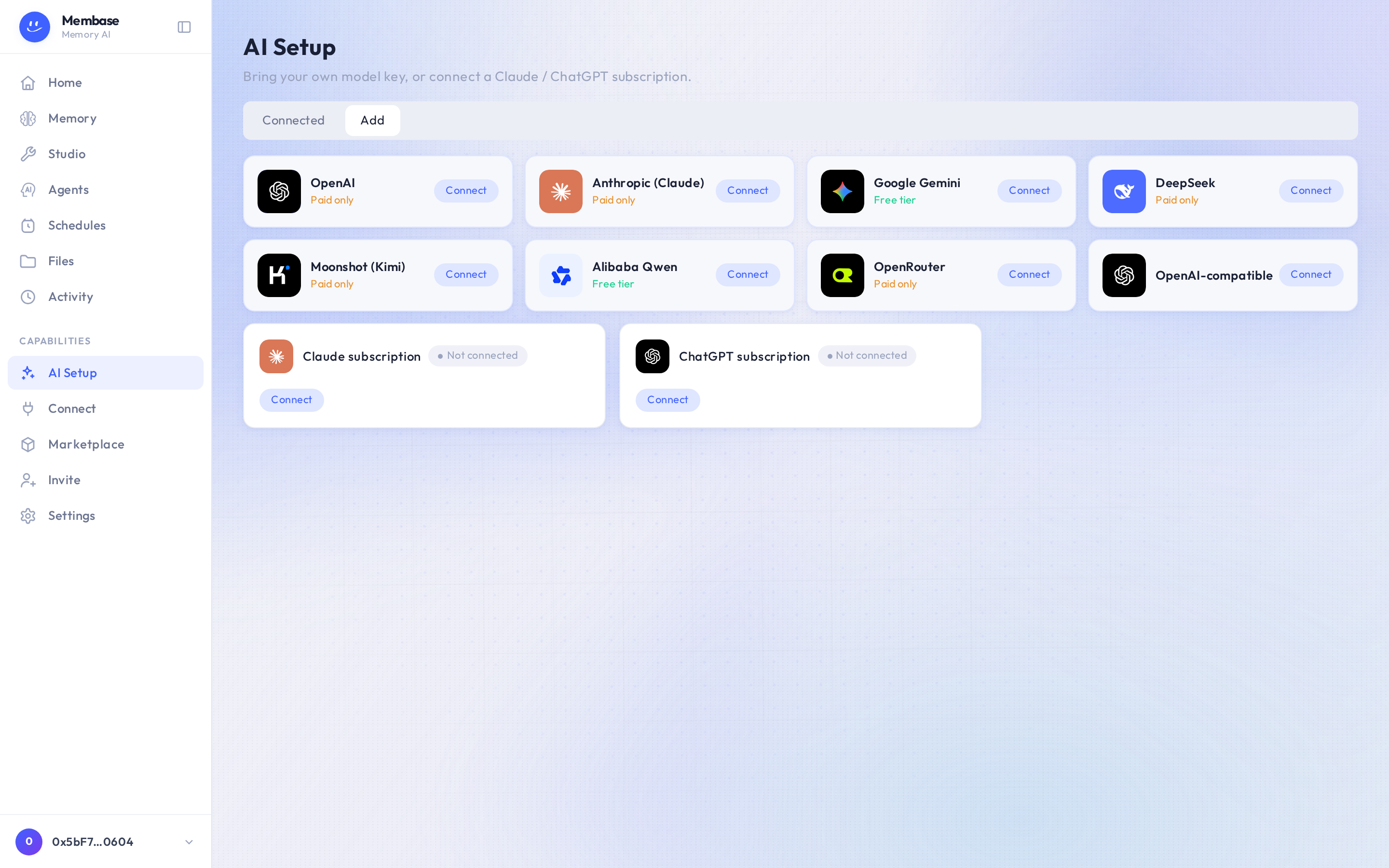
Two ways in:
* **Bring your own key** for a provider (OpenAI, Anthropic, Gemini, DeepSeek, Moonshot (Kimi), Alibaba Qwen, OpenRouter, or OpenAI-compatible for any other endpoint). Press **Connect**, paste the key, pick a model from the list the key returns. A key with no model is not saved.
* **A Claude or ChatGPT subscription.** Press **Connect** on the subscription card and sign in with that provider. Turns are then billed to the subscription.
The **Connected** tab lists what you have set up; one of them is the account’s **active** source. The active source answers everything that is not an agent turn. Which source *the assistant* runs on is the assistant’s own field, in its settings on Home.
## Where the call goes
[Section titled “Where the call goes”](#where-the-call-goes)

Your agent never holds the key or the subscription. It asks Membase for a turn, and Membase makes the call to the provider under this page’s settings. Without a model here, memory stays but nothing can run.
## Verify
[Section titled “Verify”](#verify)
Each connection is verified with one short real request before it is used. A key that fails verification is never used, and the row says why.
## If something looks wrong
[Section titled “If something looks wrong”](#if-something-looks-wrong)
Look up the word on screen.
| It says | What it means | Do |
| -------------------------------------- | --------------------------------------------------------------------------- | ---------------------------------------------------------------- |
| *Not connected* on a subscription card | you have not signed in with that provider | **Connect** and finish the provider’s sign-in |
| a failure reason on a key’s row | the one test request with that key did not succeed; the key is not used | check the key and the model, **Connect** again |
| everything works except agent turns | the account’s active source is set, the assistant’s own model source is not | Home › ⚙ **Assistant settings** (beside **Remote**) › model card |
# Settings
> Manage your account, plan, payments, exports and account-data deletion.
Manage your account, plan, payments, exports and account-data deletion.
Manage your account, plan, transactions and data.
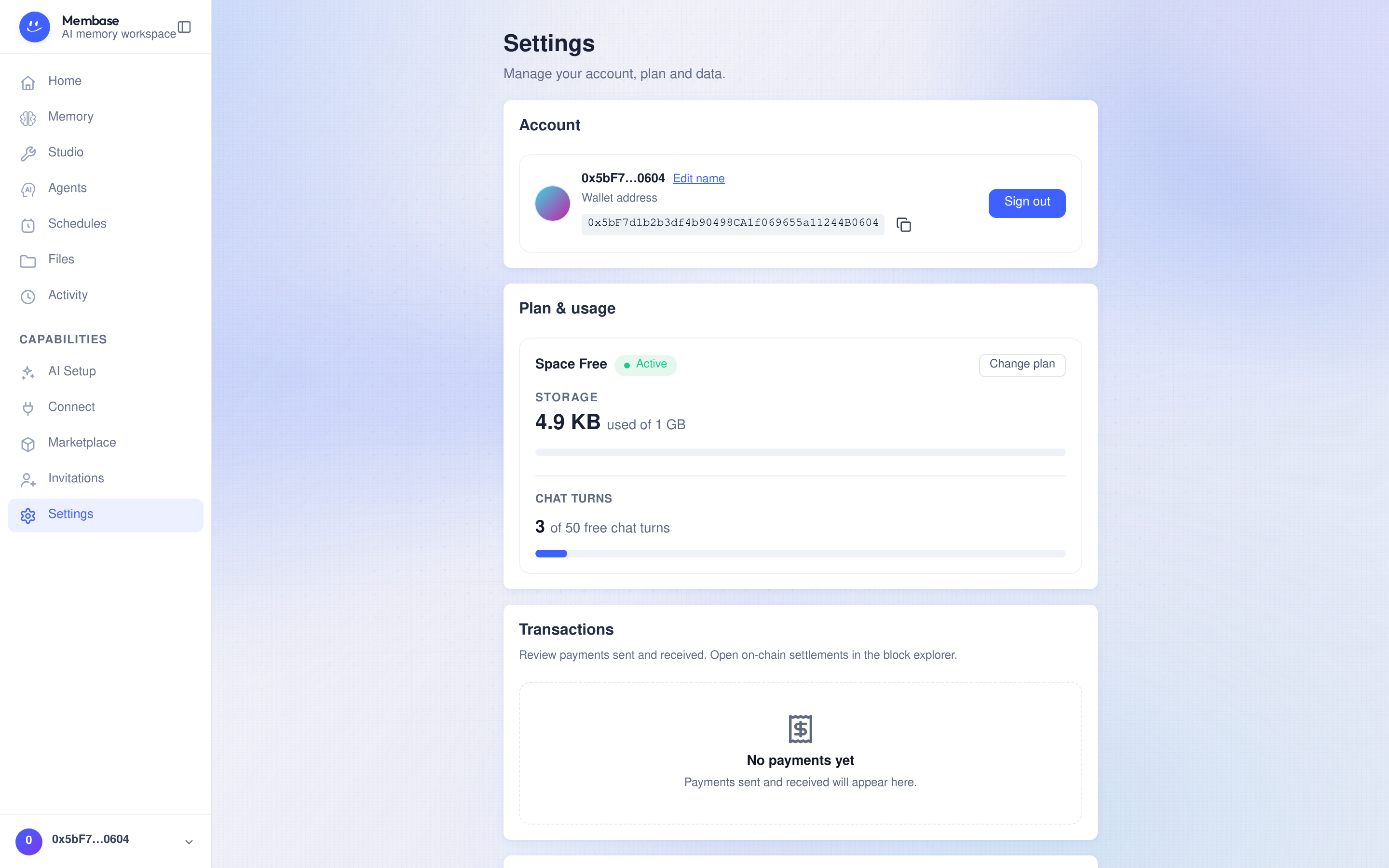
## Account
[Section titled “Account”](#account)
View or edit your display name, check your sign-in identity, and copy your account identifier when contacting support. **Sign out** ends your current session.
## Plan & usage
[Section titled “Plan & usage”](#plan--usage)
Review your storage usage, quota and free chat turns. Select **Change plan** to view available plans and their terms. Check the confirmation before making a payment or changing your plan.
* An upgrade applies after payment succeeds.
* A scheduled downgrade keeps the current plan until the date shown. **Keep current plan** cancels that scheduled change.
* **Cancel subscription** keeps the paid plan through its current period. The page shows the period end and any pending change.
* If usage exceeds the new storage quota, additional writes may be blocked. Files are not automatically compressed to fit. Export data you want to keep before removing files.
## Transactions
[Section titled “Transactions”](#transactions)
Review payments sent and received, including plan payments and marketplace purchases. Where available, open the linked block explorer to inspect an on-chain settlement.
## Data & export
[Section titled “Data & export”](#data--export)
Select **Download** beside **Export account data** to download a ZIP archive of available account data and agent memory files.
Check the result message. If it says **Export downloaded without agent memory files**, the archive is incomplete: wait briefly and export again to include those files. Check the archive contains the data you need before using it as a backup.
If export is unavailable or fails, resolve the error before deleting data you want to retain.
## Delete everything
[Section titled “Delete everything”](#delete-everything)
**Delete everything** under **Delete account data** opens a two-step confirmation. It removes your agent and memory, files including Trash, sources and their credentials, and connected apps and their access. The dialog also identifies affected marketplace subscribers. Your sign-in identity is retained.
1. Review the consequences and select **Download** to save an export. An export missing agent memory files is not marked as a completed backup in this flow. Export again to include them, or explicitly choose **Continue without downloading** if you do not need a backup.
2. Continue to the final confirmation, type `delete everything`, then select **Delete everything**.
> Account-data deletion cannot be undone. Keep and verify any export you need before confirming.
# Agents
> Create a custom agent, edit it in Studio, run it, inspect results, and pause or delete it.
Create a custom agent, edit it in Studio, run it, inspect results, and pause or delete it.
Use Agents when you need a custom agent or workflow beyond the assistant you talk to on Home. To give Claude or another external AI access to memory, use [Connect](/use/manage-your-memory/connect/).
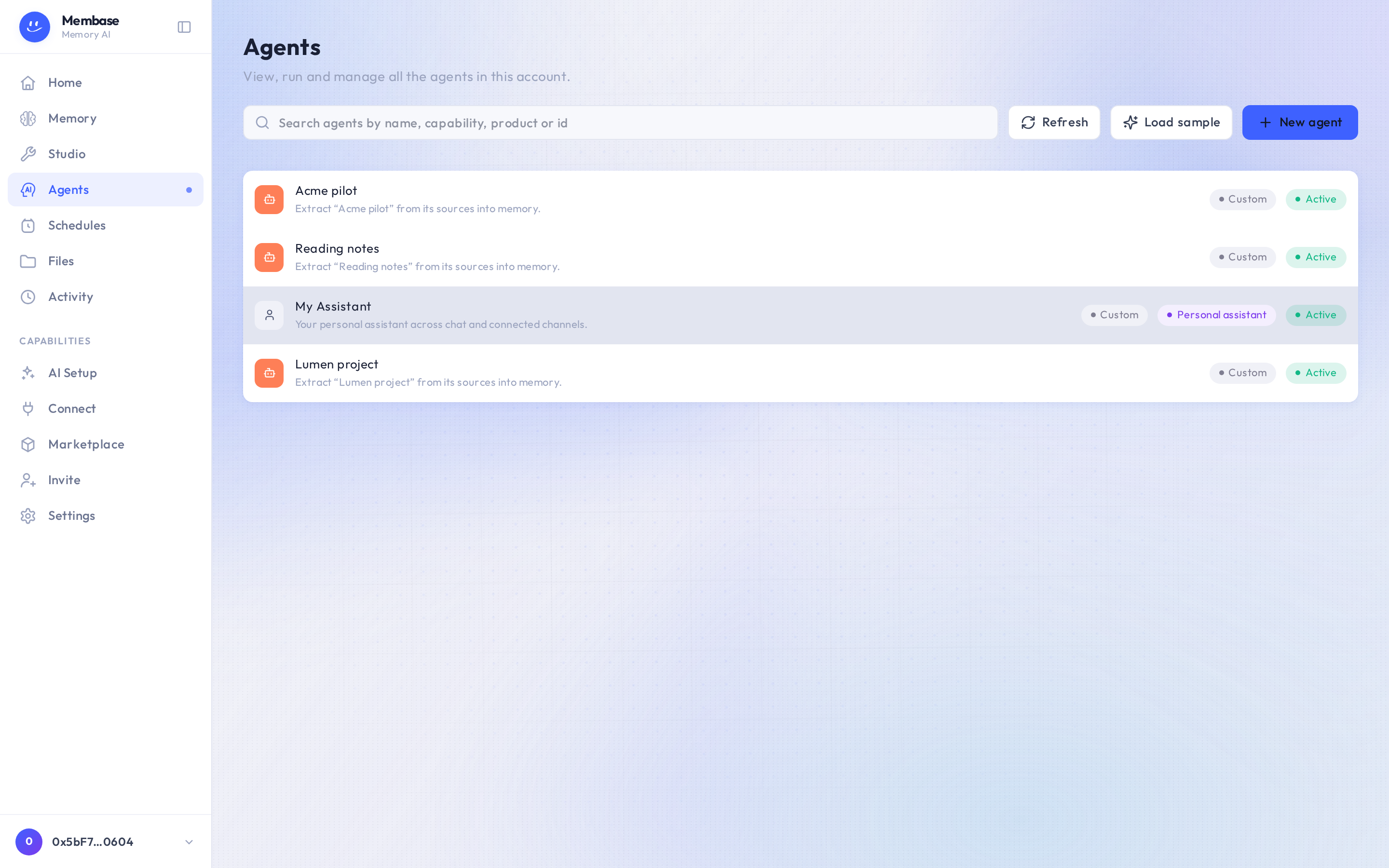
## Create and edit an agent
[Section titled “Create and edit an agent”](#create-and-edit-an-agent)
1. Open **Agents** and press **Create agent**. Creation scaffolds a workflow and opens it in Studio.
2. Set its instructions and the workflow it should run. [Studio](/use/advanced/studio/) explains the canvas and the difference between saving a draft and deploying a version.
3. Save the draft. Return to **Agents** and open the agent’s row to see its controls and recent runs.
An agent that uses a model needs a working model source. Check [AI Setup](/use/account-and-models/ai-setup/) and the agent’s settings if its run reports that no model is available.
## Run and inspect the result
[Section titled “Run and inspect the result”](#run-and-inspect-the-result)
1. Expand the agent’s row and press **Run now**.
2. Wait for the result. If it is still running, use **View all runs** to follow its status.
3. Open a failed run’s details before trying again. [Activity](/use/automate-and-troubleshoot/activity/) helps you find the error and distinguish a refused run from a failed execution.
Use **Edit in Studio** to change a custom agent. The account’s default assistant has a **Settings** control instead, leading to its settings on Home.
## Pause or delete
[Section titled “Pause or delete”](#pause-or-delete)
**Pause** keeps a custom agent and its configuration; **Resume** enables it again. For a specific cadence, also check its row on [Schedules](/use/automate-and-troubleshoot/schedules/).
> **Delete** removes the custom agent. Confirm the browser prompt — Delete “”? Its run history is kept. — before continuing.
The account’s default assistant has no Pause or Delete button on this page.
## If something looks wrong
[Section titled “If something looks wrong”](#if-something-looks-wrong)
| What you see | What to do |
| ---------------------------------------------------- | ---------------------------------------------------------------------------- |
| *No agents yet. Select Create agent to get started.* | Press **Create agent** to make a custom one. |
| No agents match | Clear the search or filters; use **Create agent** to create a custom one. |
| A run is still in progress | Open **View all runs**; do not repeatedly start the same work. |
| Run failed | Inspect the run error, correct the model, input or workflow, then run again. |
| An external AI is missing | Manage connected AI apps on [Connect](/use/manage-your-memory/connect/). |
# Studio
> The workflow canvas behind a memory update: one pipeline per memory, the blocks you can add, and what saving changes.
The workflow canvas behind a memory update: one pipeline per memory, the blocks you can add, and what saving changes.
Studio is the canvas where an agent is drawn. Most people reach it one way: a memory’s **Open in Studio**, under Advanced in its Settings. That opens the memory’s own pipeline.
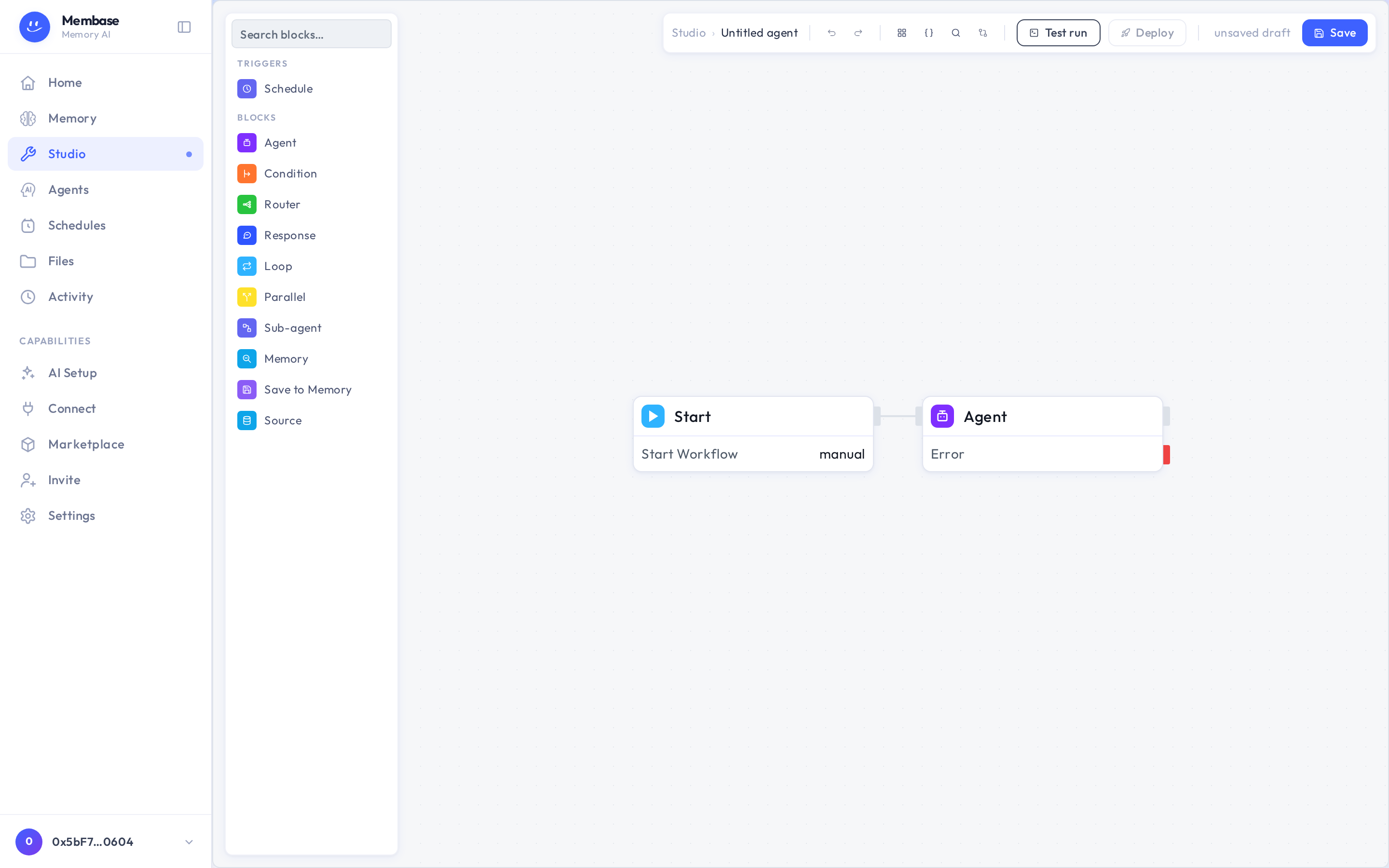
A memory has exactly one canvas. A fresh one holds two blocks, **Starter** and the memory’s **Agent**, and runs exactly what **Update now** on the Memory page runs. On the canvas you can add what a button cannot express: a **Source** block to read something else, a **Memory** block, a **Save to memory** block, a **Condition**, or a **Schedule** block.
Things that are the same object as on the memory’s page:
* Renaming the memory renames its canvas and its agent.
* The Schedule block writes the same cadence as **Add schedule** in the memory’s Settings and the row on the Schedules page.
* Deleting the memory archives its canvas.
**Save** keeps the draft your own runs execute. **Deploy** pins a version that schedules, webhooks and marketplace subscribers run. The breadcrumb leads back to the memory.
You only need Studio for a memory that should do more than read its sources. If you are not sure you need it, you do not.
# Activity
> Find a run, inspect its status and error, and decide what to fix before trying again.
Find a run, inspect its status and error, and decide what to fix before trying again.
Activity shows what ran in your account and how it ended. Use it when a Memory did not update, an agent failed, or a scheduled task did not produce the expected result.
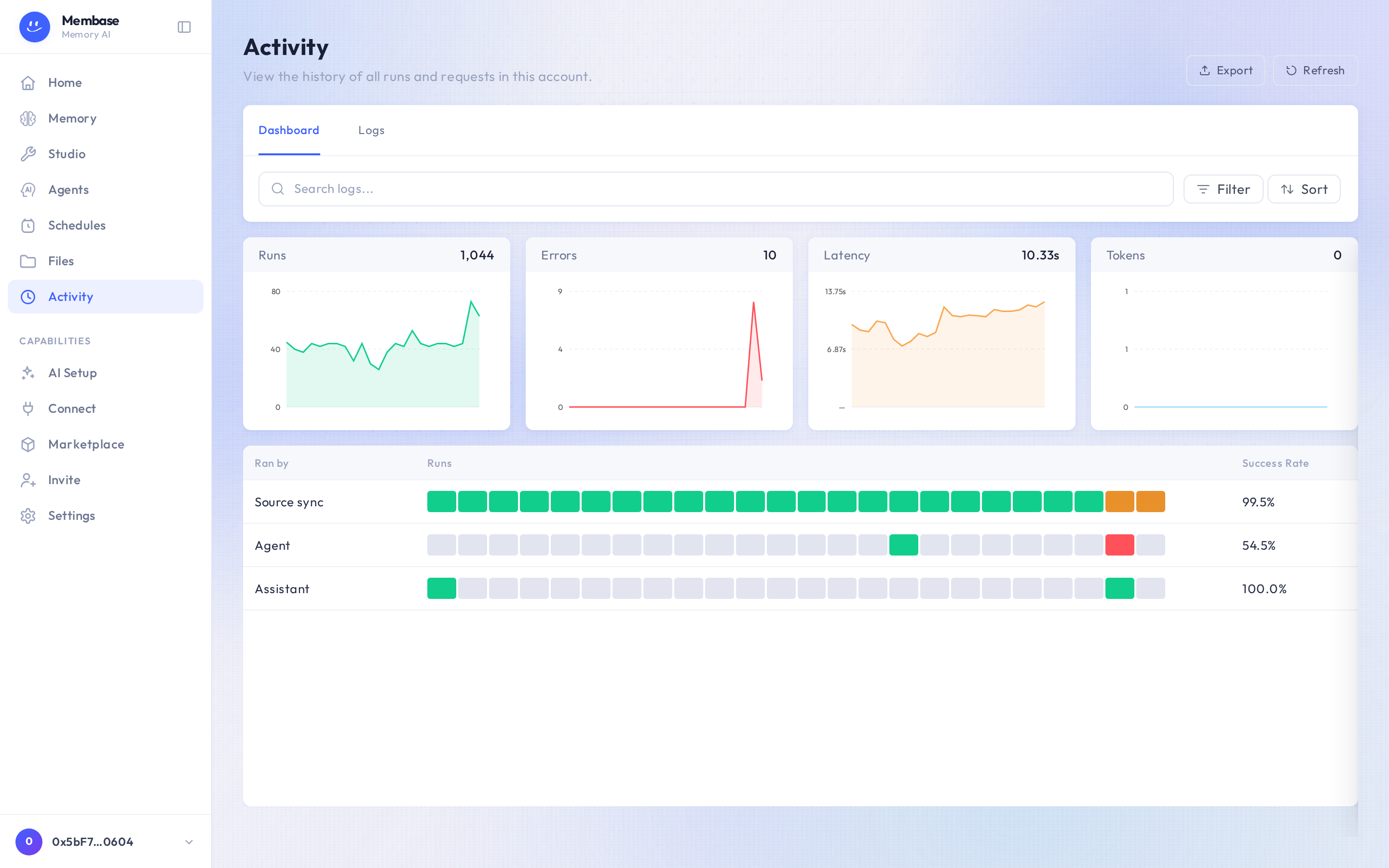
## Find a run
[Section titled “Find a run”](#find-a-run)
1. Open **Activity** and choose **Logs**. **Dashboard** summarizes activity across runs.
2. Set a **Time range** that includes the attempt. Narrow by **Status**, **Kind** or **Run source**, or search for the run you need.
3. Select a row to open its details. Check the status, timing, **Ran by** and the available result or error.
4. Use **Refresh** if you are following a recent run. **Export** downloads the displayed selection of activity as CSV.
A Memory’s **Report** and an agent’s **View all runs** also help you locate their runs. A developer key’s own request history is on [the key’s page](/use/manage-your-memory/connect/#a-keys-page).
## Read the status
[Section titled “Read the status”](#read-the-status)
| Status | What to do |
| --------- | ----------------------------------------------------------------------------- |
| *Pending* | The run has not finished starting; wait and refresh. |
| *Running* | Work is in progress. Check again before starting a duplicate. |
| *Success* | Open the result and check that it did the work you expected. |
| *Error* | Read the error, fix its cause, then retry from the Memory, agent or workflow. |
| *Refused* | Check the reason and the relevant access or account setting before retrying. |
A successful source sync means material arrived. It does not mean a Memory learned it; return to the [Memory](/use/manage-your-memory/memory/) and run **Update now** if needed.
## Troubleshoot a failed update
[Section titled “Troubleshoot a failed update”](#troubleshoot-a-failed-update)
* If the error names the model, check [AI Setup](/use/account-and-models/ai-setup/) and the agent’s model setting.
* If it names a source or its authorization, open that source and restore access, then sync it.
* If a scheduled run never appeared, check that the [schedule](/use/automate-and-troubleshoot/schedules/) is enabled and that you are reading its UTC time correctly.
* If the list is empty, widen the time range and clear the filters before concluding no run exists.
A scheduled run can finish even if its Telegram delivery fails. Inspect the run first, then check the connected chat using the [Telegram guide](/use/use-your-assistant/telegram/).
# Schedules
> Every scheduled task in one place: a memory's cadence, pause and resume, UTC times.
Every scheduled task in one place: a memory’s cadence, pause and resume, UTC times.
Every scheduled task in one place.
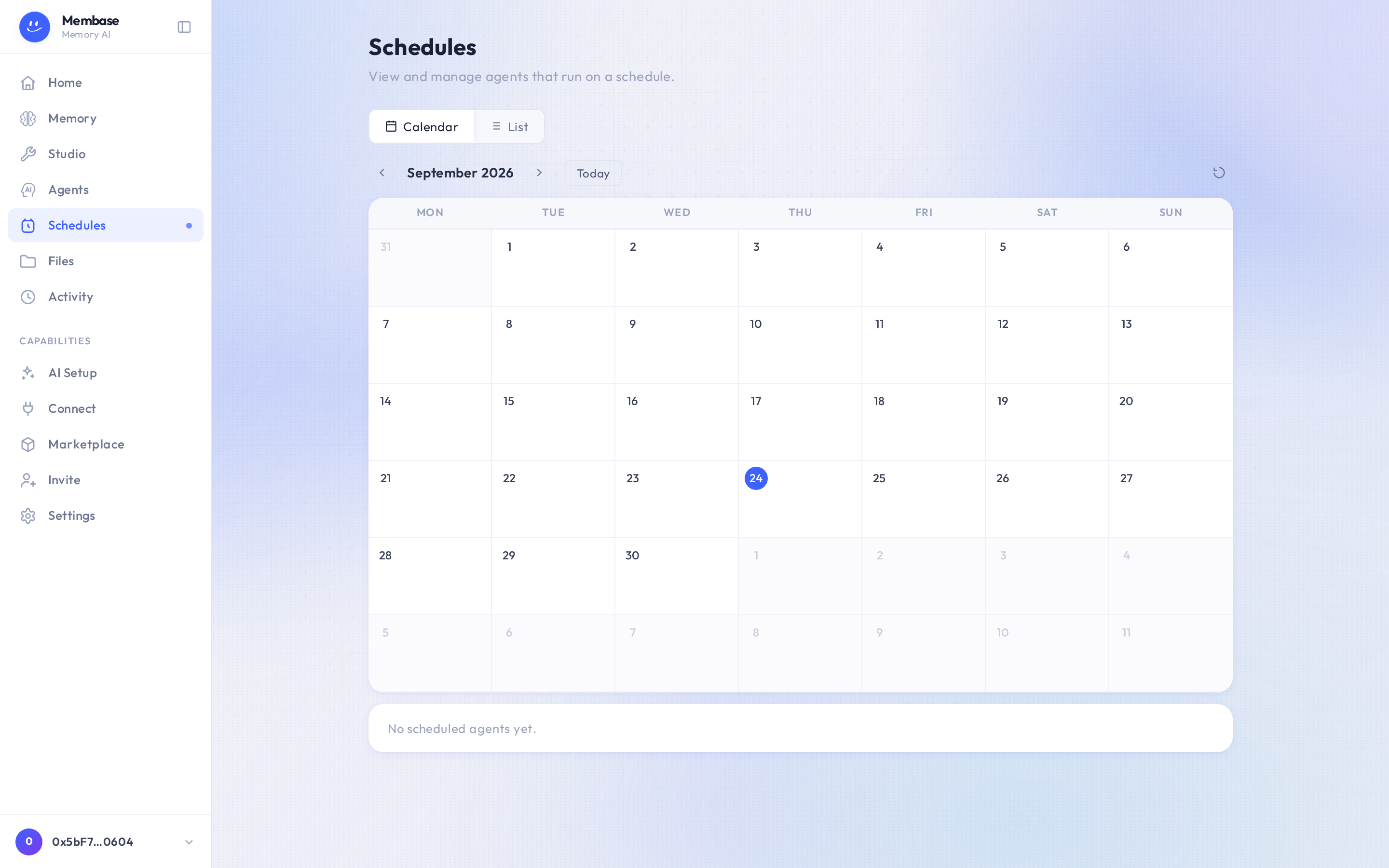
The page has **Calendar** and **List** tabs and a **New schedule** control. A memory’s cadence, set in its Settings, appears here; so does any agent you put on a schedule. Each row offers **Pause** / **Resume**, **Edit cadence** and **Run now**, so you retune a live cadence here without touching the memory. Pausing is how a memory’s or workflow’s schedule stops: it has no delete verb, so the row says *paused* rather than pretending it is gone. A job the agent created for itself has **Delete** instead (“Delete this agent schedule? This cannot be undone.”).
Cadences are picked, not typed: hourly, daily, weekly, monthly, or Custom cron. Times are UTC. The picker shows your local equivalent.
## If something looks wrong
[Section titled “If something looks wrong”](#if-something-looks-wrong)
Look up the word on screen.
| It says | What it means | Do |
| ----------------------------------------- | ---------------------------------------------------------------- | ------------------------------------------------------------------------ |
| *No schedules yet* | nothing is scheduled | **New schedule**, or add a Schedule block in Studio and deploy the agent |
| *paused* | the schedule exists and does not fire | **Resume** |
| the time looks wrong | schedules run in UTC; the picker shows your local time beside it | nothing, or **Edit cadence** |
| a scheduled result never reached Telegram | no chat is bound to the assistant | Home › Remote › **Connect Telegram** |
# Bring your material in
> Choose how to bring in files, Notion pages or captured conversations, and learn when a Memory reads them.
Choose how to bring in files, Notion pages or captured conversations, and learn when a Memory reads them.
Choose the source that fits your material. Files, uploads, Notion and captured conversations feed a Memory through its Add card; the Memory learns from them when you run it. Talking to your assistant follows a different path: it can save what matters during the conversation.
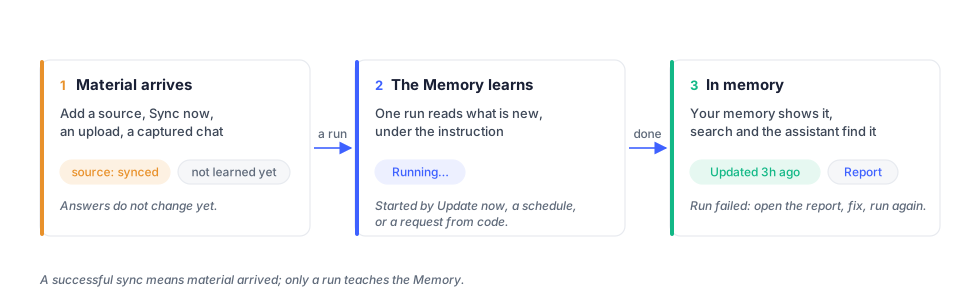
| Way in | Good for | Where |
| ------------------------------------------------------------------- | -------------------------------------------- | ----------------------------------------------------- |
| A folder in your Files | a project, a vault, anything already on disk | memory page › Add card › **Your Files › Choose** |
| Upload | a handful of files | memory page › Add card › **Upload files › Upload** |
| [Notion](/use/bring-your-material-in/notion/) | pages and databases | memory page › Add card › **Notion** (where available) |
| [Browser extension](/use/bring-your-material-in/browser-extension/) | your chats with other assistants | memory page › Add card › **Unibase memory** |
| Talking to your assistant | what you tell it, decide with it, ask it | Home, or Telegram |
## A folder in your Files
[Section titled “A folder in your Files”](#a-folder-in-your-files)
Press **Choose** on *Your Files*. The Files browser opens inside the dialog: browse, tick one or more folders, and confirm in the footer. The folder is read in place, so anything you later add to it is picked up on the memory’s next run. A folder the memory already reads says *reading*.
If the files are not in your Files yet, put them there first from the Files page, or upload.
## Upload
[Section titled “Upload”](#upload)
Press **Upload** on *Upload files* and drop the files. They land in a folder named “ uploads” (“… uploads (2)” if that name is taken) at the top of your Files, which is connected as a source on the spot. Markdown, text and the common document formats are accepted; the dialog tells you before sending if a file is not.
## Notion
[Section titled “Notion”](#notion)
Connect a workspace, select the pages or databases the Memory should read, and add them. A sync fetches those pages; the Memory still needs a run to learn from them. Follow the [Notion guide](/use/bring-your-material-in/notion/) for authorization, page selection, updates and disconnection.
## Unibase memory
[Section titled “Unibase memory”](#unibase-memory)
The Unibase Memory browser extension captures your conversations with other assistants and hands them to a memory as a source.
1. Press **Install** on *Unibase memory*. Once the extension is connected, the same door says **Use here**.
2. Press **Use here**. The door says *Added* and the source appears in the Add card.
3. Select **Update now**.
A memory over your conversations keeps memory about *you*: what you asked, decided, adopted. It does not restate what an assistant explained. Its instruction is a filter on the chats, not a subject: *unibase* keeps what the chats say that bears on Unibase, not a description of Unibase.
## Talking to your assistant
[Section titled “Talking to your assistant”](#talking-to-your-assistant)
Your assistant can retain relevant information from conversations on Home or Telegram. A *Saved to memory* indication shows when information has been saved. Review the assistant’s memory on the Memory page; do not assume every message has been stored as a memory entry.
The [browser extension guide](/use/bring-your-material-in/browser-extension/) covers setup and missing conversations.
## Then run
[Section titled “Then run”](#then-run)
After adding a source, select **Update now** on the Memory page or configure a schedule in **Settings**. See [Memory](/use/manage-your-memory/memory/).
# Browser extension
> Unibase Memory, the browser extension that captures the person's conversations with other assistants and hands them to a Memory as a source.
Unibase Memory, the browser extension that captures the person’s conversations with other assistants and hands them to a Memory as a source.
**Unibase Memory** is a browser extension. It captures the person’s conversations with other AI assistants as they happen and hands them to Membase, where a Memory reads them as a source. Use this to bring conversations into memory. To let an AI app read existing memory, follow [Connect your AI](/connect/).
* Chrome Web Store: [Unibase Memory](https://chromewebstore.google.com/detail/edmncknbiihfoakimejbepnaeemaaamf)
## What it captures
[Section titled “What it captures”](#what-it-captures)
Conversations the person has with assistants in the browser. The capture is encrypted with the person’s wallet key before it leaves the browser, and it is the person’s wallet that Membase uses to read it back, so the platform sees nothing it was not handed. Which assistants are captured is the extension’s own setting.
## Connecting it to a Memory
[Section titled “Connecting it to a Memory”](#connecting-it-to-a-memory)
In the app, on a Memory’s page, the Add card has a door for it:
1. Press **Install** on *Unibase memory*. Once the extension is connected to the same wallet, the same door says **Use here**.
2. Press **Use here**. The door says *Added* and the source appears in the Add card.
3. Press **Update now**.
From then on the captured conversations reach the Memory as documents. The source’s own page shows a status word (*Syncing…*, *Sync failed*, *Needs reauthorization*) and **Sync now** (**Retry** after a failed sync), **Reauthorize** or **Reconnect** when they apply, plus **Manage…** and **Delete…**; see [Bring your material in](/use/bring-your-material-in/bring-material-in/).
## Writing the instruction
[Section titled “Writing the instruction”](#writing-the-instruction)
A Memory over conversations keeps memory about *the person*: what they asked, decided, adopted. It does not restate what an assistant explained. Its instruction is a **filter on the chats, not a subject**: *unibase* keeps what the chats say that bears on Unibase, not a description of Unibase. An instruction written as a topic produces a log; written as a filter it produces the standing facts the person would want any other assistant to know.
## If something looks wrong
[Section titled “If something looks wrong”](#if-something-looks-wrong)
| It says | What it means | Do |
| --------------------------------------------------- | ------------------------------------------------------------------------------------- | ---------------------------------------------------------------------------------------------------------- |
| **Install** never turns into **Use here** | the page has no channel to the extension; it can only tell by what reached the wallet | install from the store, sign the extension in with the same wallet as the app, have a conversation, reload |
| *Added* but the Memory learns nothing | no conversation has been uploaded yet, or the Memory has not run | check the extension’s own log; press **Update now** |
| the Memory reads like a log of what assistants said | the instruction is a topic | rewrite it as a filter on the chats |
| *Needs reauthorization* | the extension’s credential expired | **Reauthorize** on the source page |
# Files
> Your files as a real folder tree the assistant shares with you, and how a folder becomes a source.
Your files as a real folder tree the assistant shares with you, and how a folder becomes a source.
Files is your files: a real folder tree the assistant shares with you.
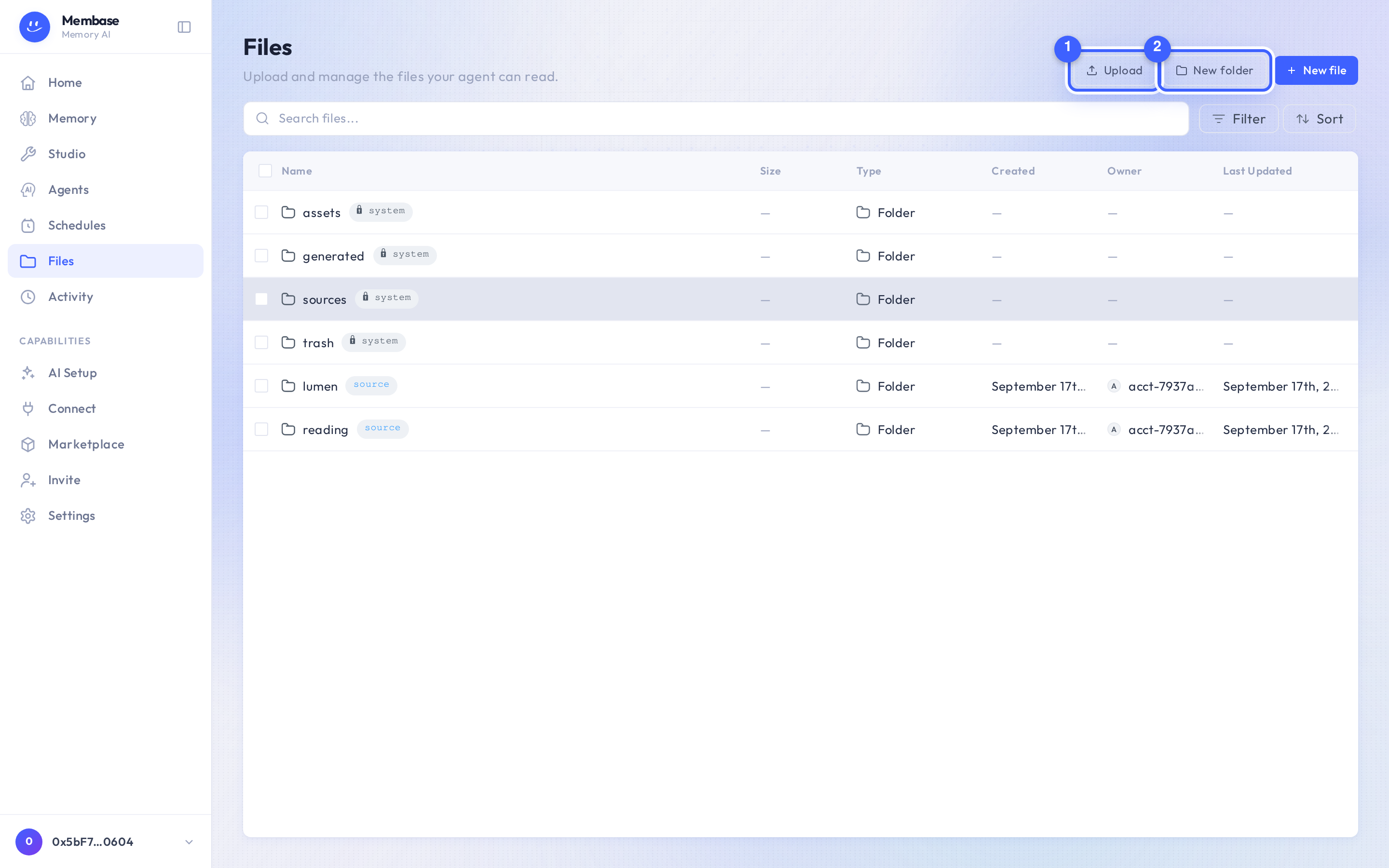
1. **Upload.** Files land in the folder you are in.
2. **New folder.** Any folder can later become a source.
The root is your own tree. The locked system folders *Generated*, *Assets*, *Sources* and *Trash* sit beside it, badged *System* in the folder chooser. Browsing never wakes the memory; only a memory’s run reads files.
Right-click a row for rename, move, delete and download. Deleted files go to *Trash* first.
## Making a folder a source
[Section titled “Making a folder a source”](#making-a-folder-a-source)
You do not do it here. Open the memory that should read the folder and press **Choose** on *Your Files* in its Add card. The same browser opens inside the dialog, with a footer that connects the ticked folders. A folder the memory already reads says *reading*.
# Notion
> Connect a Notion workspace, choose pages for a Memory, learn from them, and manage updates or disconnect the workspace.
Connect a Notion workspace, choose pages for a Memory, learn from them, and manage updates or disconnect the workspace.
Use Notion pages and databases as a Memory’s sources. Connecting a workspace gives Membase permission to find pages; choosing pages imports them; running the Memory learns from them.
You need a Memory and permission to share the Notion pages you want it to read.
## Connect and choose pages
[Section titled “Connect and choose pages”](#connect-and-choose-pages)
1. Open the Memory. Under **Add to this memory**, press **Connect** on **Notion**. If a workspace is already connected, the button says **Add pages**.
2. Press **Connect Notion** and finish the authorization screen. Back in Membase, the picker shows the workspace and the pages available to it.
3. Tick the pages or databases to read. Use **Search pages, or paste a Notion link** to find a specific page. Choose whether **Include subpages** should be on.
4. Press **Add to** followed by the Memory’s name. The picker closes and the source appears under the Memory’s Add card.
5. Open the source and wait for its files to arrive. Return to the Memory and press **Update now**. When the run finishes, inspect **Your memory** or ask about the material.
If your deployment does not offer the Notion card, use [Files](/use/bring-your-material-in/files/) to import an export instead. Some deployments offer **Use a token instead** in the picker; that token must have access to the pages you select.
## Update the selection
[Section titled “Update the selection”](#update-the-selection)
Open the source from the Memory. The **Pages** row shows the selected pages and whether it includes subpages. Press **Change…**, adjust the selection, then **Save pages**.
If a page is missing, open the workspace’s **⋯** menu and choose **Update page access** for an OAuth connection, then **Refresh list**. A newly shared page may take a moment to appear. Pasting a link does not grant access to a page that the connection cannot read.
## Keep it up to date
[Section titled “Keep it up to date”](#keep-it-up-to-date)
**Sync now** fetches the current Notion content. It does not update what the Memory knows; press **Update now** on the Memory afterwards, or let its [schedule](/use/automate-and-troubleshoot/schedules/) run. **Pause** on the source stops its syncing; **Resume** starts it again. Pausing a source and pausing a Memory’s schedule are separate controls.
## Disconnect a workspace
[Section titled “Disconnect a workspace”](#disconnect-a-workspace)
In the page picker, open **⋯** and choose **Disconnect** followed by the workspace name. Read the confirmation: it names the affected Memories. Confirm only if those sources should stop syncing. Imported material and what the Memories already learned remain.
To remove learned content, use the [Memory’s editing and deletion controls](/use/manage-your-memory/memory/). Disconnecting Notion is not a request to forget what it previously supplied.
## If something looks wrong
[Section titled “If something looks wrong”](#if-something-looks-wrong)
| What you see | What to do |
| ------------------------------------------ | ------------------------------------------------------------------------------- |
| No pages shared with Membase yet | Use **Update page access**, share the required pages, then refresh the list. |
| A page is absent | Check the selected workspace and that the connection has permission to read it. |
| Files arrived but answers have not changed | Run the Memory; syncing alone does not teach it. |
| Needs reauthorization | Use **Reauthorize** on the source and finish authorization again. |
| Sync failed | Open the source’s error, check page access, and retry **Sync now**. |
# Setup guide
> The Setup guide on a new account: create a memory, add a source, connect an AI tool, one lit control at a time.
The Setup guide on a new account: create a memory, add a source, connect an AI tool, one lit control at a time.
On a new account the product dims the page and lights the one control to press next. That is the **Setup guide**. It has three steps, the same three this documentation follows:
1. Create a memory
2. Add a source
3. Connect an AI tool
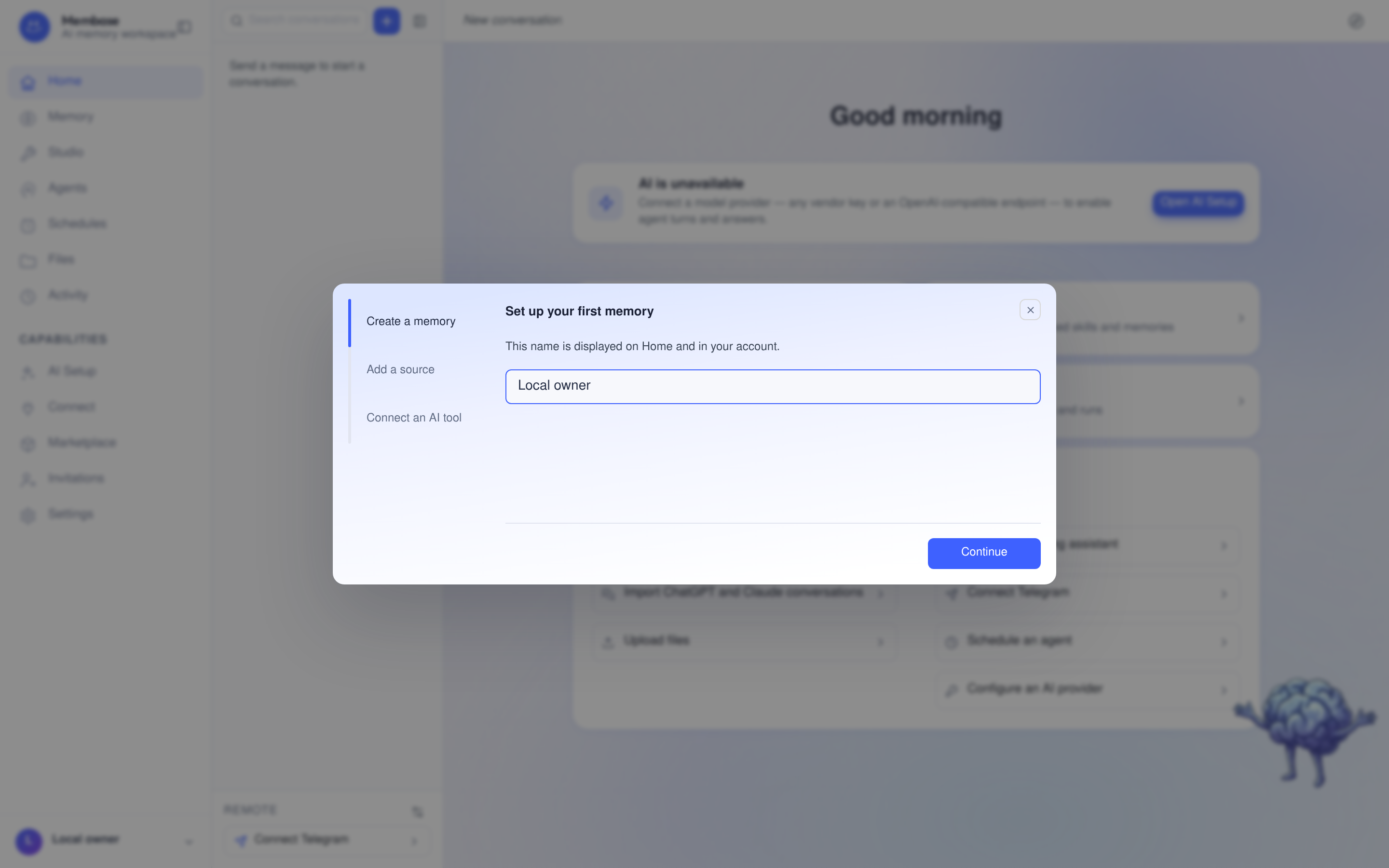
The guide opens on a name card, **Set your display name**. Press **Continue** and the first real control lights up, with a small card beside it saying what to do.
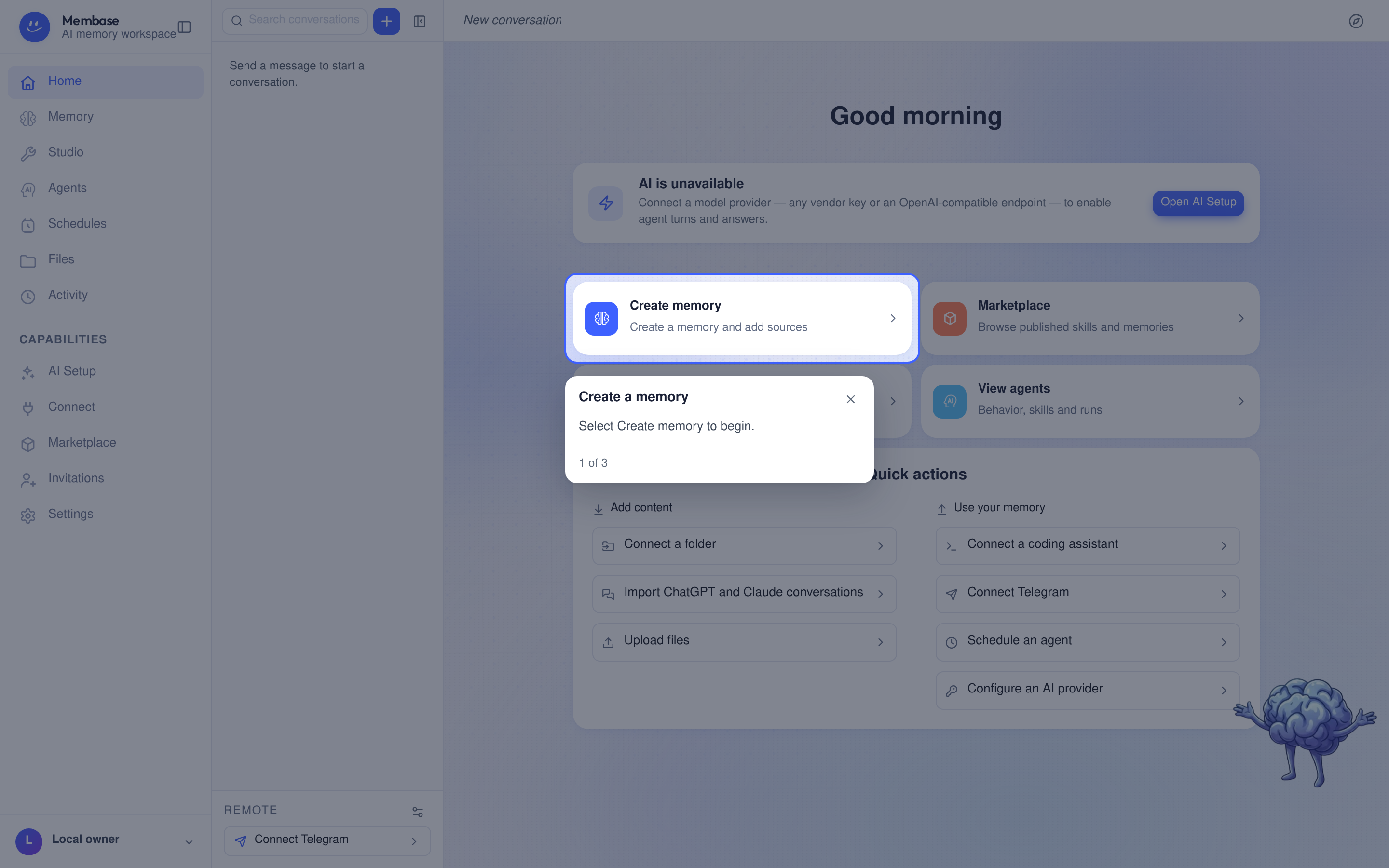
A few things worth knowing:
* Completed steps are marked in the guide. Select **Next** to continue. The third step completes when an app is approved on Connect, not by asking on Home; the closing card then says “ is connected. Send a query to verify access.”
* A step you have not done holds until you do it. You can close the guide any time with the X on its card.
* It opens by itself once per browser session on an account with no memories and no connected apps. After that, the **Setup guide** button at the top right of Home starts it again from the name card.
* On a page without the step’s control, the card stands at the corner with one door to the right page.
# Your first Memory
> Create a Memory, add your notes, run it, and verify what it learned before connecting another AI.
Create a Memory, add your notes, run it, and verify what it learned before connecting another AI.
By the end of this page you will have a Memory that has learned from your own notes, and you will know how to use it in an AI.
You need a Membase account and a small Markdown or text file with a fact you can check, such as “The Lumen launch is on 15 October.” Learning needs a working model and available turns. If a run reports that no model is available, follow [AI Setup](/use/account-and-models/ai-setup/). Connecting Claude at the end is optional and requires a Claude account.
## 1. Create a memory
[Section titled “1. Create a memory”](#1-create-a-memory)
1. Open **Memory** in the left rail. Before you have any, the page shows only the Assistant’s own memory.
2. Press **Create memory** ①.
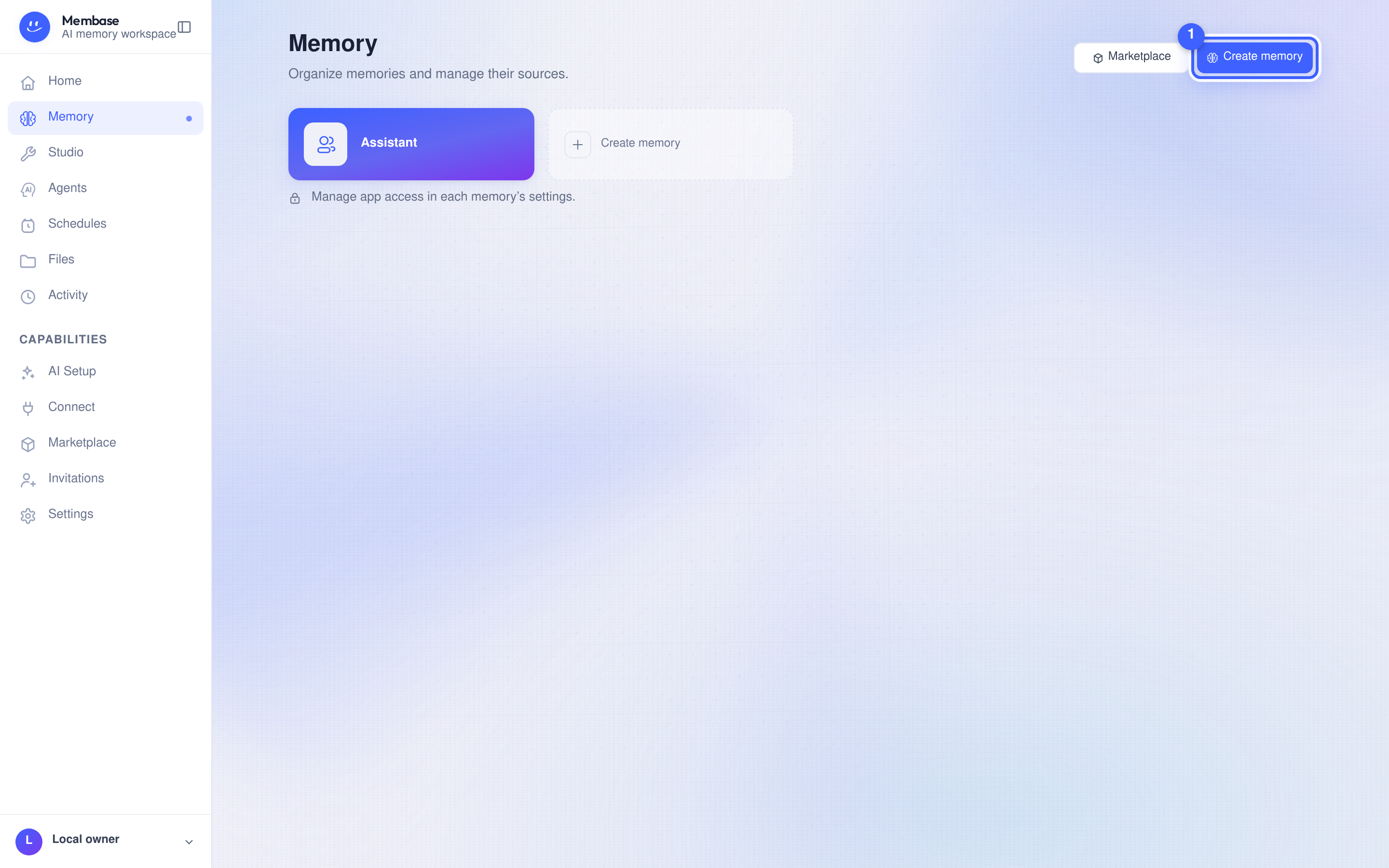
3. Give it a name ①. Under *Information to retain*, leave **Anything useful** or pick a preset. Press **Create memory** ②.
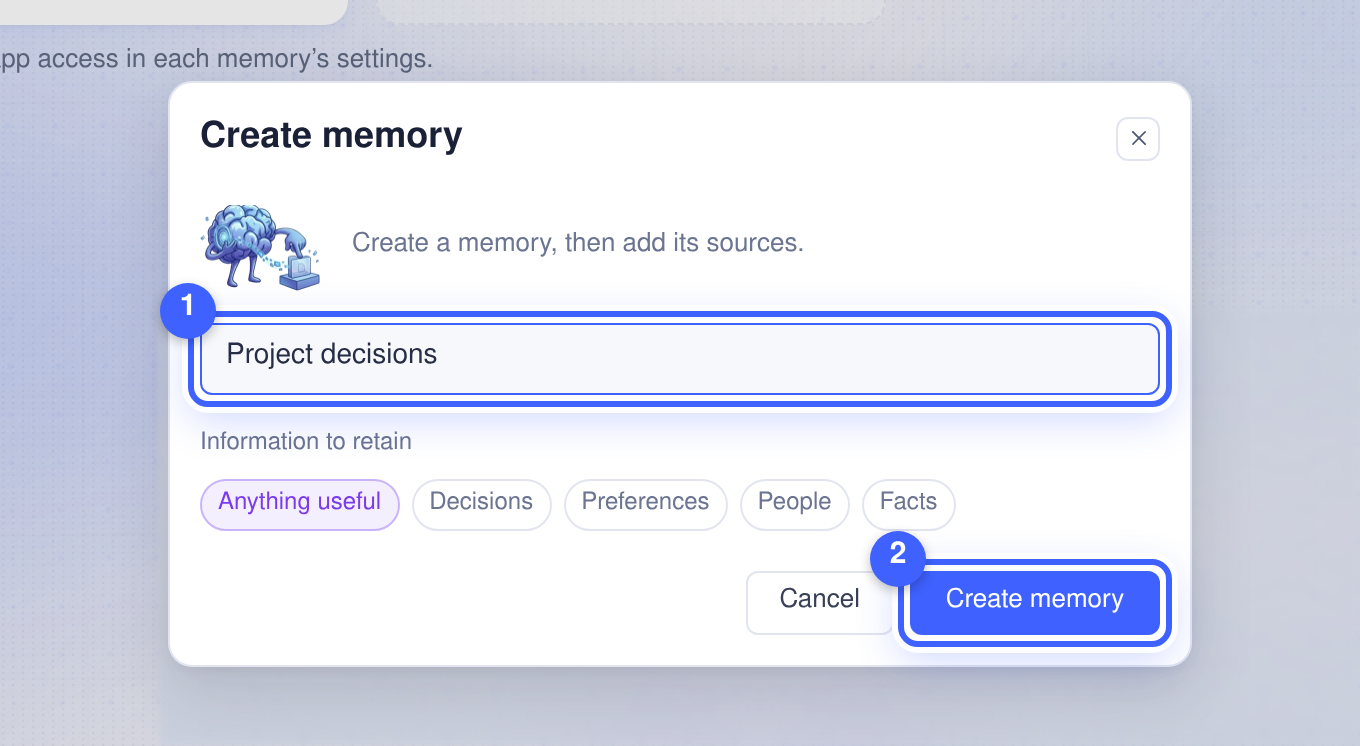
You are on the memory’s page. Its hero shows the name, an **Update now** button that is still disabled, **Settings** and **Delete…**.
## 2. Add something to it
[Section titled “2. Add something to it”](#2-add-something-to-it)
The **Add to this memory** card ③ includes **Upload files**, **Your Files** and **Unibase memory**. Where available, **Notion** is another option; this walkthrough uses a file.
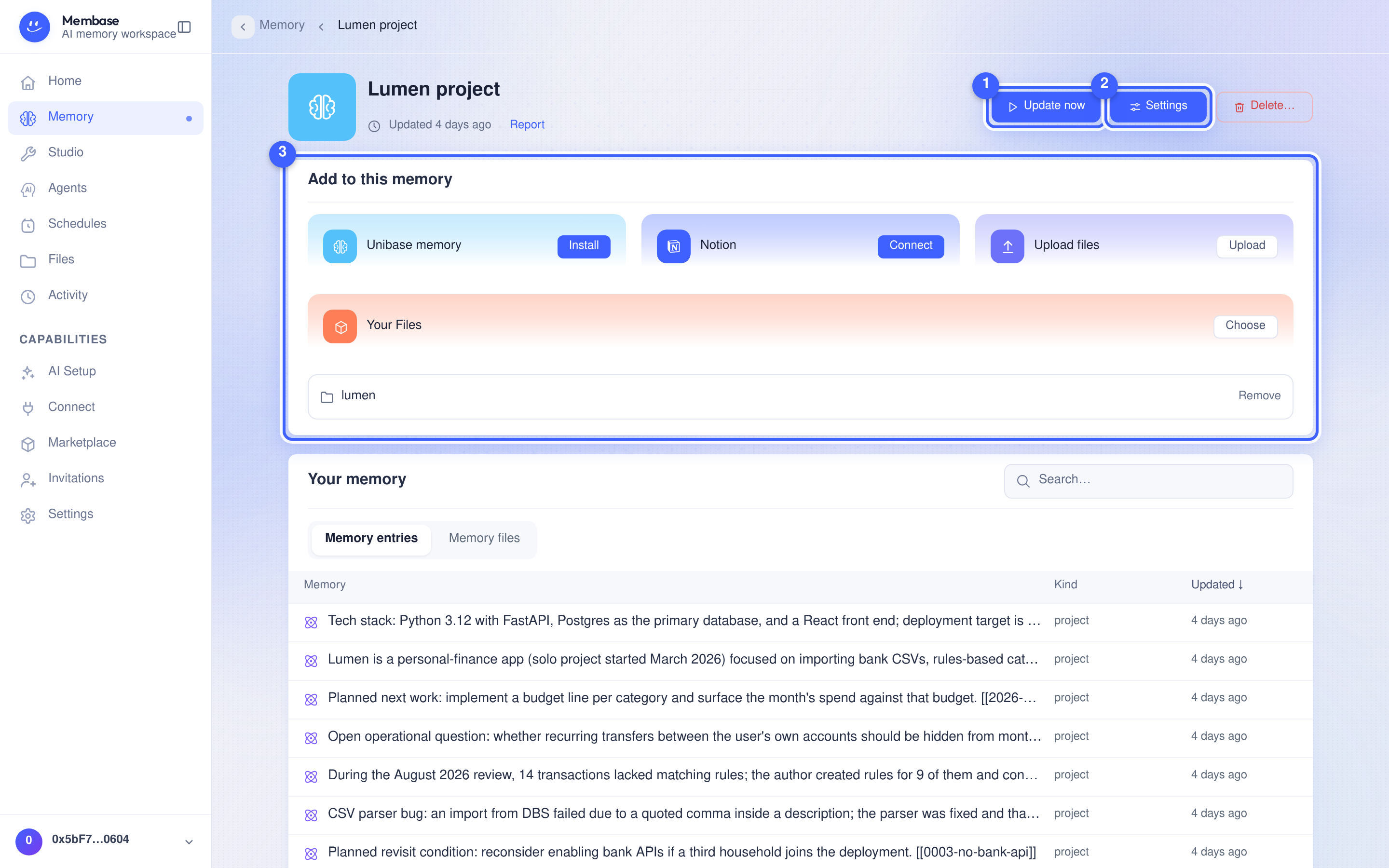
1. Press **Choose** on *Your Files*. The Files browser opens inside the dialog.
2. Tick the folder that holds your project files and confirm in the footer. If your files are not in Files yet, press **Upload** on *Upload files* instead; they land in a folder named “ uploads”.
3. The Add card now lists the folder. A toast tells you adding does not run the memory.
4. Press **Update now** ① in the hero. The status line under the name says *Running…*, then *Updated just now · Report*.
> Adding a source does not process it. Select **Update now** or configure a schedule to update the Memory from its sources.
## 3. Use it in your AI
[Section titled “3. Use it in your AI”](#3-use-it-in-your-ai)
First, check **Your memory** below the Add card. Open a result and confirm it reflects your notes. On **Home**, ask the assistant a specific question, such as “When is the Lumen launch?” If that Memory is not available to the assistant, select it in the assistant’s settings on Home (the ⚙ **Assistant settings** button beside **Remote**, at the foot of the conversation rail). Check the answer against your file. If the run failed, open **Report** and resolve that error before connecting an external app.
### Optional: use it in Claude
[Section titled “Optional: use it in Claude”](#optional-use-it-in-claude)
For other clients, use [Connect your AI](/connect/).
1. Open **Connect** in the left rail. Apps you have not connected show as dashed tiles.
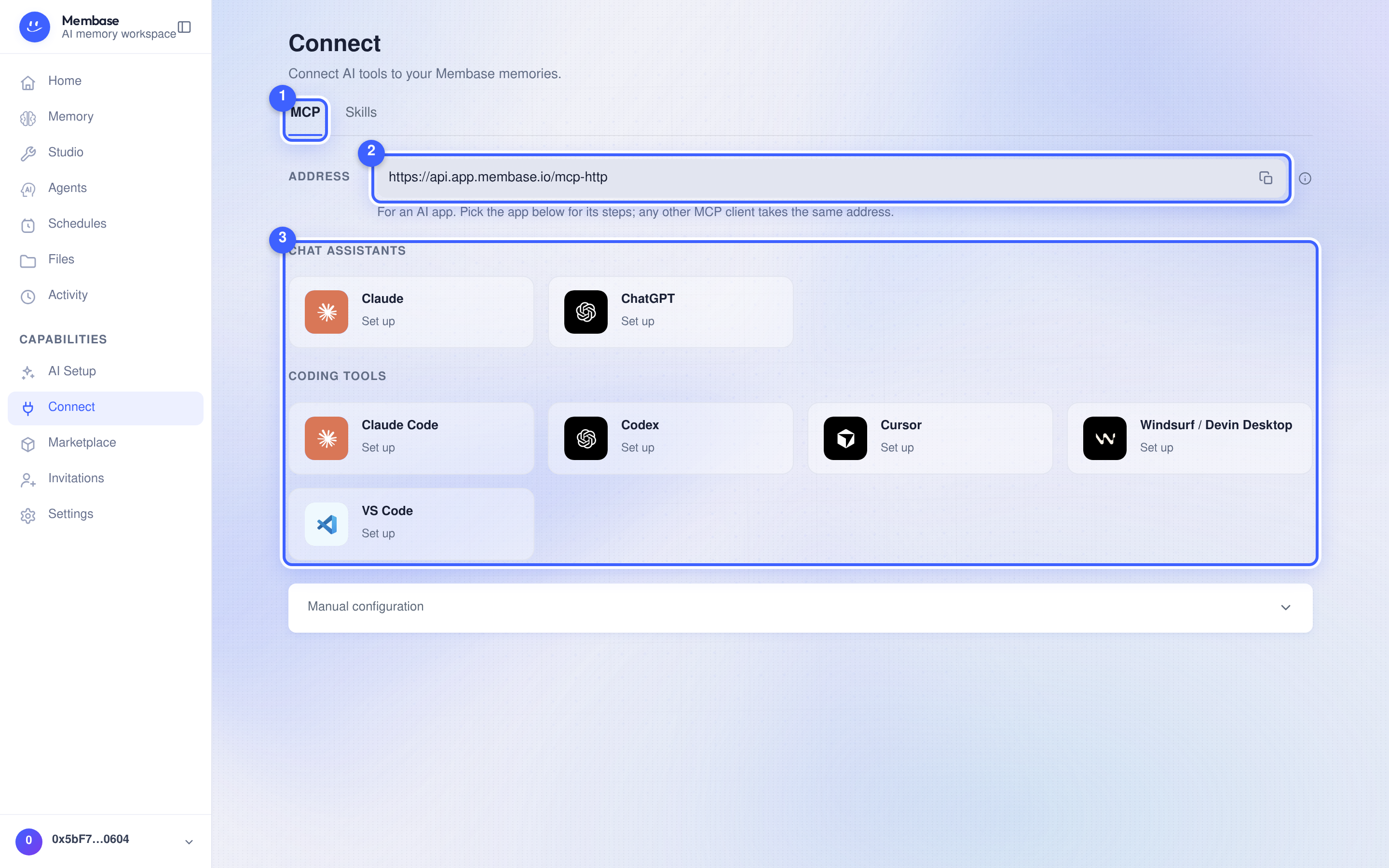
2. Pick **Claude** ①. The connector URL and the steps for Claude unfold under the tiles.
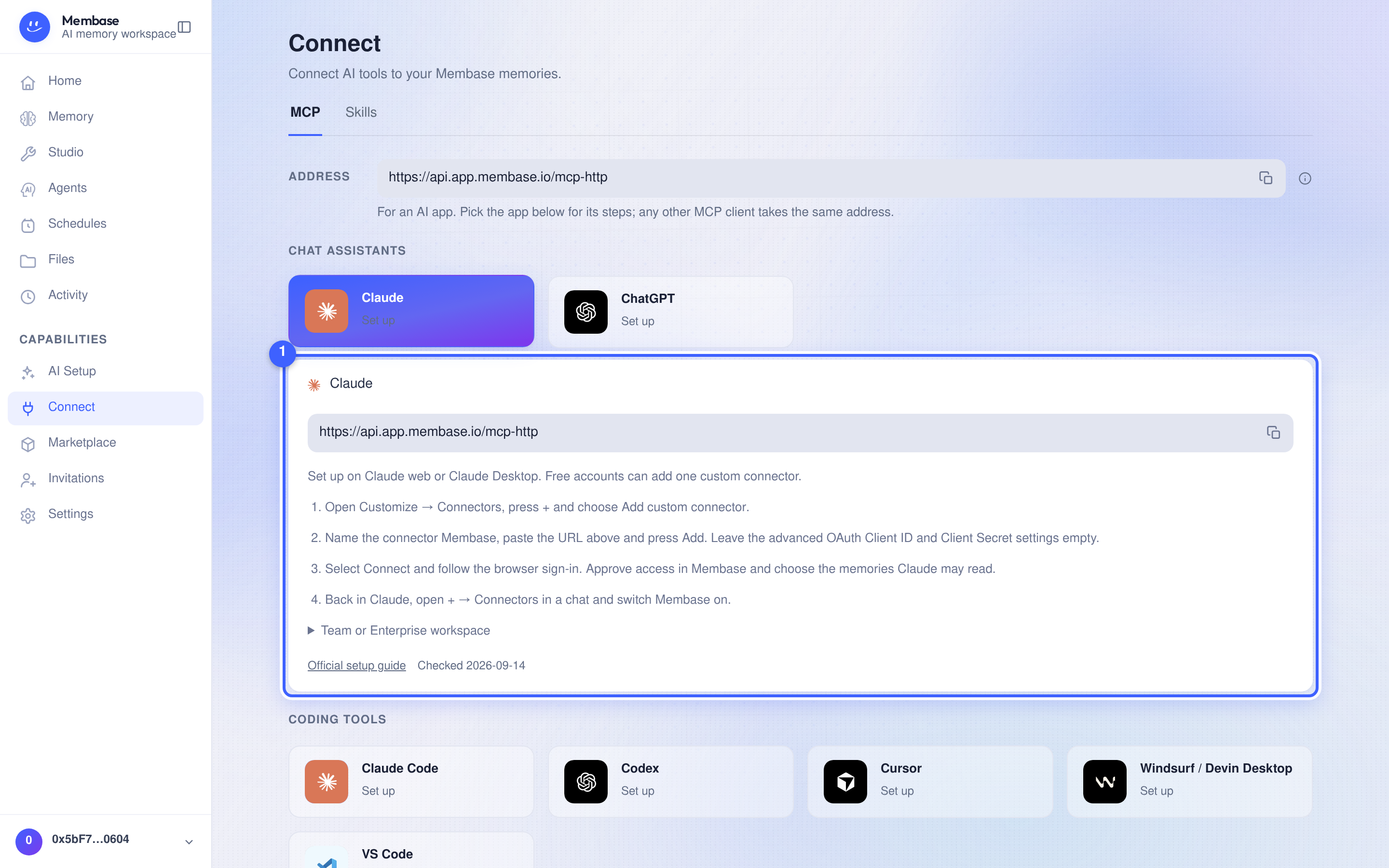
3. Follow those steps in Claude. The last one sends you back to Membase to approve access and tick the memories Claude may read. Tick the memory you just made and press **Approve access**.
4. Back in Claude, ask a question about your project. Claude reaches for your memory on its own.
After approval, the Claude tile is solid and says *Authorized · awaiting first use*. After a successful tool call it shows recent usage. Authorization confirms permission; the answer from your notes confirms that the integration works. The app’s page lists the Memory under **Uses**, with a switch you can turn off at any time.
The same memory answers on Home, too. Ask your assistant and it tells you which page it read:
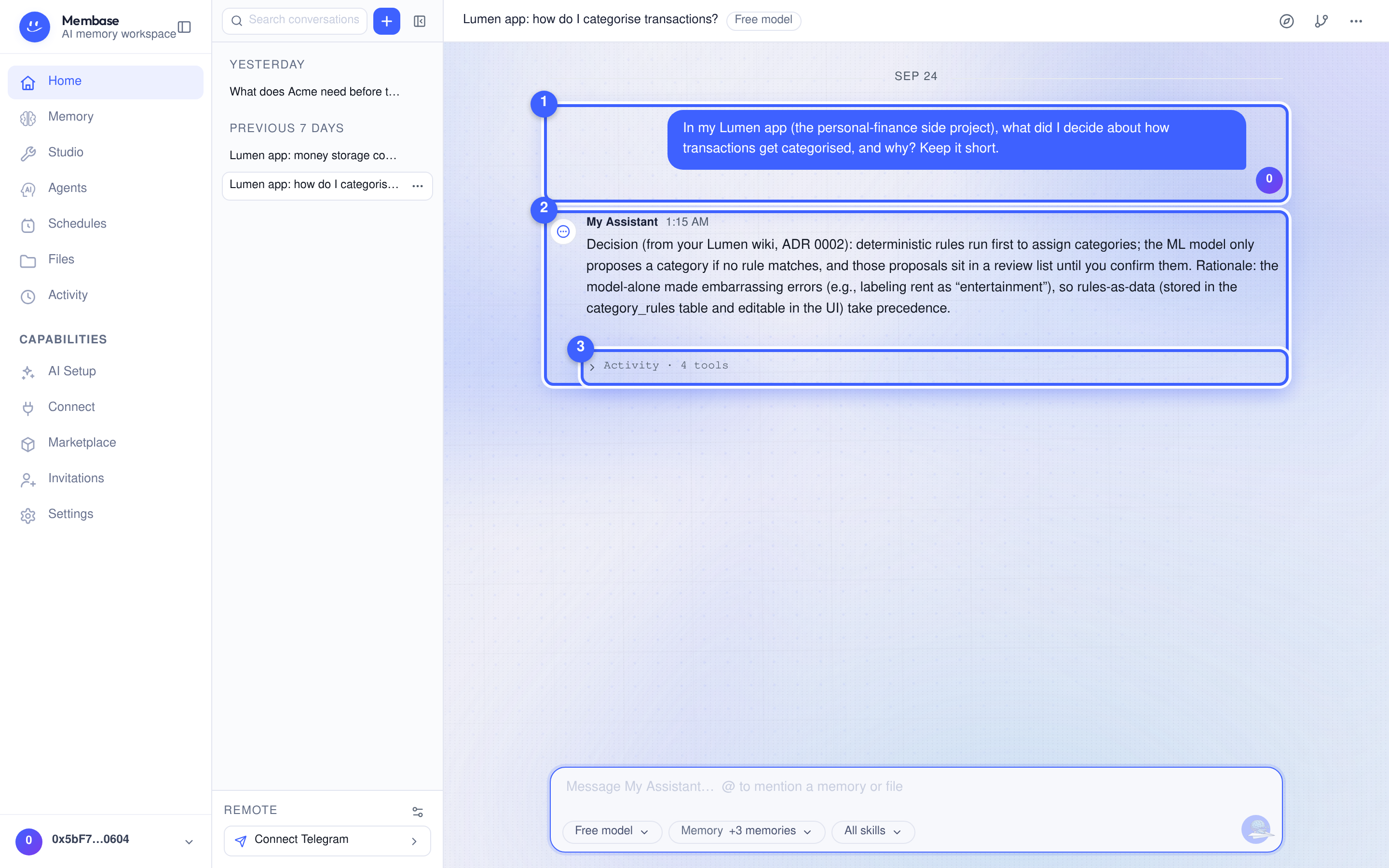
## What next
[Section titled “What next”](#what-next)
* [Keep it up to date on a schedule](/use/manage-your-memory/memory/#settings)
* [Use it in ChatGPT, Cursor or another app](/use/manage-your-memory/connect/)
* [Bring in more: uploads, Notion, your chats with other assistants](/use/bring-your-material-in/bring-material-in/)
* [Reach your assistant on Telegram](/use/use-your-assistant/home/#telegram)
# Sign in
> Continue with Google, X or email through Privy, or connect a wallet, then Home and the first-run guide.
Continue with Google, X or email through Privy, or connect a wallet, then Home and the first-run guide.
The sign-in gate has two buttons. **Continue with Google, X or email** opens the Privy sign-in window, where you pick how to prove who you are. **Connect a wallet** talks to your browser wallet directly.
1. Open the app and press **Continue with Google, X or email**, or **Connect a wallet**.
2. Finish that provider’s steps: the Privy window for Google, X or email, or your wallet’s own prompt.
3. You land on Home. The first-run guide opens by itself on a new account.
An invite link (`/?invite=CODE`) is applied when you sign in. Your own invite link is on the **Invitations** page, in the rail’s *Capabilities* group.
Your account is the boundary for everything: memories, sources, connected apps and deletion. There is nothing to create or name before you start.
> **Sign out** ends both the provider session and the Membase session. It is under the account disc at the foot of the left rail.
# Connect
> Let an AI read your memories: the MCP address and client catalog, the skill way with a developer key, and an app's page.
Let an AI read your memories: the MCP address and client catalog, the skill way with a developer key, and an app’s page.
Connect is where an AI gets permission to read your memories. There are two ways to connect an AI, and the page has a tab for each.

1. **The tabs.** **MCP** is for an AI app; **Skills** is for an AI that reads pages and runs commands. Each tab holds everything its way needs.
2. **The address** (MCP tab). Copy it into the app’s connector or MCP settings; the app opens your browser and you approve it on the consent card, ticking the memories it may read. An app connected this way can only read.
3. **The client catalog, by purpose.** *Chat assistants* and *Coding tools*. A dashed tile says *Set up* and unfolds that app’s steps; a solid tile says *Authorized · awaiting first use* or *Authorized · used …* and opens the app’s page; *Approval expired · authorize again* means the app must sign in again. An app that has no tile of its own (any other MCP client) appears under *Other apps*, with a monogram, once you have approved it.
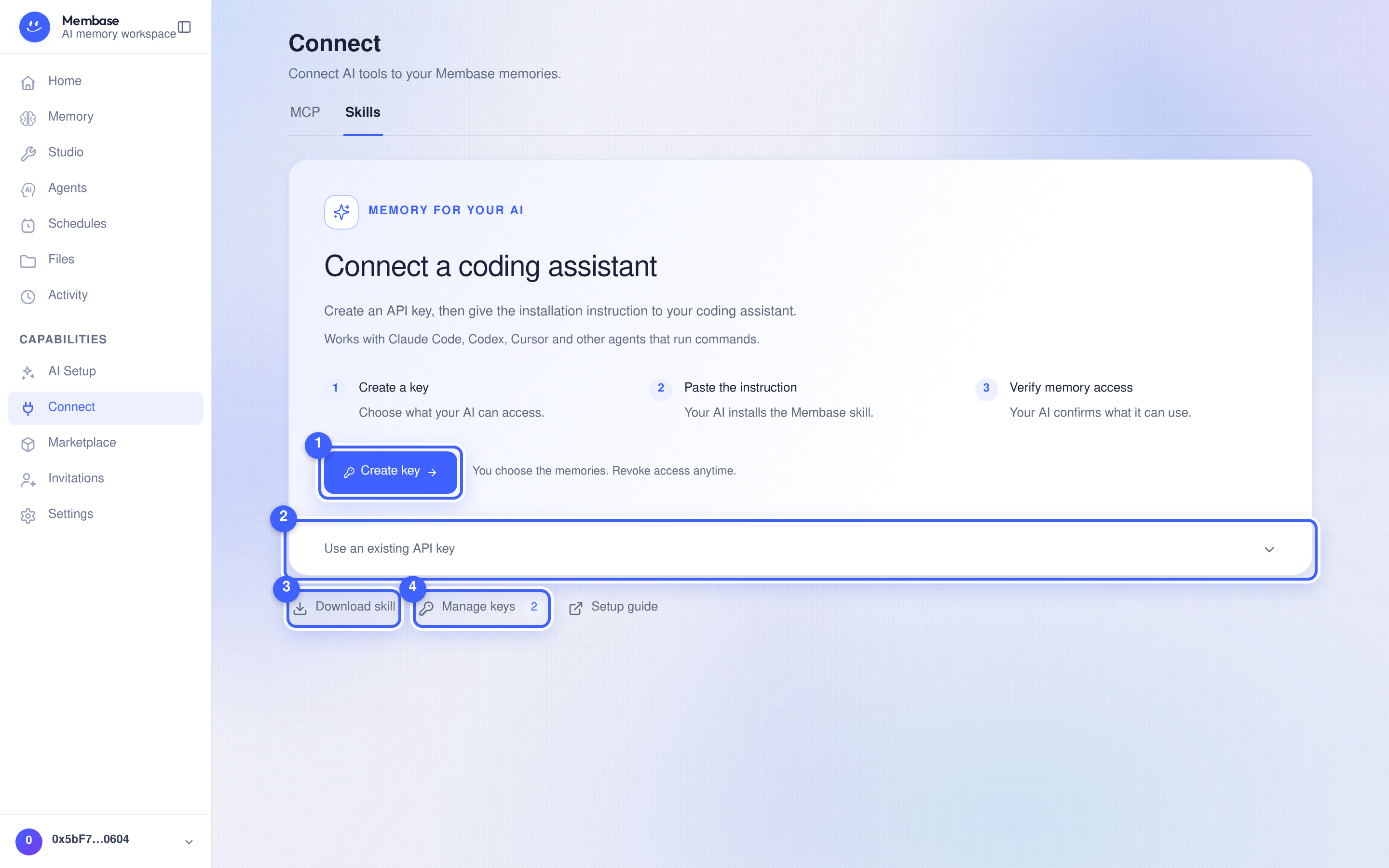
The **Skills** tab keeps setup in three steps: create a key, paste the instruction, and let your AI confirm which memories it can use. It works with coding assistants such as Claude Code, Codex and Cursor that can read pages and run commands.
1. **Create key.** Choose the access and memories your AI may use.
2. **Use an existing API key.** Expand this to copy an installation instruction without creating another key. Your AI installs the skill, then asks for your existing key.
3. **Download skill** gets the complete folder for a manual installation. **Setup guide** opens the detailed instructions.
4. **Manage keys** opens your developer keys, where you can change access or revoke a key.
## The skill way, step by step
[Section titled “The skill way, step by step”](#the-skill-way-step-by-step)
1. Press **Create key**. The **Create an API key** dialog starts with name *my AI* and access **Read & write**. Choose the memories it may reach and press **Create key**.
2. Copy the instruction on the next screen. It includes the key, which is shown only once.
3. Paste it to your AI. It installs the skill, stores the key, and reports which memories it can use. If none are selected, open **Manage keys**, choose the key, and update its memory access.
The skill uses the API with your developer key. If the AI already has Membase MCP tools, it uses those tools and keeps the skill for its rules.
Manual MCP configuration is under **MCP › Manual configuration**. The API is documented on the developer docs’ [API reference](/build/reference/api-reference/).
## Set an app up by hand
[Section titled “Set an app up by hand”](#set-an-app-up-by-hand)
Picking a dashed tile unfolds the connector URL and the steps for that app:

1. **The steps.** Written for that app’s own menus. Follow them in the app; the last one brings you back here to approve access and tick the memories the app may read.
## An app’s page
[Section titled “An app’s page”](#an-apps-page)
Once connected, the tile opens the app’s page: the hero (name, *Authorized · used …* or *Authorized · awaiting first use*, and the amber words *No memory access* while no memory is switched on), a **Uses** card with one row per memory and its switch, and, when there is more than one approval, an **Approvals** card with a **Revoke** per credential. **Disconnect…** in the hero revokes every approval at once.
> Connecting is the account’s, once. Which memories an app uses is the memory’s, and the switch on the app’s page and the switch on the memory’s *Use in* card are the same switch.
## What the app can do
[Section titled “What the app can do”](#what-the-app-can-do)
A connected app gets two tools: list the memories it may use, and search them. It cannot see memories you have not switched on for it, and it cannot tell that they exist. Turning a switch off takes effect on the app’s very next question. If you ticked **Profile access** when approving, it also gets your profile — the standing facts your assistant keeps about you and what changed recently. That tick lives on the consent screen only: the app’s page has no profile switch, so to change it, **Disconnect…** the app and approve it again. An app can never add, delete or forget anything.
## Developer keys
[Section titled “Developer keys”](#developer-keys)
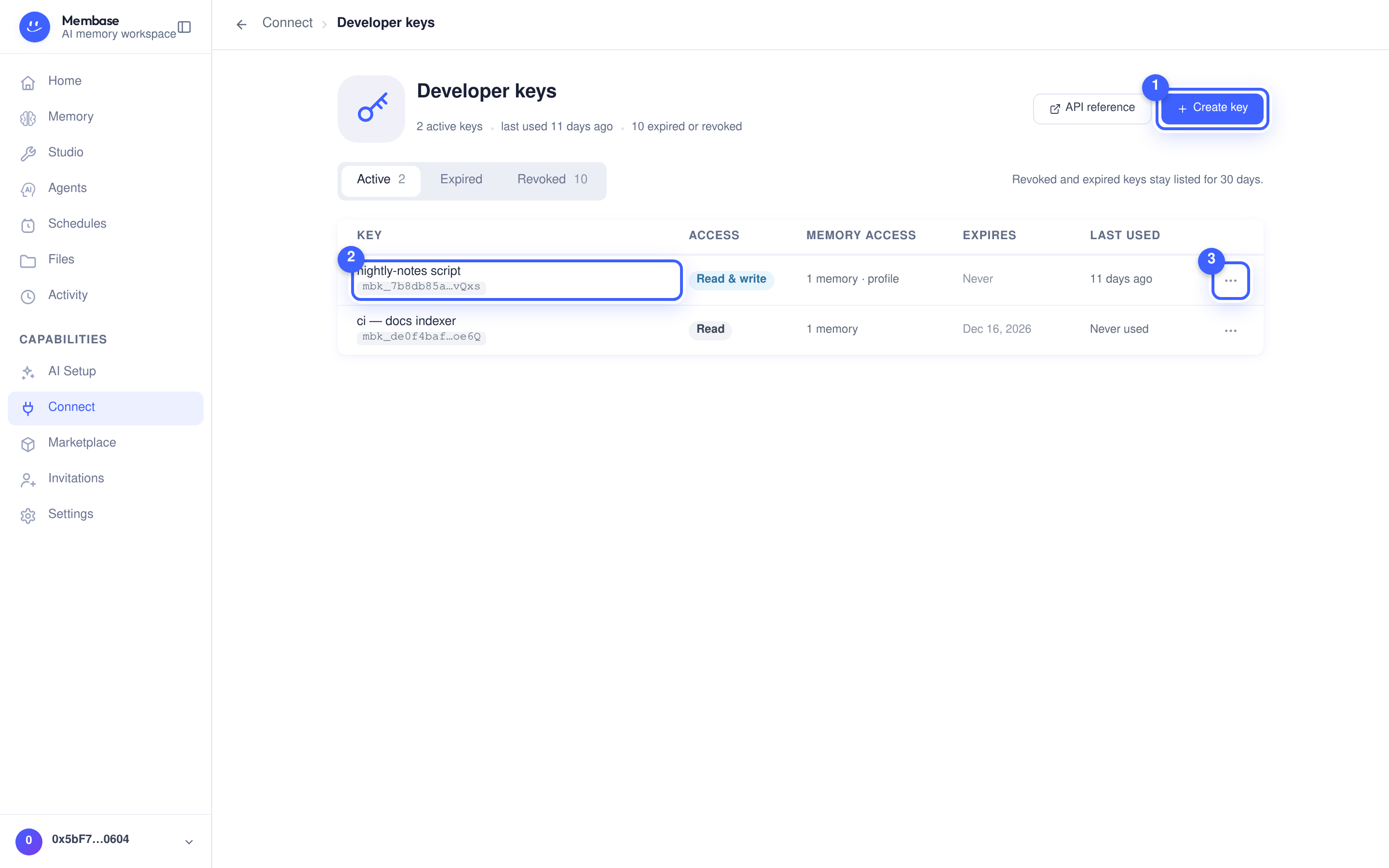
A **developer key** is your own credential for a script, a server, an SDK or an AI that runs commands. It reaches your memory the way a connected app does, over the memories you choose, at an access level you pick, for as long as you say. Connected apps do not need one; they approve on the consent screen.
**Manage keys** on the Skills tab opens the keys page. Every key is one row: name and hint, access, reach, expiry, last use. **Active**, **Expired** and **Revoked** are the three segments; a key that has stopped working stays listed for 30 days so you can see what it was. **Create key** makes one; the name opens the key’s page; **⋯** at the end of a row holds **Rotate…** and **Revoke…**.
### Create a key
[Section titled “Create a key”](#create-a-key)
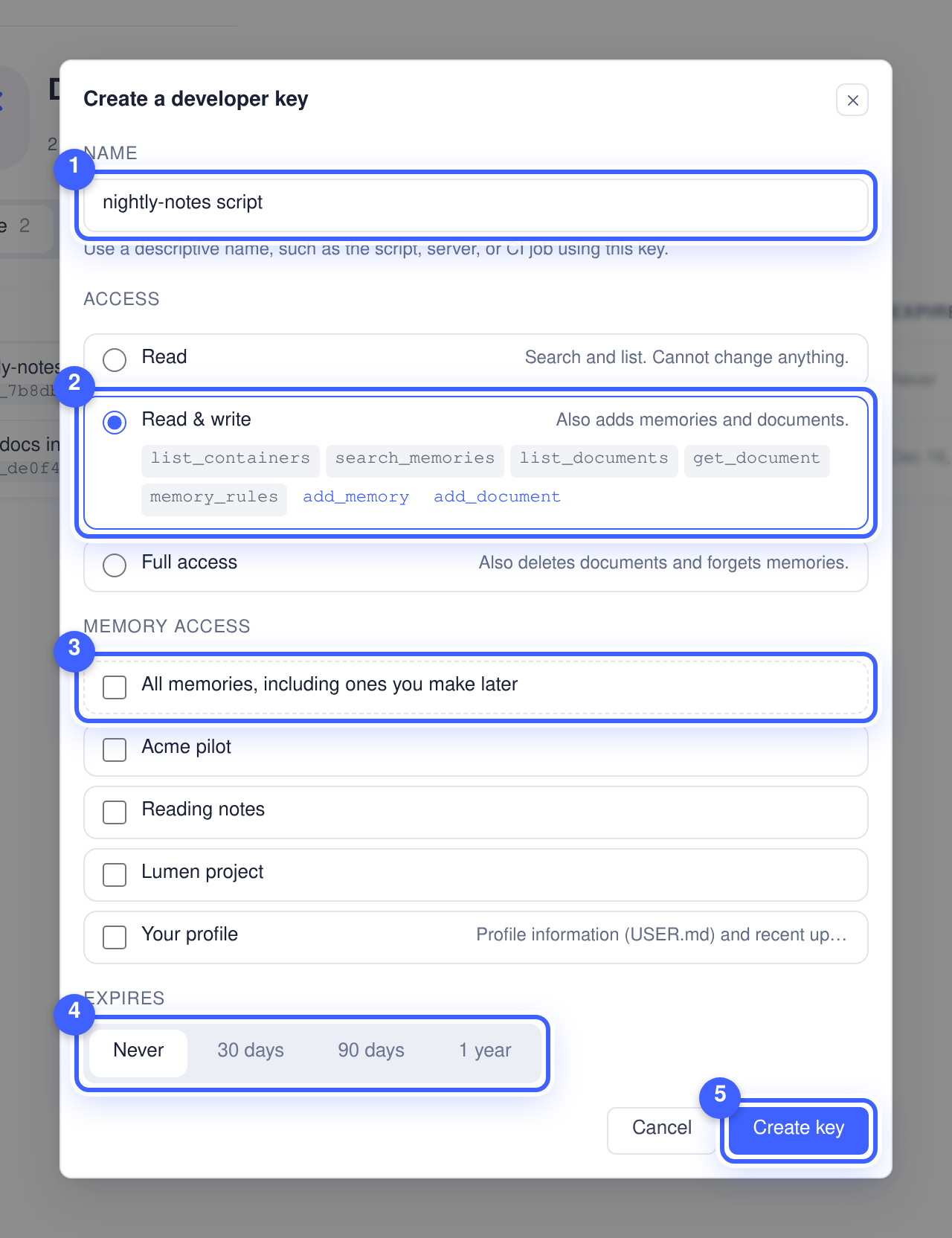
1. **Name** (1) it after what will hold it, for example *nightly-notes script*, so a revocation stops one thing.
2. Pick the **Access** (2). The level you pick shows the tools it gets:
* **Read** — search and list. It cannot change anything.
* **Read & write** — also adds a memory or a document.
* **Full access** — also deletes a document or forgets a memory. Each of those calls must still say so explicitly; a key never removes anything on its own.
3. Pick the **Memory access** (3). Nothing is ticked to begin with. Tick the memories it may use, or **All memories, including ones you make later**. **Your profile**, the standing facts your assistant keeps about you, is the last row.
4. Pick when it **Expires** (4): never, 30 days, 90 days or a year.
5. Press **Create key** (5).
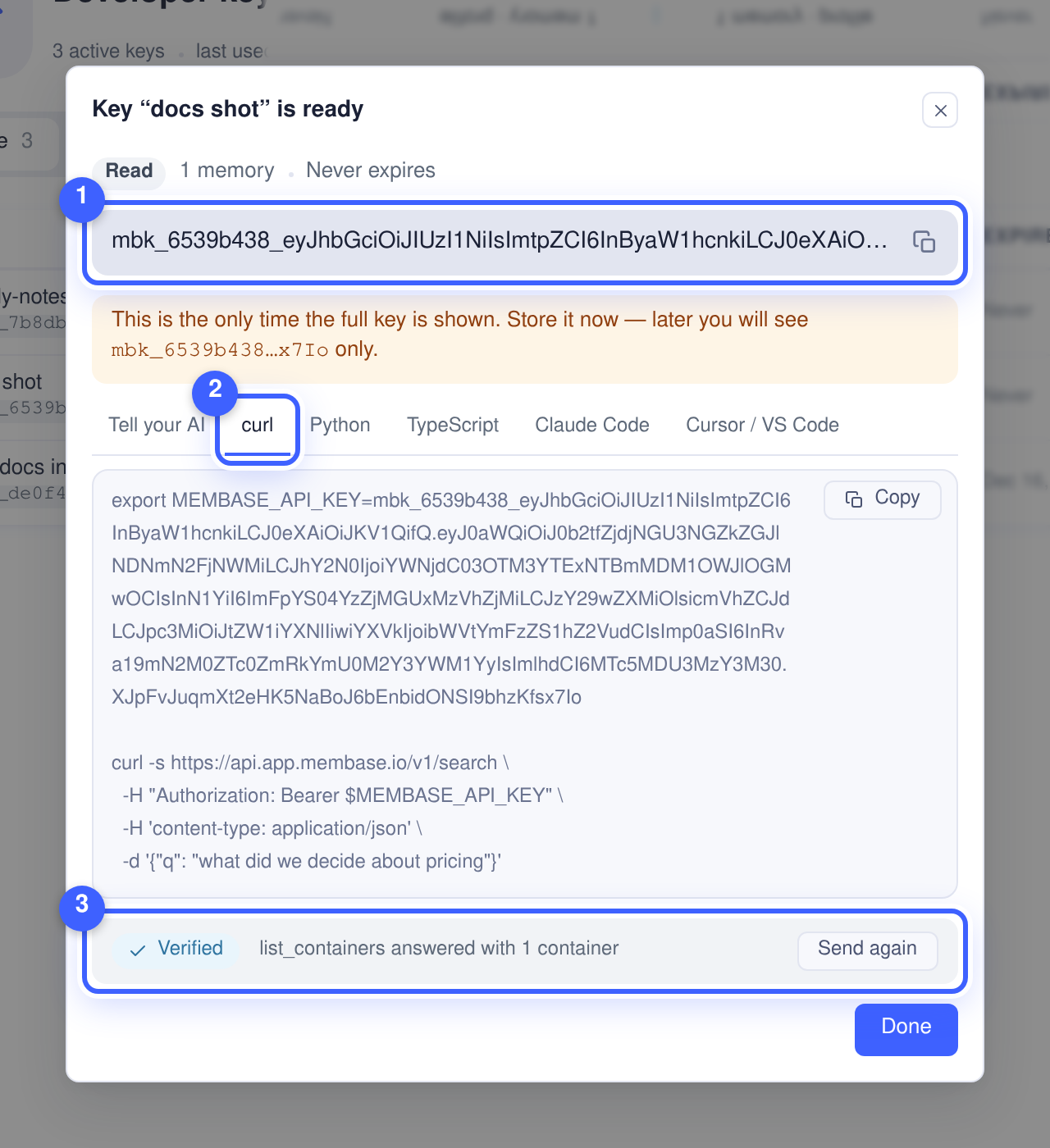
The token (1) appears once, in full. Store it now: afterwards the app shows only its hint, such as `mbk_7f3a92d1…c91e`, which is enough to tell your keys apart and never enough to use one. The same screen gives the token in six shapes (2): **Tell your AI** (the one sentence from the Skills tab), a `curl` call, Python, TypeScript, the Claude Code command, and the `mcp.json` block Cursor and VS Code read. A key created from the Skills tab’s **Create key** shows only the **Tell your AI** sentence, and a key’s page shows no snippets afterwards. **Send a test call** (3) makes one real call with the new key from your browser and reports *Verified*, and how many containers `list_containers` answered with.
Using the key from a script or an SDK is the developer [Quickstart](/build/getting-started/api-quickstart/); using it in Claude Code, Codex, Cursor or Kimi Code is on each client’s page under **Connect your AI**.
### A key’s page
[Section titled “A key’s page”](#a-keys-page)
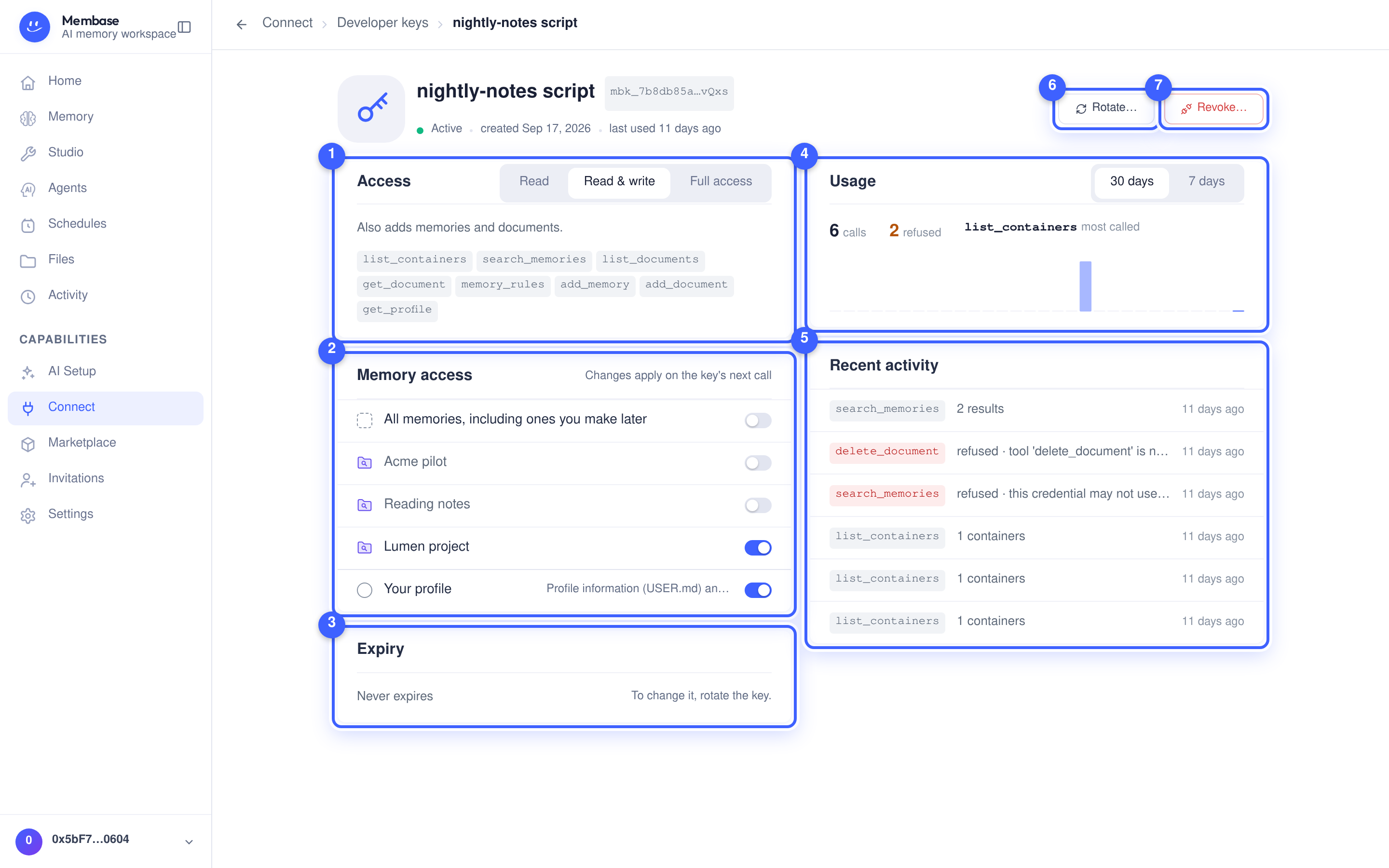
* **Access** (1) — change the level with the segmented control; the tools it now holds are listed under it. The change applies on the key’s next call; the token stays the same.
* **Memory access** (2) — a switch per memory, one for *All memories, including ones you make later*, and one for *Your profile*. Off takes effect on the key’s next call.
* **Expiry** (3) — when the token stops working. It cannot be extended; to change it, rotate.
* **Usage** (4) — calls in the last 30 or 7 days, how many were **refused** (the key asked for a memory or a verb it does not have), and the tool it calls most.
* **Recent activity** (5) — the last calls one by one: tool, memory, what came back, when. A refused call is red and says why.
Click the name to rename the key. Which memories a key reaches can also be switched on the memory’s own page under **Use in**, where keys are listed after the apps.
### Rotate and revoke
[Section titled “Rotate and revoke”](#rotate-and-revoke)
**Rotate…** (6) makes a new key with the same access, reach and expiry, and asks what to do with the current one. By default it keeps working until you revoke it, so you can swap the value in your environment first; or revoke it on the spot.
**Revoke…** (7) ends a key at once: every script holding the token fails on its next call. The dialog shows the key’s hint and warns when the key was used in the last week. A revoked key stays listed under **Revoked** for 30 days.
Removing the connector inside Claude or ChatGPT does not tell Membase. To be sure access has stopped, open the app’s page here and **Disconnect…**.
## If something looks wrong
[Section titled “If something looks wrong”](#if-something-looks-wrong)
Look up the word on screen.
| It says | What it means | Do |
| ----------------------------------------------------------- | -------------------------------------------- | ------------------------------------------------------------------------- |
| *Set up* | this app is not connected | pick the tile and follow the steps |
| *No memory access* (amber) on an app’s page | connected, but no memory switched on | turn a switch on under **Uses** |
| the app cannot see a memory | its switch is off | memory page › **Use in** |
| I removed the app in Claude but it still shows *Authorized* | the app did not tell Membase | **Disconnect…** on the app’s page |
| *The MCP address is unavailable* | the page could not ask the server for it | reload; the sentence for your AI still works |
| my AI installed the skill but says it has no access | the skill needs a developer key | Skills tab › **Create key**, and paste the sentence to the AI |
| a key’s row says *Expired* | its token has lapsed | **⋯ › Create a similar key** on the Developer keys page |
| *in 6 days* on a key’s row (amber) | the key expires within a week | **Rotate…** and swap the value |
| *refused* in a key’s Recent activity | the key asked for something it does not have | the row says which memory or verb; adjust **Memory access** or **Access** |
| I already have a key | you can reuse it | Skills tab › **Use an existing API key** |
# Memory
> The Memory page as one drive: tiles, a memory's page, the status line, Settings, a source's page, and what each word means.
The Memory page as one drive: tiles, a memory’s page, the status line, Settings, a source’s page, and what each word means.
The Memory page is one drive. Its root shows your memories as tiles; each memory opens as a page with the same anatomy.
## The home page
[Section titled “The home page”](#the-home-page)
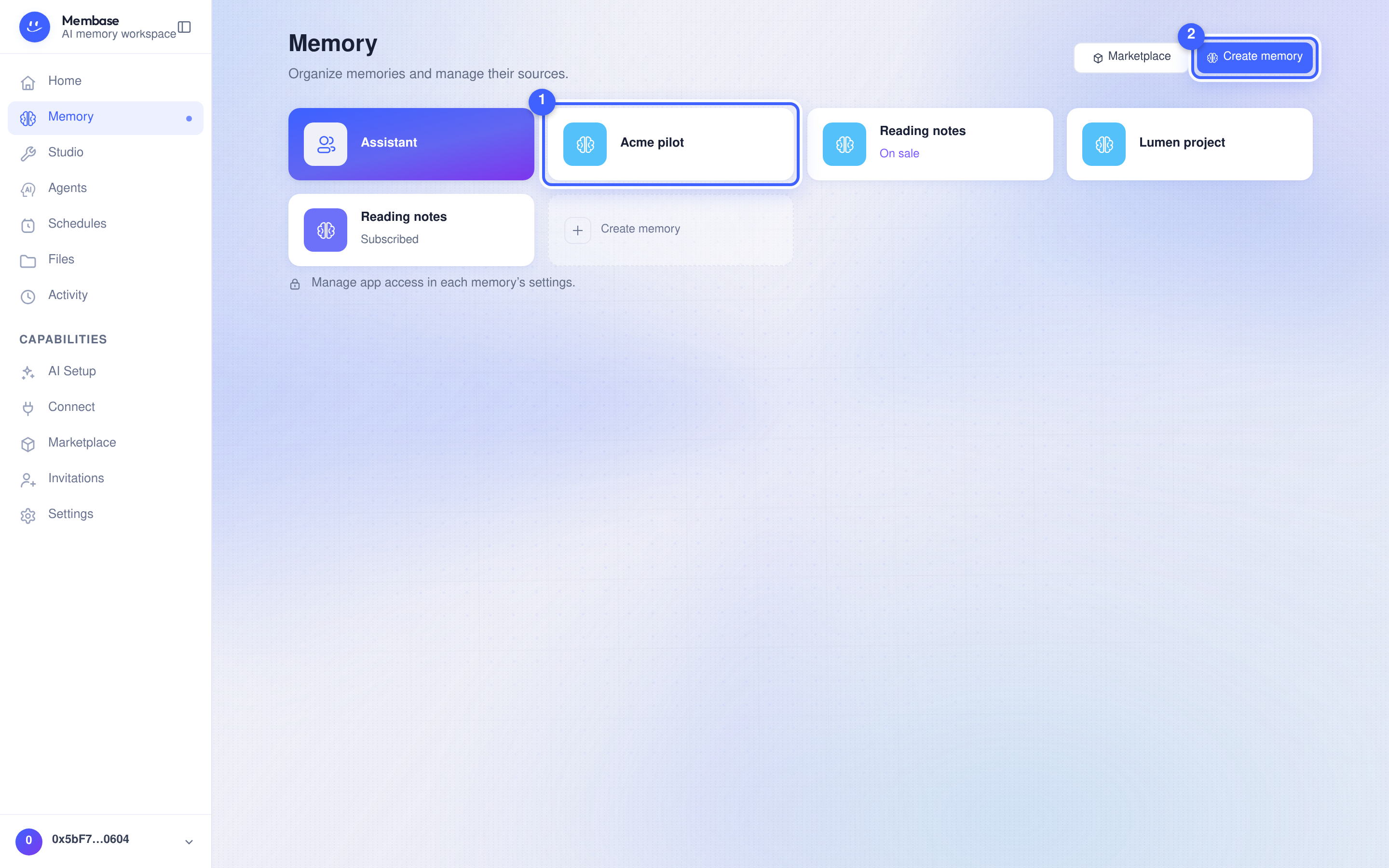
1. **A memory tile.** Glyph, name, and a state word only when there is one: *Add a source* (reads nothing yet), *On sale*, *Subscribed*.
2. **Create memory.** Opens the Create memory dialog. **Marketplace** beside it opens memories other people sell.
The Assistant’s own memory is always the first tile. The home page lists the Memories before reading their contents.
## A memory’s page
[Section titled “A memory’s page”](#a-memorys-page)
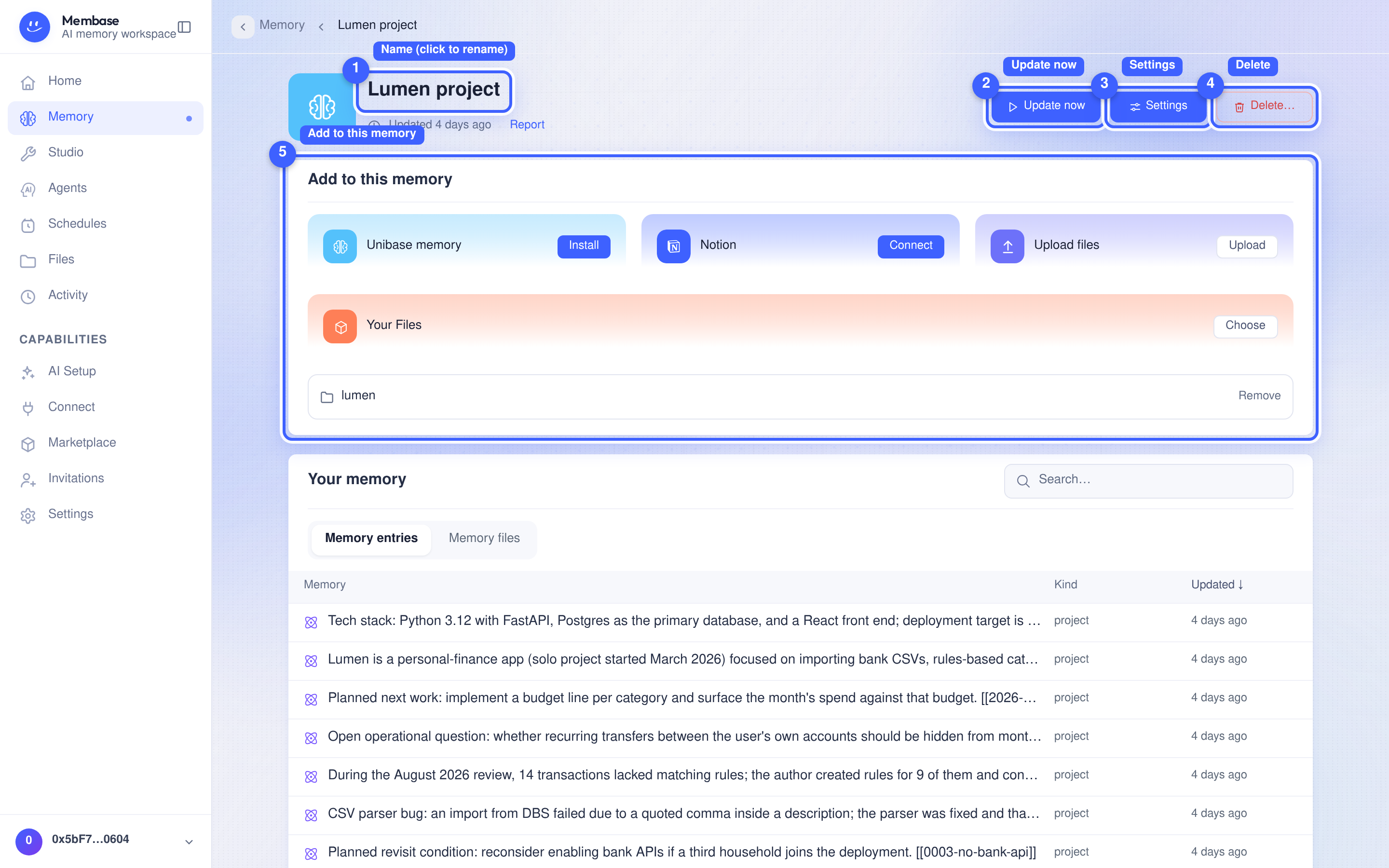
1. **Name.** Click to rename in place.
2. **Update now.** Process the Memory’s sources manually. The button is disabled while an update is running or when the sources are not ready.
3. **Settings.** Configure the name, instructions, sources, schedule and sharing in one dialog.
4. **Delete…** Says first the one irreversible thing (everything the memory learned goes with it), then what depends on it.
5. **Add to this memory.** Choose Unibase memory, Upload files, Your Files, or Notion where available. Sources you added are listed below with a **Remove** per row. [Sources](/use/bring-your-material-in/bring-material-in/) explains each option.
Under the Add card:
* **Your Memory.** What this memory currently knows: search, a kind filter, one list of pages and facts. Click an item to read it in the right column.
* **Use in.** One switch per app you have connected. **Connect an app** when there is none.
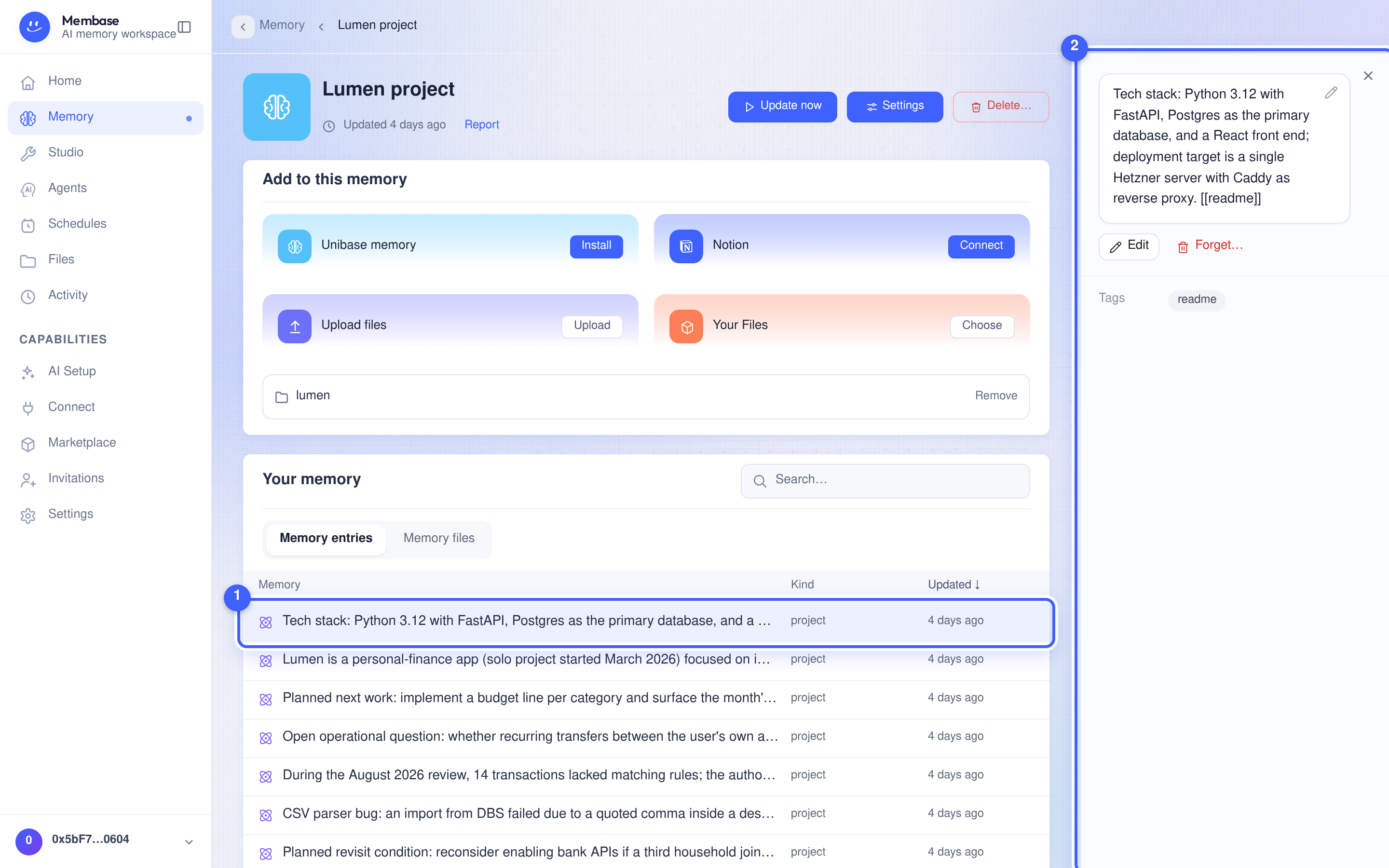
1. **An item.** One thing the memory keeps, with its kind and when it was last updated. The list contains what the Memory learned and any corrections you made through **Edit**.
2. **The right column.** The item’s full text, its tags, and **Edit** / **Forget…** for that one item.
### The status line
[Section titled “The status line”](#the-status-line)
The line under the name is the memory’s state and nothing else:
| It says | Meaning |
| -------------------------------- | -------------------------------------------------------------------- |
| *Not run yet* | never run |
| *Checking…* | the page is reading the state |
| *Running…* | a run is queued or running; survives a reload |
| *Updated 3h ago · Report* | the last run read the current sources; **Report** opens what it did |
| *Run failed* | the last run failed; open the report, fix, run again |
| *Run refused* | the last run was refused before it did any work; **Report** says why |
| *Run canceled* | the last run was canceled |
| *Starting memory…* | the memory’s store is waking up |
| *Unable to check this memory: …* | the page could not read the state; the reason follows |
“Unread” is decided by versions, not clocks. A sync that changed nothing, or a run on another memory, cannot make this memory look up to date.
## Settings
[Section titled “Settings”](#settings)
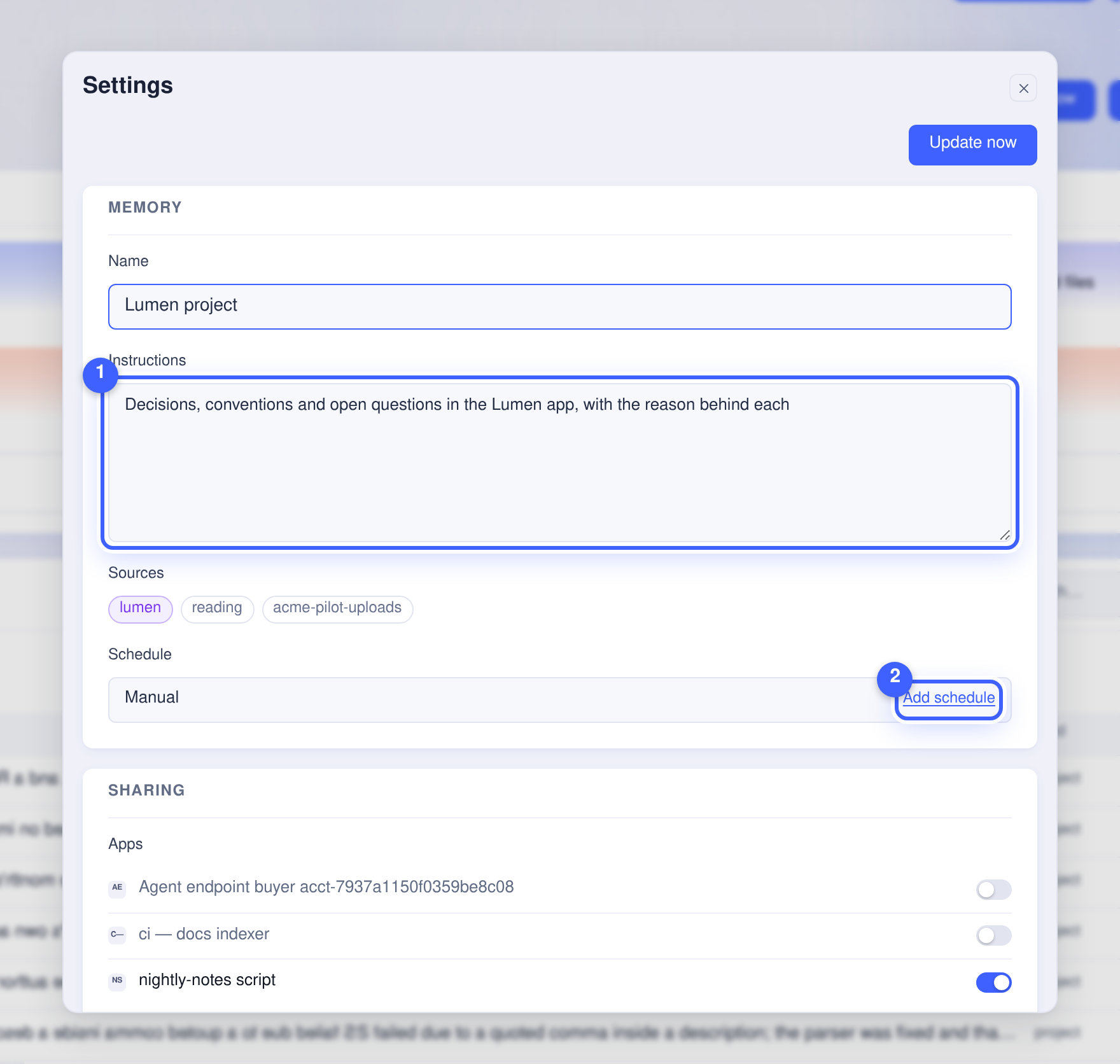
Every field saves as it changes. There is no Save button. The dialog has its own **Update now** at the top.
1. **Memory.** **Name**, and **Instructions**: what the memory keeps. For a memory over your conversations, the instructions filter what the chats say, they are not a subject to write about.
2. **Sources.** What this memory reads; each row opens the source’s page.
3. **Schedule.** *Manual* until you **Add schedule**; then **Change**, **Pause** and **Resume**. Cadences are picked, not typed: hourly, daily, weekly, monthly, or a custom cron. Times are in UTC; the picker shows your local equivalent.
Below: **Sharing** (apps as switches, what depends on this memory, **Sell** / **Unlist…**) and **Advanced** (model, skills, its agent, **Open in Studio**).
## A source’s page
[Section titled “A source’s page”](#a-sources-page)
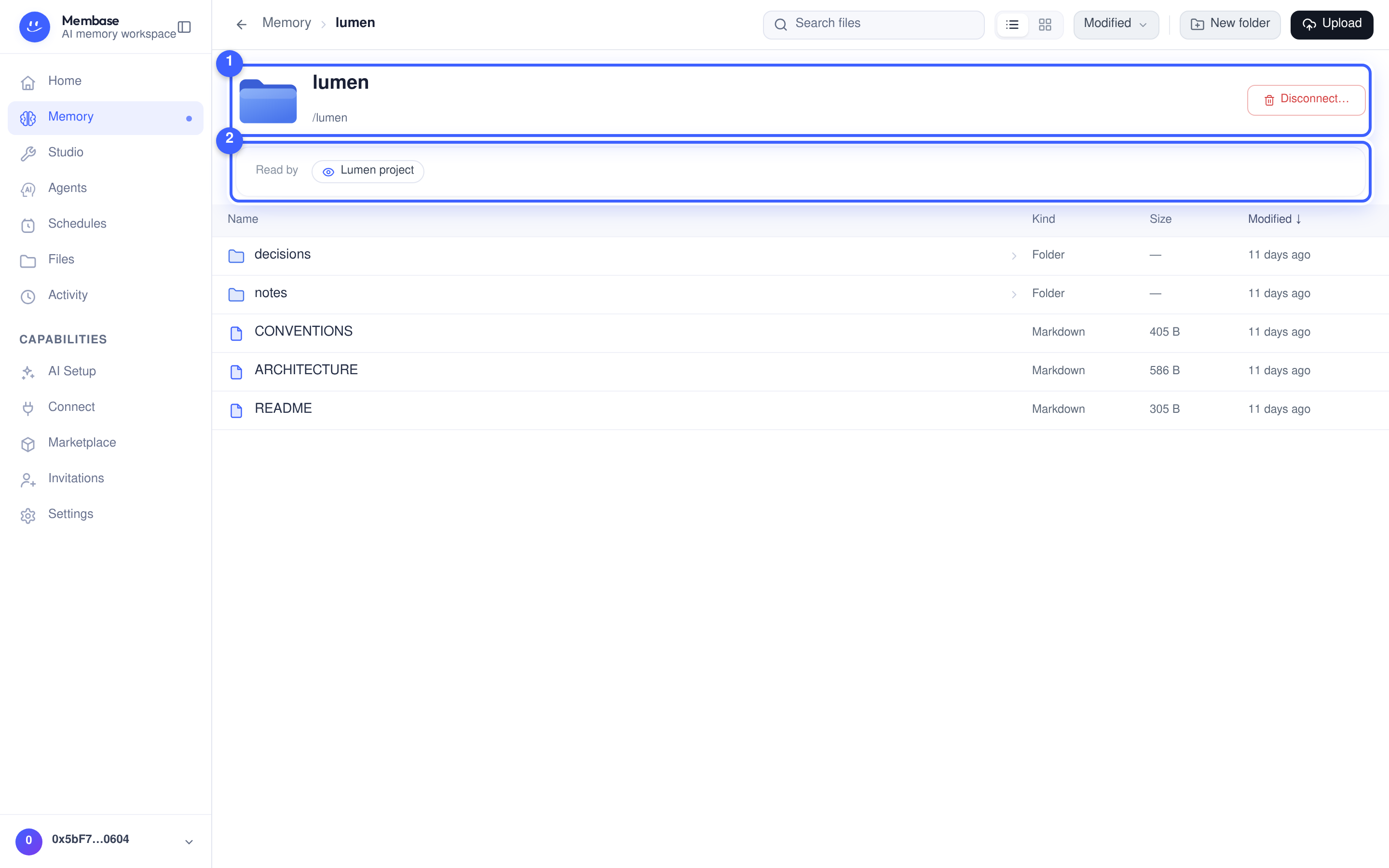
Each source has its own page, reached from Settings › Sources or from the Add card.
1. **Hero.** The source and its path. A folder in your Files is read in place, so there is nothing to sync, and **Disconnect…** is its one verb. A connector source (Notion, Unibase memory) shows a status word here instead, with **Sync now** (**Retry** after a failed sync), **Reauthorize** or **Reconnect** when they apply, plus **Manage…** and **Delete…**.
2. **Read by.** Which memories learn from this source.
A folder source lists its files below, as an in-place workbench: open, rename, move, upload. A conversation source lists its transcripts.
## If something looks wrong
[Section titled “If something looks wrong”](#if-something-looks-wrong)
Look up the word on screen.
### On the memory
[Section titled “On the memory”](#on-the-memory)
| It says | What it means | Do |
| -------------------------- | ----------------------------------------------------------- | ---------------------------------------------------------------------------------- |
| **Update now** is disabled | the memory has no source yet, or its state is still loading | add a source; wait for *Checking…* to finish |
| **Update now** | starts a manual update from the sources | select it to update the Memory |
| *Run failed* | the last run did not finish | open **Report**; usually the model source is off or a source needs reauthorization |
| *Not run yet* | never run | select **Update now** |
| *Run refused* | the run was refused before it started | open **Report**; usually no model source or no turns left |
| *Add a source* on the tile | reads nothing yet | Add card |
### On a source
[Section titled “On a source”](#on-a-source)
| It says | What it means | Do |
| --------------------------------- | ----------------------------------- | --------------------------------------------------- |
| *Queued* / *Syncing…* | fetching raw material | wait; the memory reads it on its next run |
| *Sync failed* | the last fetch failed | **Retry**; if it repeats, the source may have moved |
| *Needs reauthorization* | the source’s own credential expired | **Reauthorize** |
| *Access revoked* / *Disconnected* | the source no longer grants access | **Reconnect** or remove it |
# Marketplace
> Browse skills and memory listings, manage purchases and subscriptions, and publish a memory listing.
Browse skills and memory listings, manage purchases and subscriptions, and publish a memory listing.
Browse published skills and memories. Check the listing type, included access, price and usage allowance before purchasing.
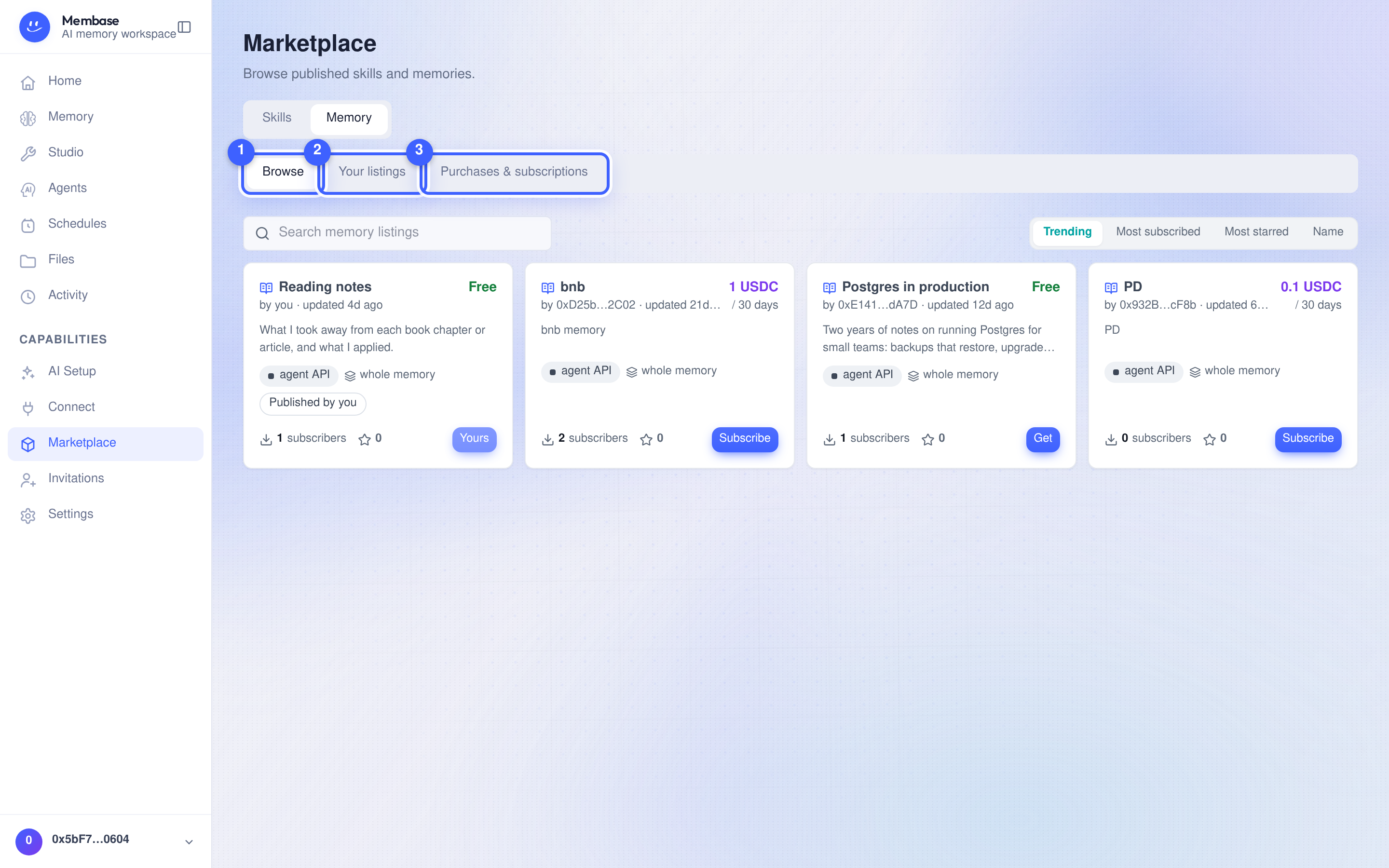
1. **Browse.** Search the catalog and open a listing to review its details.
2. **Your listings.** Manage the memories you offer. **List a memory** creates a listing.
3. **Purchases & subscriptions.** View what you have bought or subscribed to.
The **Skills | Memory** switch selects the catalog.
## Memory listings
[Section titled “Memory listings”](#memory-listings)
A listing you create today is an **agent endpoint**. Two earlier kinds are no longer offered but still show for the people who bought them:
| Type | What you receive |
| ------------------------------- | ------------------------------------------------------------------------------------------------------------------------------------- |
| Agent endpoint | A per-listing MCP connector URL your AI calls with `agent_invoke`; answers, never files. Valid 30 days per payment; renew to continue |
| Snapshot (no longer offered) | A copy of the listed items at purchase time; later seller edits do not update it |
| Live memory (no longer offered) | Read access to the seller’s memory for the subscription period |

Open a listing and read **Included access** for its specific terms. Live access can be revoked by the seller; a paid period does not guarantee access after the seller revokes it.
### Buying
[Section titled “Buying”](#buying)
Choose the purchase or subscription action shown on the listing. Review the confirmation, including any usage limit. Paid listings open your wallet for payment; the purchase is complete only after payment succeeds. Live paid access is valid for the period shown, and renewal requires another payment.
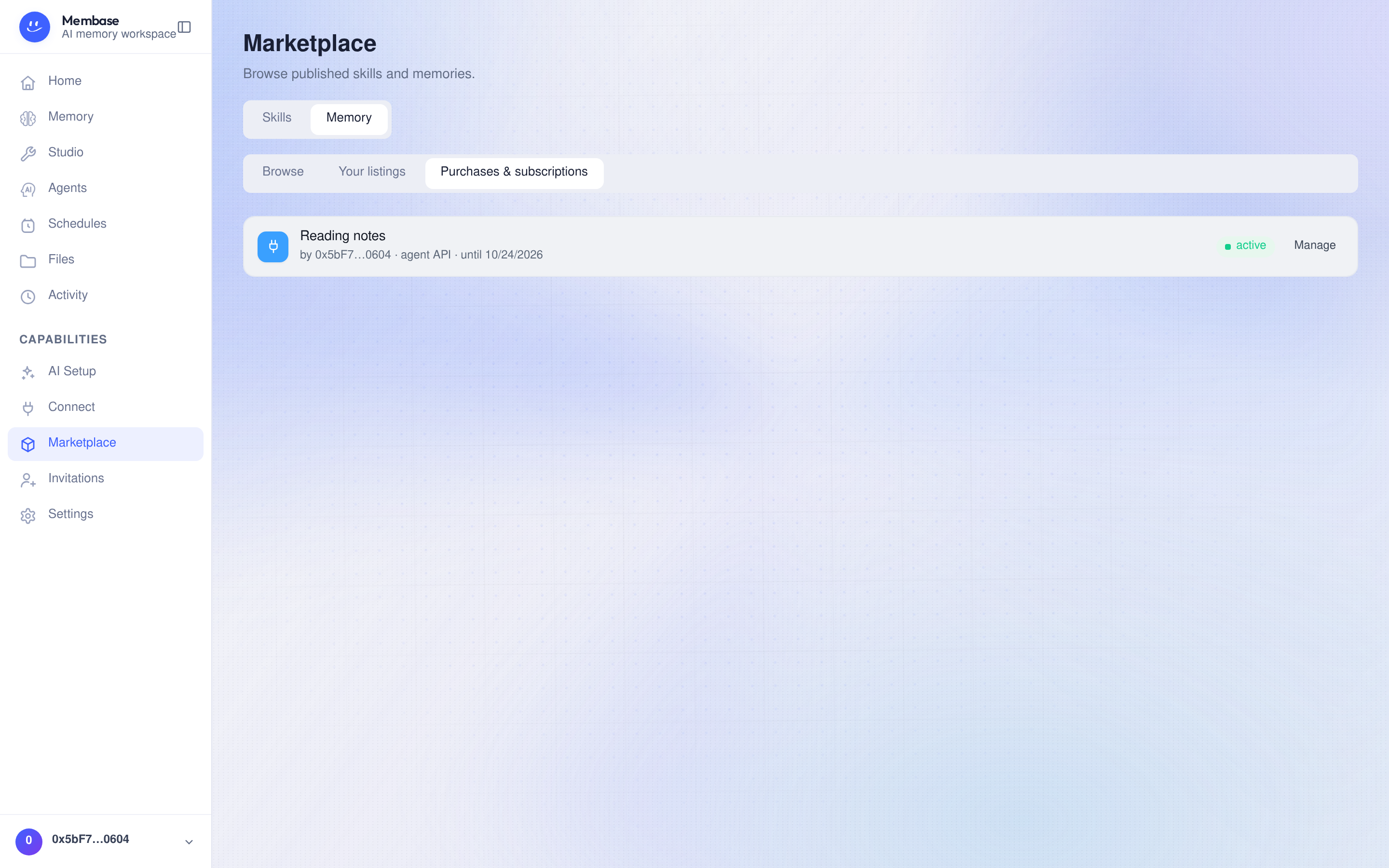
Use **Purchases & subscriptions** to review status and access dates, open snapshot items, or manage an available credential. Use the actions offered for that listing type.
A subscription also appears as a *Subscribed* tile on your Memory page:
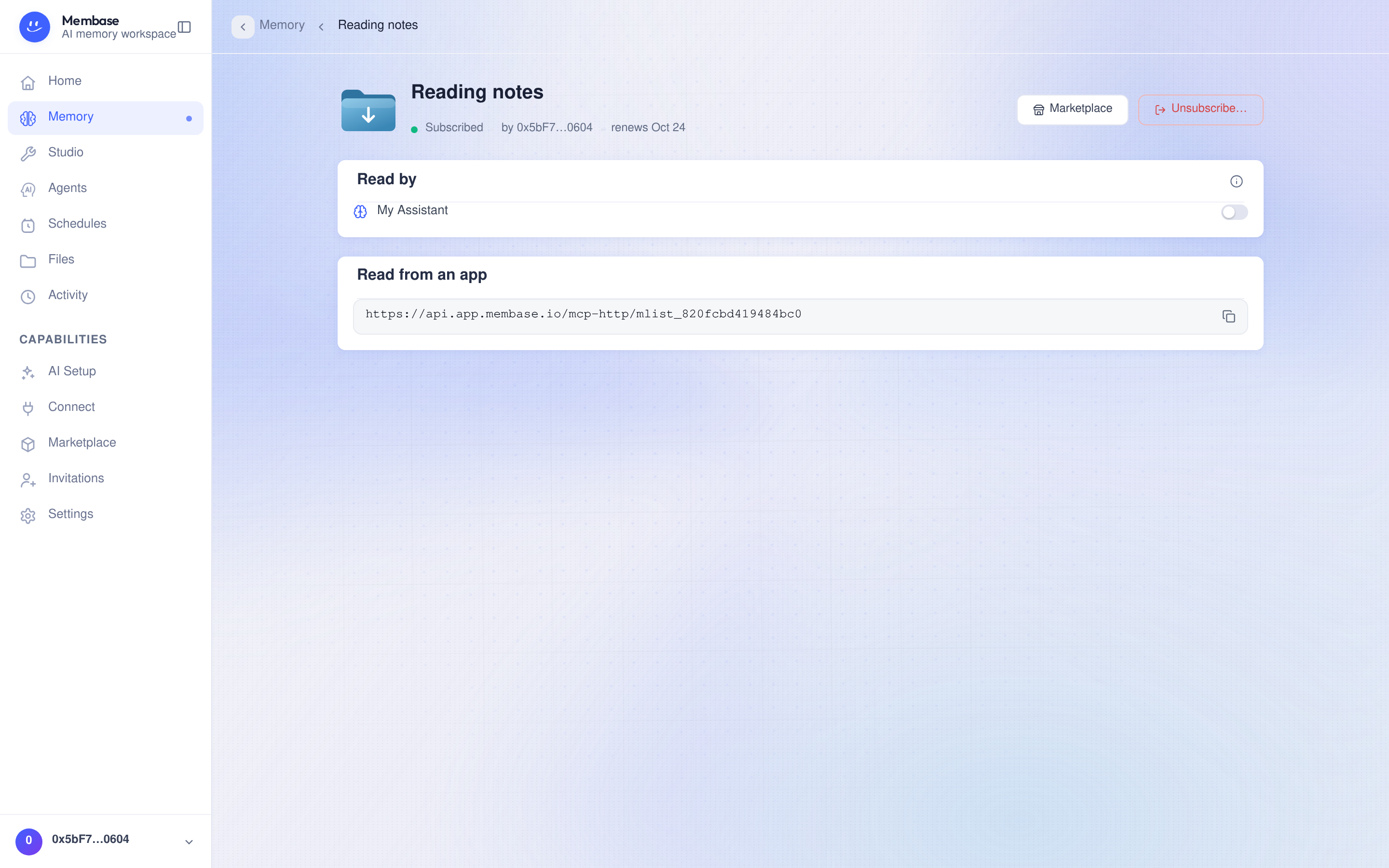
Its page shows the seller and access period. **Read by** selects which of your agents may consult it. **Read from an app** provides connection details when available. You cannot edit the seller’s memory. Review the confirmation before unsubscribing.
### Selling
[Section titled “Selling”](#selling)
1. Select **List a memory**, or **Sell** under Settings › Sharing › Marketplace on a Memory.
2. Select the Memory and fill in the **Listing name**, **Description** and sample content.
3. Set the price and usage allowance. A paid listing requires a receiving wallet.
4. Review the details, then select **Publish** to make the listing discoverable.
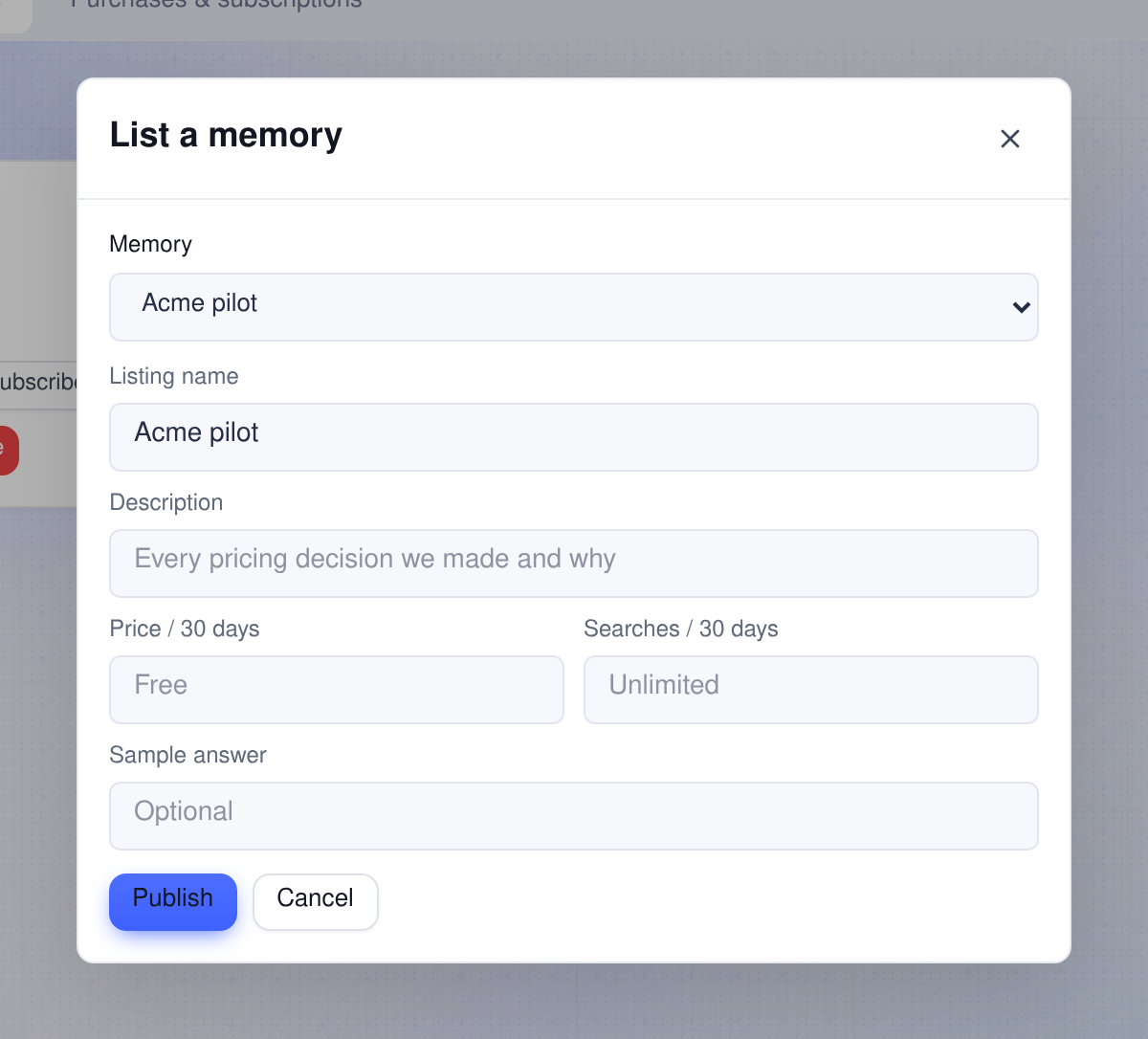
Manage listings under **Your listings**, where each row offers **Publish**, **Edit** and **Delete**; on the Memory’s side, Settings › Sharing › Marketplace offers **Unlist…**. Before deleting or unlisting, review how the action affects existing subscribers. Removing a listing and deleting the Memory itself are separate actions.
## Skills
[Section titled “Skills”](#skills)
**Browse** lists published skills. **Your skills** lists installed or published skills. Review a skill before installing it for use by an agent.
# Home
> Your conversation with the Assistant: the rail, the entry cards, the composer, and the remote channel.
Your conversation with the Assistant: the rail, the entry cards, the composer, and the remote channel.
Home is your conversation with the Assistant. Everything else in the product feeds this page.
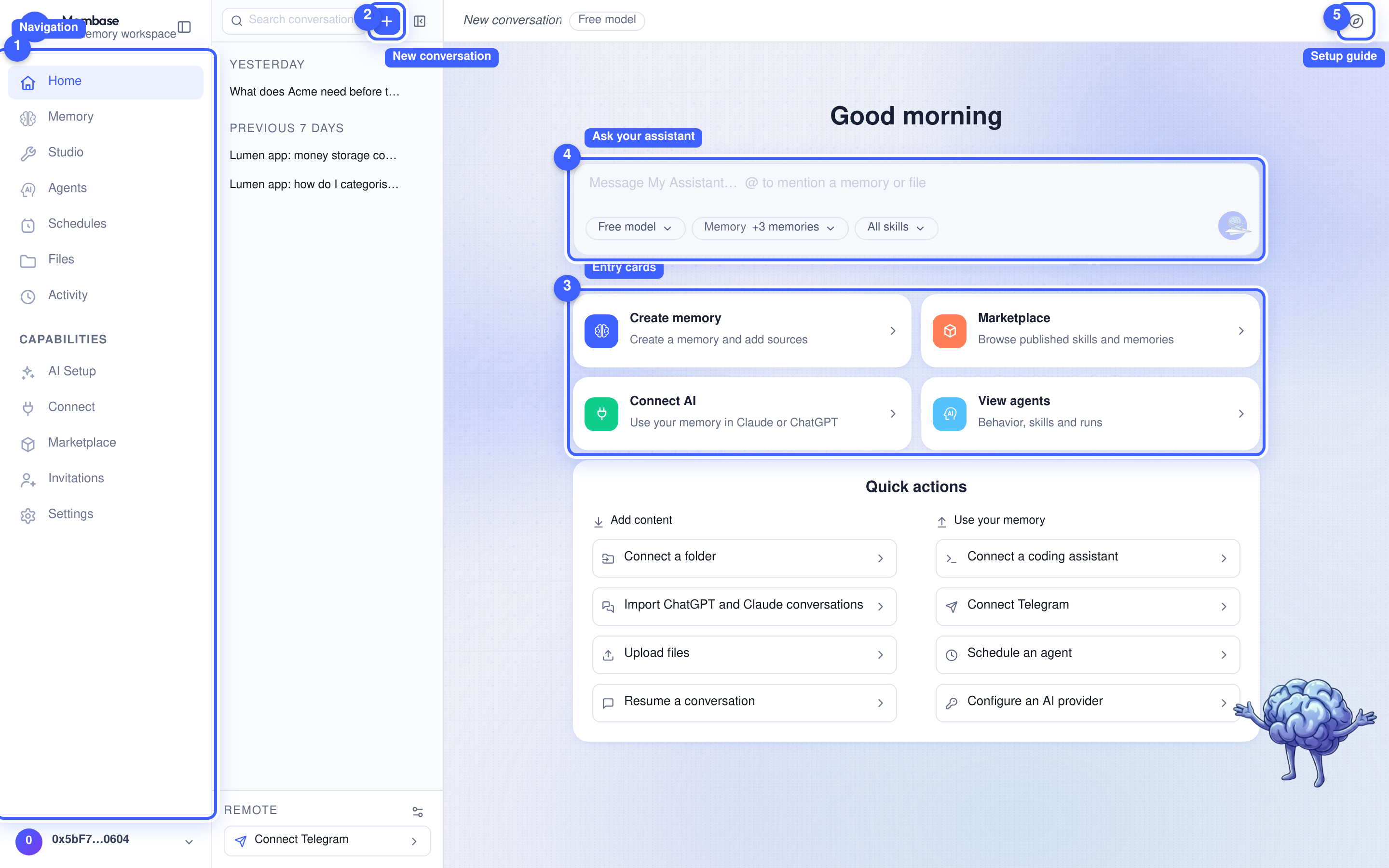
1. **Navigation.** The left rail. Flat items first, then a *Capabilities* group.
2. **New conversation.** Starts a draft row at the top of the rail. The first message turns it into the real conversation.
3. **Entry cards.** **Create memory**, **Marketplace**, **Connect AI** and **View agents** open their respective pages or setup steps. **Quick actions** below them provides shortcuts for adding content and using your memory.
4. **The composer.** The conversation box; its placeholder reads *Message …* and `@` mentions a memory or file. Enter sends, Shift+Enter breaks a line.
5. **Setup guide.** Replays the first-run guide from its name card.
## The conversation rail
[Section titled “The conversation rail”](#the-conversation-rail)
The rail lists your conversations grouped by day: Today, Yesterday, Previous 7 days, Older. Each row’s menu offers **Rename**, **Branch** and **End**. Ended conversations fold away at the bottom; they stay readable and the assistant can still search them, but they take no more turns. Their menu offers **Delete conversation**, which asks for confirmation.
At the foot of the rail, **Remote** holds the assistant’s Telegram chat. **Connect Telegram** opens the connection steps; once connected, the row opens a read-only view of that chat. See [Telegram](#telegram) below.
## The box
[Section titled “The box”](#the-box)
The three things you change mid-conversation sit along the bottom edge of the box: the model source, the memories to consult, and the skills. Send is at the right.
| Key | Does |
| ----------- | ------------------------- |
| Enter | send |
| Shift+Enter | new line |
| ↑ | recall your last question |
| Esc | stop the current reply |
| ⌘⇧O | new conversation |
## The transcript
[Section titled “The transcript”](#the-transcript)

1. **Your message.** In a bubble on the right, beside your account disc.
2. **The answer.** Rendered under the assistant’s mark and name. When it comes from your memory, the assistant says so and names the page it read.
3. **Activity.** Folded under the answer: which tools ran, including the memory it recalled.
Day separators replace a time on every line. Hovering a message shows **Copy**, **Retry**, **Edit & resend** and **Branch**. Under an answer you may also see memory traces such as *Saved to memory* or *Recalled an earlier conversation*. A *New reply* pill appears when an answer lands while you have scrolled up.
## Assistant settings
[Section titled “Assistant settings”](#assistant-settings)
The ⚙ **Assistant settings** button beside **Remote**, at the foot of the conversation rail, opens its settings as a dialog over the conversation (`/?settings=assistant` opens it too). One scroll, no tabs, every field saved as it changes: name, instructions, memories, skills, its Telegram chat, and the model card (which source answers and which model).
## Telegram
[Section titled “Telegram”](#telegram)
Use the **Remote** row below the conversation list to open a connected Telegram chat or connect a new one. It shares the assistant’s memory but keeps a separate conversation. The [Telegram guide](/use/use-your-assistant/telegram/) covers setup, scheduled results and disconnection.
## Three verbs
[Section titled “Three verbs”](#three-verbs)
| Verb | Effect | Reversible |
| ----------------------- | ----------------------------------------------------------- | ------------- |
| **New conversation** | opens a conversation | – |
| **End** | closes it; still readable and searchable | no more turns |
| **Delete conversation** | deletes the transcript; previously saved memory is retained | **no** |
## If something looks wrong
[Section titled “If something looks wrong”](#if-something-looks-wrong)
Look up the word on screen.
| It says | What it means | Do |
| ------------------- | ---------------------------------------------------- | ---------------------------------------------- |
| *AI is unavailable* | no model source | **AI Setup › Connect** a key or a subscription |
| the reply spins | first reply after a quiet period wakes the assistant | wait; if it does not land, **Retry** |
| *New reply* pill | an answer landed while you scrolled up | click it |
# Telegram
> Connect Telegram to your assistant, receive scheduled results, and manage or remove a connected chat.
Connect Telegram to your assistant, receive scheduled results, and manage or remove a connected chat.
The assistant that answers on Home can live in a Telegram chat as well. The same memory answers in both places, and anything a schedule produces is delivered to that chat. Telegram is not an MCP client: it is a second door to the one assistant, not a reader of your Memories from outside.
## Before you start
[Section titled “Before you start”](#before-you-start)
* Telegram on your phone.
* An account whose assistant has a working model under AI Setup; the chat answers with the same model as Home.
## Set up
[Section titled “Set up”](#set-up)
1. On Home, at the foot of the conversation rail under **Remote**, press **Connect Telegram**.
2. In the dialog keep **Scan a QR code** and press **Generate QR code**.
3. Scan the QR with your phone’s camera, or press **Copy link** and open the link in Telegram. Either way Telegram opens the Membase bot with a one-time code already filled in; send it.
4. Back in the dialog press **Check connection**. The chat appears under **Connected chats**, and the **Remote** row on Home now opens that chat.
The code is single-use, valid for 15 minutes and tied to your account. Nothing is connected until the bot actually receives it from your phone.
### Your own bot
[Section titled “Your own bot”](#your-own-bot)
If you would rather not share the Membase bot, pick **Use a custom bot**. Create a bot with @BotFather in Telegram (send it `/newbot`), paste the bot token the dialog asks for, then generate the QR the same way. The optional **Webhook secret token** is for operators who run their own webhook and can be left empty.
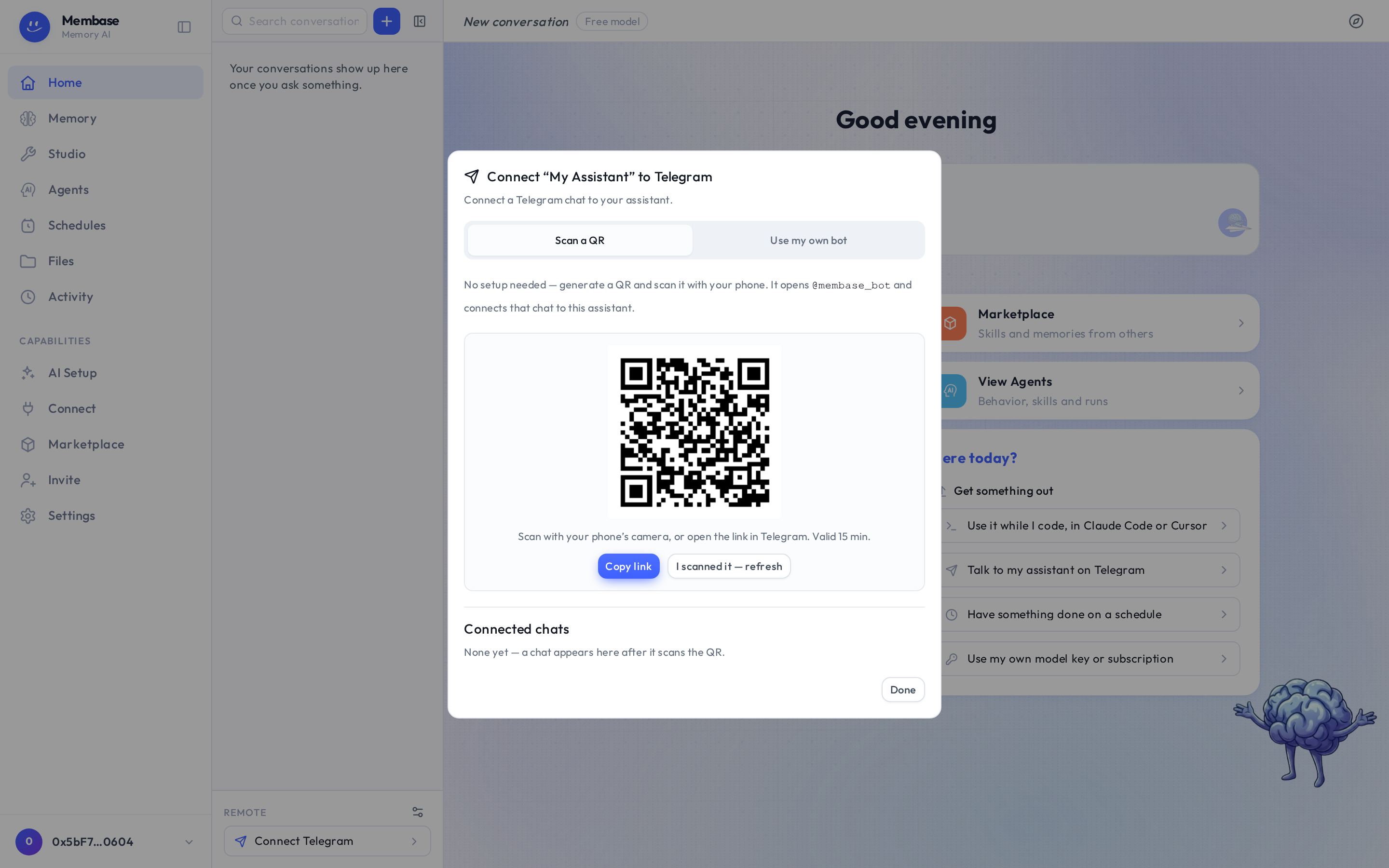
## What it can do
[Section titled “What it can do”](#what-it-can-do)
* **Talk to the assistant.** Ask anything you would ask on Home. It reads the same Memories and keeps the same instructions.
* **Receive scheduled results.** When a Memory or an agent on a schedule finishes a run, its result is sent to this chat. There is nothing to configure.
* **Read it on Home.** The **Remote** row opens a read-only view of the Telegram chat, so what you said on your phone is there when you are back at your desk.
The Telegram chat is its own conversation. It does not appear in the day-grouped list on Home, and Home’s conversations do not appear in Telegram; the memory is what they share.
## Which Memories it uses
[Section titled “Which Memories it uses”](#which-memories-it-uses)
The assistant’s: the Memories listed in the assistant’s own settings on Home (the ⚙ **Assistant settings** button beside **Remote**, at the foot of the conversation rail). There is no switch on Connect for Telegram, because Telegram is the assistant, not an app reading it.
## Remove it
[Section titled “Remove it”](#remove-it)
Open **Assistant settings** (the ⚙ beside **Remote**) and press **Disconnect** in its Telegram section. The connection dialog (Home’s **Connect Telegram** quick action) also lists **Connected chats** with a **Delete** per chat. The bot stops answering that chat at once, and scheduled results stop going there.
## If something looks wrong
[Section titled “If something looks wrong”](#if-something-looks-wrong)
| It says | What it means | Do |
| ---------------------------------------------------------------- | ------------------------------------------------- | ------------------------------------- |
| the bot never answers the code | the code expired (15 minutes) or was already used | generate a new QR |
| the chat answers on the phone but nothing shows under **Remote** | press **Check connection** | |
| a scheduled result never reached Telegram | no chat is bound | Home › Remote › **Connect Telegram** |
| the chat answers *Intelligence is off* | the assistant has no working model | AI Setup › **Connect** a model source |
# What's new
> New features and significant updates for Membase users and developers.
New features and significant updates for Membase users and developers.
New features and significant product changes, newest first.
## September 2026
[Section titled “September 2026”](#september-2026)
**Python and TypeScript SDKs (28 Sep).** Integrate Membase into your application with the Python or TypeScript SDK, now on PyPI and npm. Add documents, search memories and retrieve a profile with a developer key, or ask an agent with a subscription credential. [Get started with the SDKs](/build/reference/sdk-quickstart/).
**Notion sources (22 Sep).** Connect Notion and select the pages to use in a Memory. After syncing your sources, select **Update now** to process their content. [Connect Notion](/use/bring-your-material-in/notion/).
**AI options after the free allowance (22 Sep).** Your memories remain available when your free chat turns are used. To continue running your assistant, connect your own model in **AI Setup** or choose a paid plan.
**Developer keys and AI connections (17 Sep).** Create keys with specific permissions, memory access and expiry dates. Manage or revoke access at any time. In **Connect**, use the **MCP** tab for supported AI apps or the **Skills** tab for agents that can run commands. [Connect your AI](/connect/).
**Memory access through MCP and REST (17 Sep).** Connected apps can search memories, read documents and retrieve profiles. With the appropriate permissions, they can also add content and remove documents or memory entries. [API reference](/build/reference/api-reference/).
**Invitations (16 Sep).** Share your invitation link to invite others to Membase.
**Separate Home and Telegram conversations (8 Sep).** Use the same assistant memory in Home and Telegram while keeping their conversation histories separate. Ending or deleting one conversation does not remove the other.